Overview: My Desk is your personal home dashboard — the first screen you see each day, showing your pipeline, activity, and key records at a glance, with an AI assistant sitting right at the top ready to help. What My Desk Is Used For Use My Desk to:
- Check your forecast, top deals, and most active accounts and contacts in one view
- Ask Agent Q a question or give it a task without leaving your home screen
- Track your upcoming tasks, meetings, and calls for the week
- Spot at-risk or low-health opportunities before they become a problem
- Manage your tasks, conversations, and notes without switching modules
Using Agent Q from My Desk
At the top of the page, type a question into the “How can I help you today?”.. Press Enter or click send, and Agent Q processes your query and responds — directly on My Desk.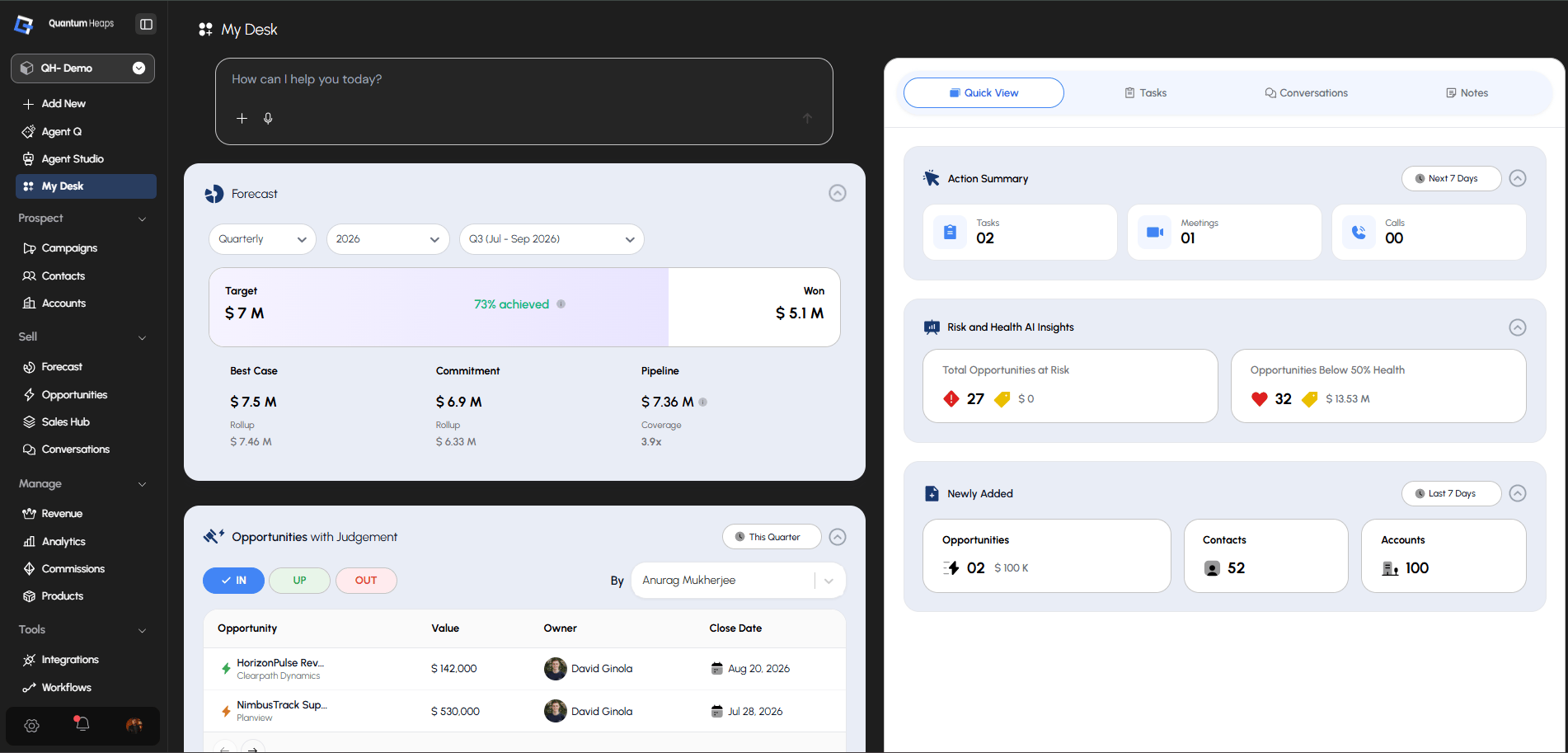
Left Panel Widgets
Forecast
Shows your quarterly pipeline at a glance — Target, Won, and % achieved at the top, then a breakdown into Best Case, Commitment, and Pipeline, each with a rollup value and coverage ratio. Use the Frequency, Year, and Quarter selectors to change the period, and hover the (ⓘ) icon next to the achieved percentage for more context.Opportunities with Judgement
Filter your opportunities by IN (committed), UP (upside), or OUT (at risk) — click a tab to switch categories. Each row shows Opportunity, Value, Owner, and Close Date. Filter further By owner or by quarter, and paginate with the arrows.Top Open Opportunities by Value
Ranks your top 5 open deals by value, showing Rank, Opportunity name (with company), Value, Owner, and Close Date. Filter by quarter, and click any row to jump straight to that opportunity’s detail page.Accounts with Most Activities
Ranks your top 5 accounts by total activity — Email (sent/received), Call (outgoing/incoming), and Meetings, each broken out separately. Filter by quarter.Top Ongoing Accounts by Value
Ranks your top 5 accounts by their open opportunity value, showing Rank, Account Name, Opportunity Value, Owner, and Last Activity date. Unassigned accounts show as “Unassigned.” Filter by quarter and paginate through results.Contacts with Most Activities
Same structure as Accounts with Most Activities, but ranking your top 5 contacts instead — Email, Call, and Meeting counts, filterable by quarter.Shortcuts
Quick-action buttons at the bottom of the panel so you don’t need to navigate elsewhere:Right Panel
Four tabs sit at the top: Quick View, Tasks, Conversations, and Notes.Quick View (default tab)
Three collapsible summary cards, each with a chevron to expand or collapse:- Action Summary — counts of Tasks, Meetings, and Calls for the Next 7 Days; click any count to jump to its filtered list
- Risk and Health AI Insights — Total Opportunities at Risk and Opportunities Below 50% Health, each with a count and total value; click through to a filtered opportunity list
- Newly Added — counts of Opportunities, Contacts, and Accounts added in the Last 7 Days, each clickable
Tasks Tab
Two sub-tabs: Tasks (your personal tasks) and Close Plan (tasks tied to opportunity close plans). Tasks are grouped under due-date headers, each card showing a priority badge, task name, type icon, assignee, and due date.- Click + Add to create a task: write it in the rich text editor, set a priority (Low/Medium/High/Urgent), attach a file, and link it to a Team Member, Contact, Account, or Opportunity
- Use the 3-dot menu on any card to edit or delete it, or click the checkmark to mark it complete