- Maintain a catalog of everything your team sells, each with a unique code and SKU
- Set price, cost, billing cycle, billing frequency, and tax per product
- Organize your catalog into categories for faster browsing
- Track variants of the same product — size, tier, configuration — without creating duplicate records
- Attach supporting files (specs, datasheets, contracts) directly to a product
- Keep a full audit trail of every pricing or field change
Creating a Product
Click Add Product on the landing page and fill in:- Product Name — Accepts special characters; long names display correctly without breaking layout
- Category — Assigns the product to one of your configured categories
- Product Code — Required, must be unique
- SKU — Decimal values supported
- Price — anything uploaded to the account, with download and delete options
- Cost — Decimal values supported
- Billing Cycle — Configured per product
- Billing Frequency — Configured per product
- Tax Percentage — Configured per product
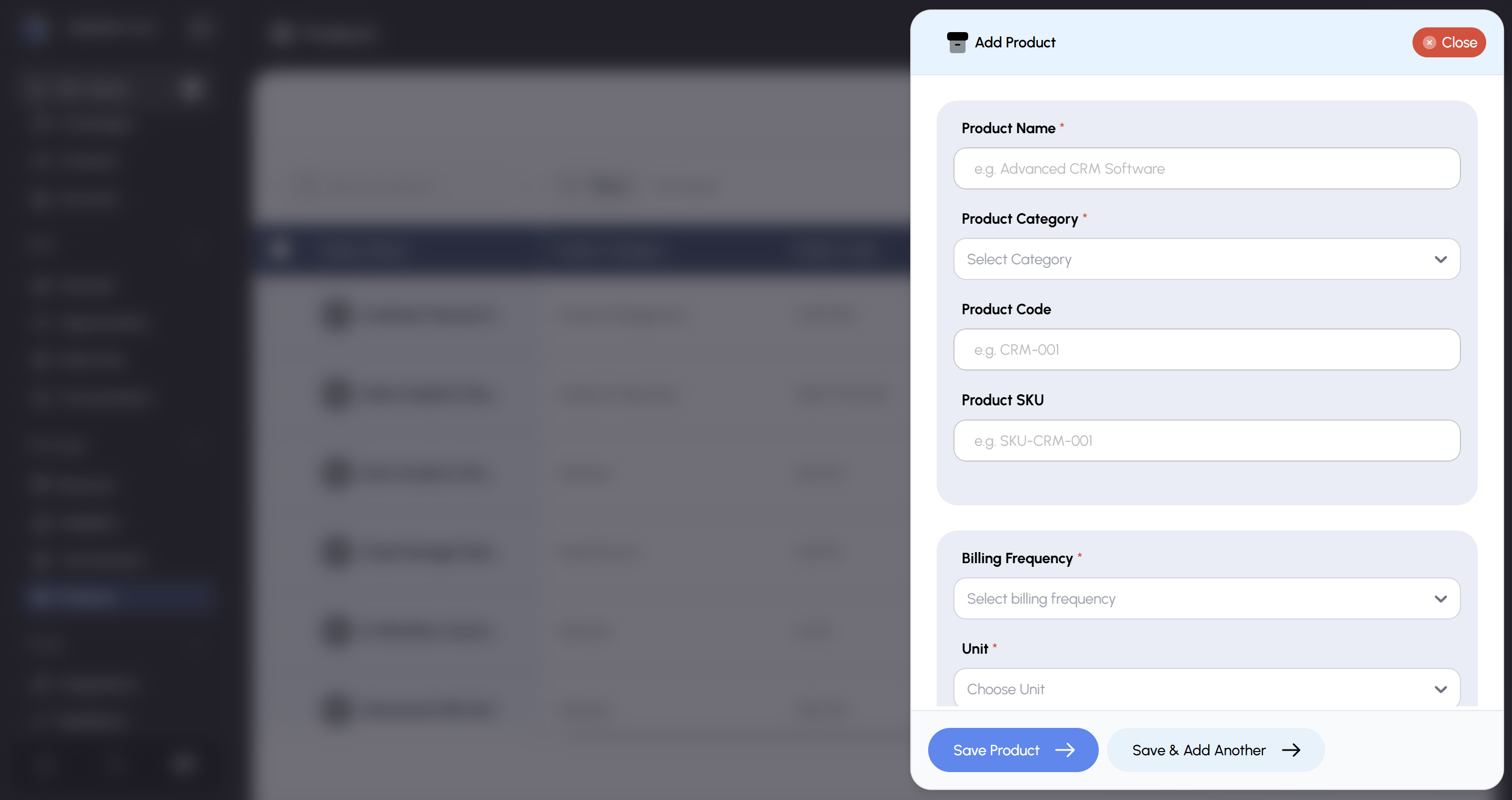
Click Save — the product appears immediately in your catalog.
Viewing and Managing Your Catalog
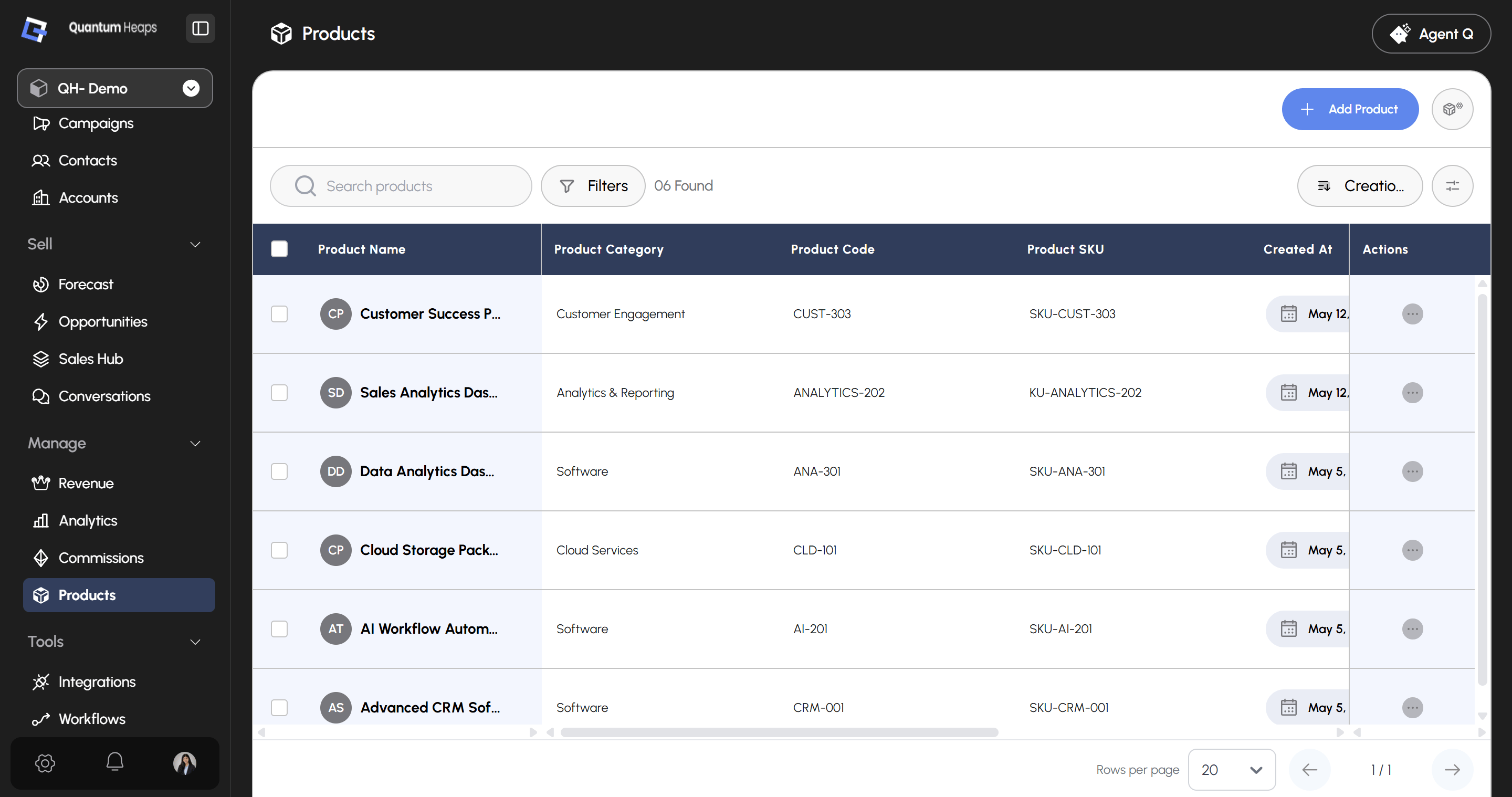
The landing page shows your full catalog with key columns — Name, Category, Code, SKU, Billing Cycle. From here you can:- Search by product name — only matching products display
- Filter by a date range to narrow by when a product was created
- Sort by creation date
- Manage Columns — show, hide, or reorder what’s visible in the table
- Select multiple products via checkbox to act on them together
- Open the 3-dot menu on any row for quick Edit or Delete
- Navigate pages using the pagination controls at the bottom
Organizing Your Catalog with Categories
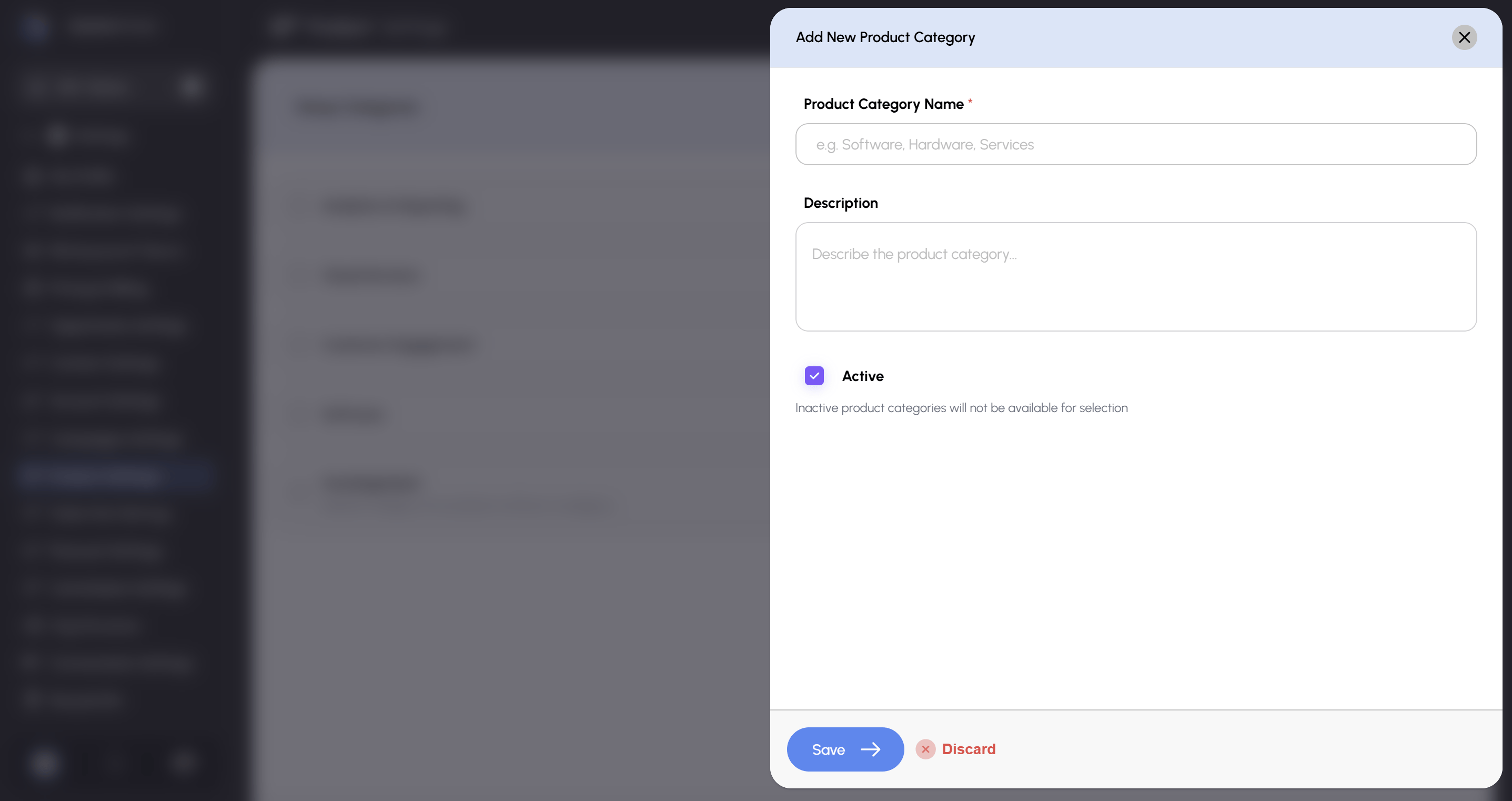
From the product settings page:- Click Add New Category
- Enter a name and save
Viewing a Product
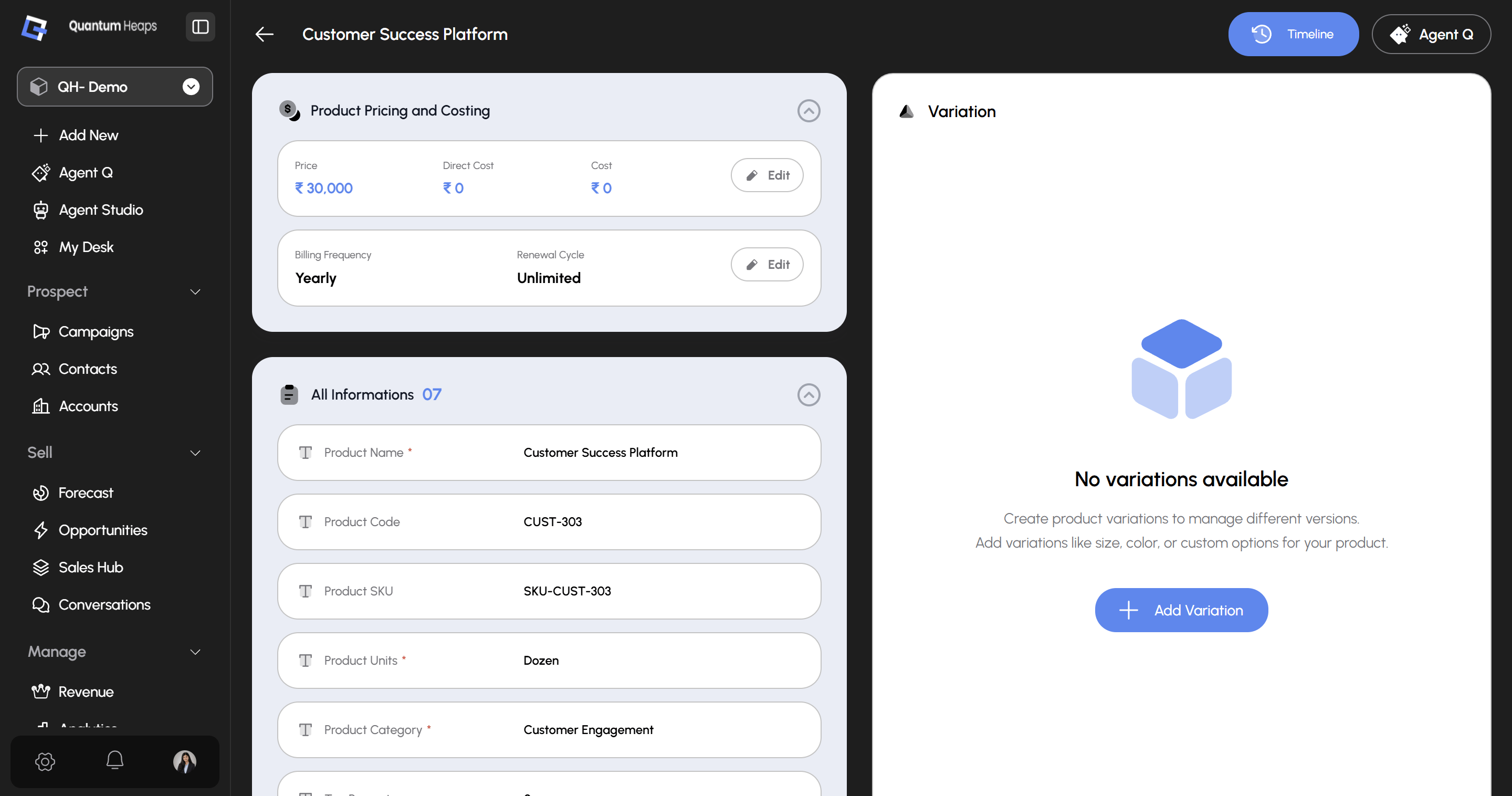
Open any product to see:- Product Information — every field entered at creation (Name, Category, Code, SKU, Product Units, Tax Percentage, and any other active fields), all editable directly on the page
- Pricing & Costing — Price and Cost, editable at any time with full decimal support; updated values reflect immediately
- Variations — manage every variant of this product (see below)
- Associated Files — specs, datasheets, or contracts attached to the record, viewable and downloadable
- Timeline — a chronological audit trail of every field update, pricing edit, variation change, and file addition, each timestamped
Managing Product Variations
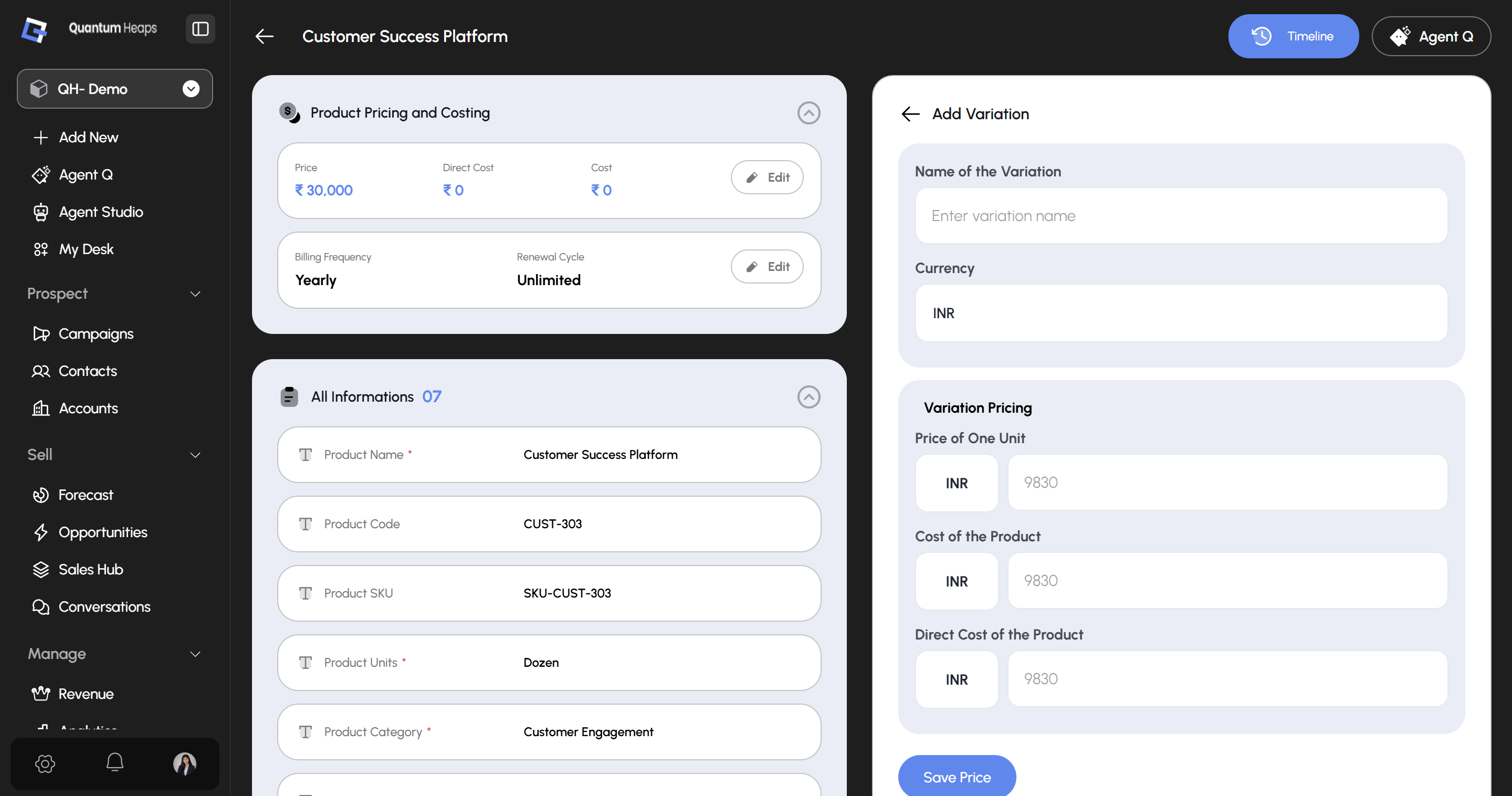
If a product comes in more than one version — size, tier, configuration — track it as a variation rather than a separate product:- Open the product’s detail page and go to Variations
- Click Add Variation
- Enter the variation name and its values — decimal values are accepted and calculated correctly
- Click Save — it appears listed under the product
Attaching Files to a Product Open the Associated Files section on a product’s detail page, click Add, and upload. The file appears listed immediately and can be downloaded by anyone with access to the product.