- Track every person in your pipeline and where they stand
- Log communication history — calls, meetings, and emails — against each contact
- Link contacts to the accounts and opportunities they’re involved with
- Assign ownership and collaborate with teammates on the same contact
- Keep a full audit trail of every change and activity on the record
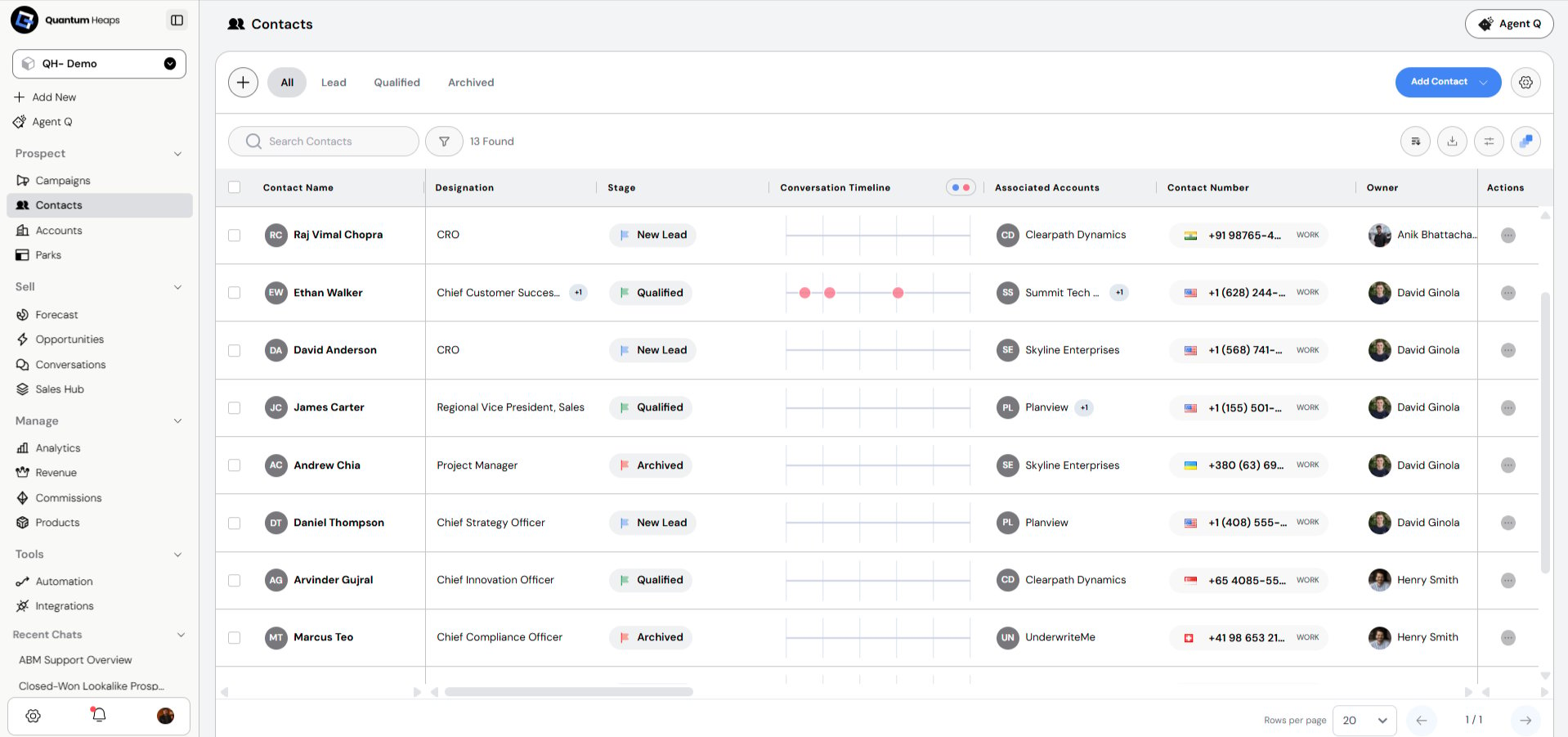
Creating Contacts
Click Add Contact on the Contacts landing page to see four ways to add one: 1. Find PeopleSearch an external database using filters like job title, location, seniority, email health, associated account, or technologies used — then pull a match straight into a new contact. 2. Add Smartly
Create a contact from just an email address, a LinkedIn URL, or a full name plus company — Quantum Heaps fills in the rest. 3. Add Manually
Fill in the required fields — Contact Name, Contact Stage, Associated Account, and Associated Team Member (defaults to you). Optionally add phone numbers, emails, address, and territories. 4. Import from a File
Bring in contacts in bulk from a CSV/XLSX file — either on their own or combined with accounts.
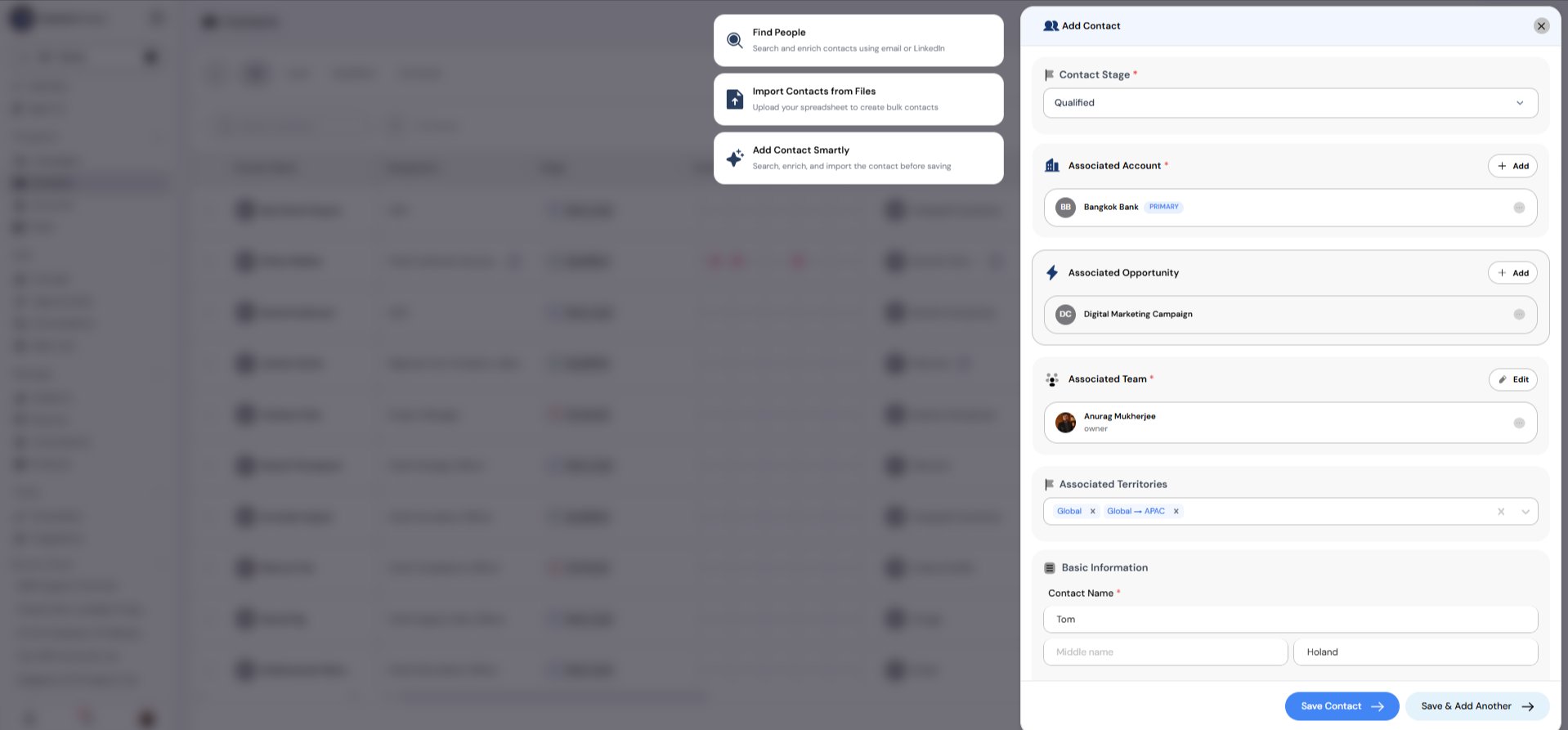
Create Contacts via Agent Q
With Agent Q, creating a new contact becomes a seamless, automated process. Instead of manually entering details, you simply provide a few key inputs like the contact’s name, the associated account, and the relevant contact stage. Agent Q then intelligently generates the contact record, automatically linking it to the specified account and stage. This eliminates the need for manual intervention, streamlines data entry, and ensures accuracy and consistency across your CRM workflows.
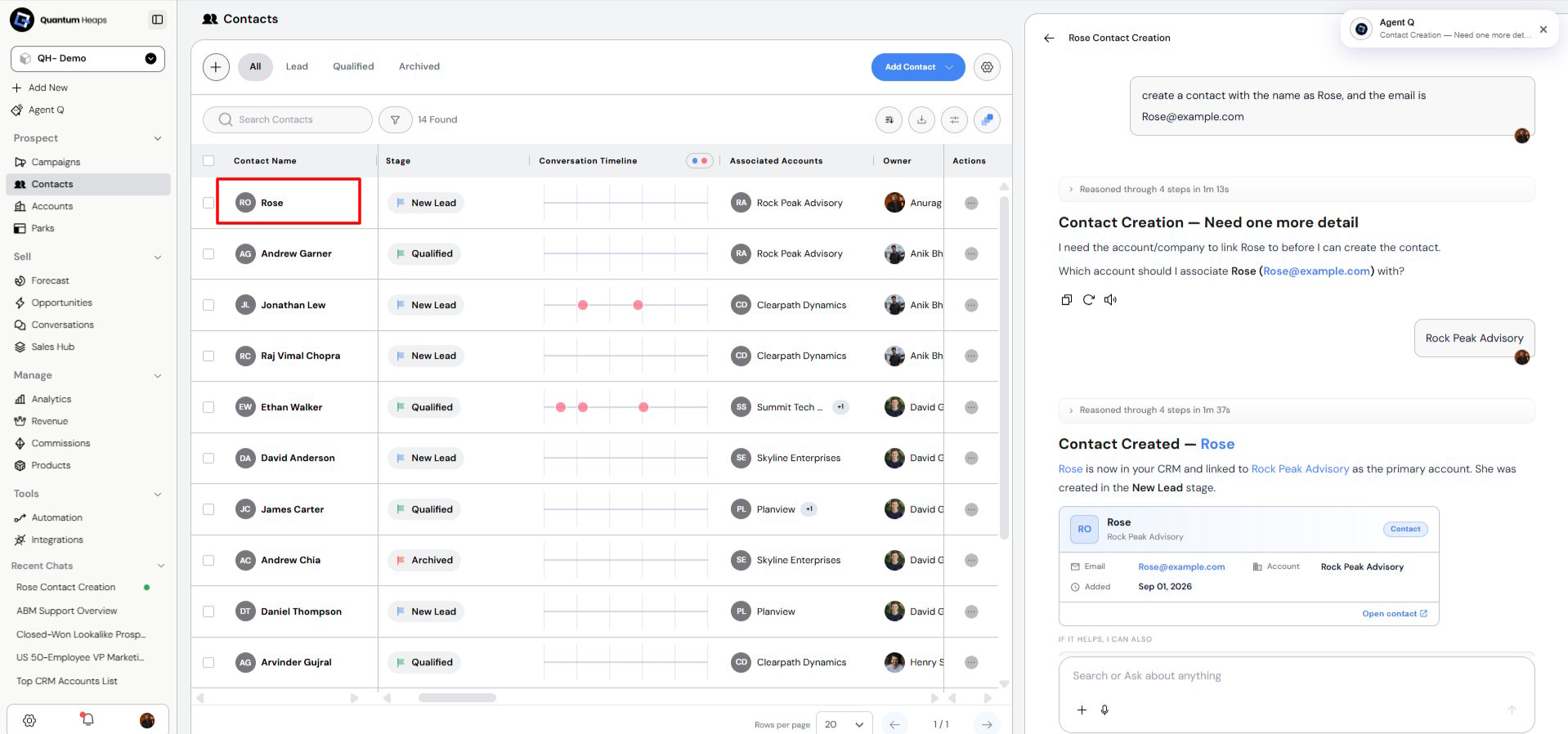
- Each contact can have one primary account, flagged clearly on the record
- Additional accounts can be linked for other professional relationships
- You can switch which linked account is primary at any time, or unlink an account entirely
Managing Contacts
- Edit inline from the list view, from the row’s Actions menu, or directly on the contact detail page
- Delete a contact from the Actions menu on its row, or in bulk from the bulk action toolbar — a confirmation prompt appears before anything is removed
- Bulk actions let you edit fields, assign a team member, add a task or note, enroll in a sequence, or enrich contact data across multiple contacts at once
Viewing a Contact
Open any contact to see: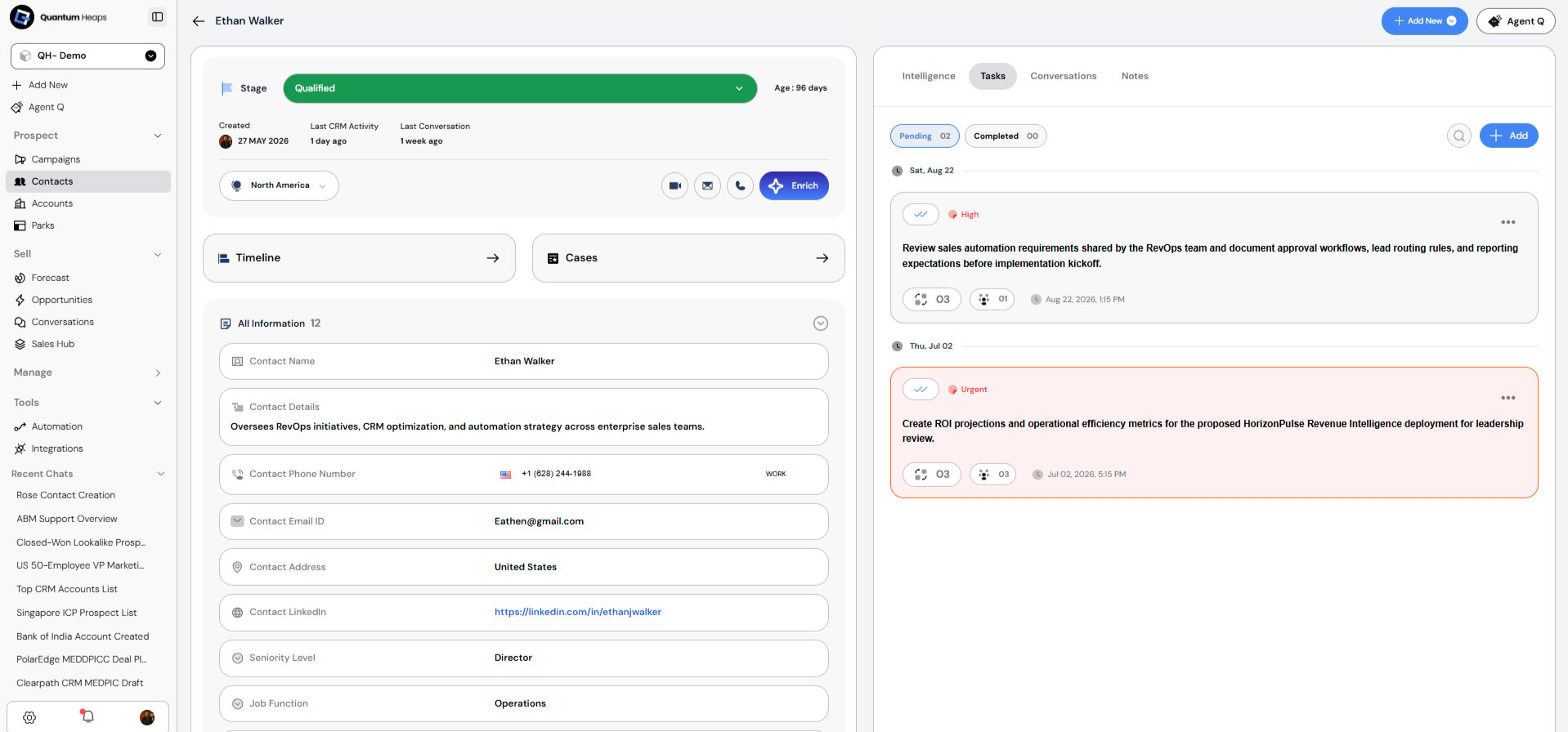
- Associated Accounts — linked companies, with the primary account flagged
- Associated Opportunities — every deal this contact is tied to, with its current stage
- Associated Team Members — who owns and works this contact
- Associated Files — anything uploaded to the record
- Tasks — follow-up actions, each assignable with a due date and optional file attachment
- Conversations — every call, email, and meeting logged against this contact, searchable and filterable by date, associated account/opportunity, team member, or email status
- Notes — freeform text entries, with support for attachments
- Timeline — a complete history of every field change, association, stage change, and activity on the record
Email & Meeting Sync Into Contact:-
- Contacts- Sync is based on the contact’s email address stored in the system. Only conversations exchanged with that specific email ID are synced to the contact. Emails unrelated to that contact including other internal team emails are not pulled in.
Understanding Stages in Quantum Heaps
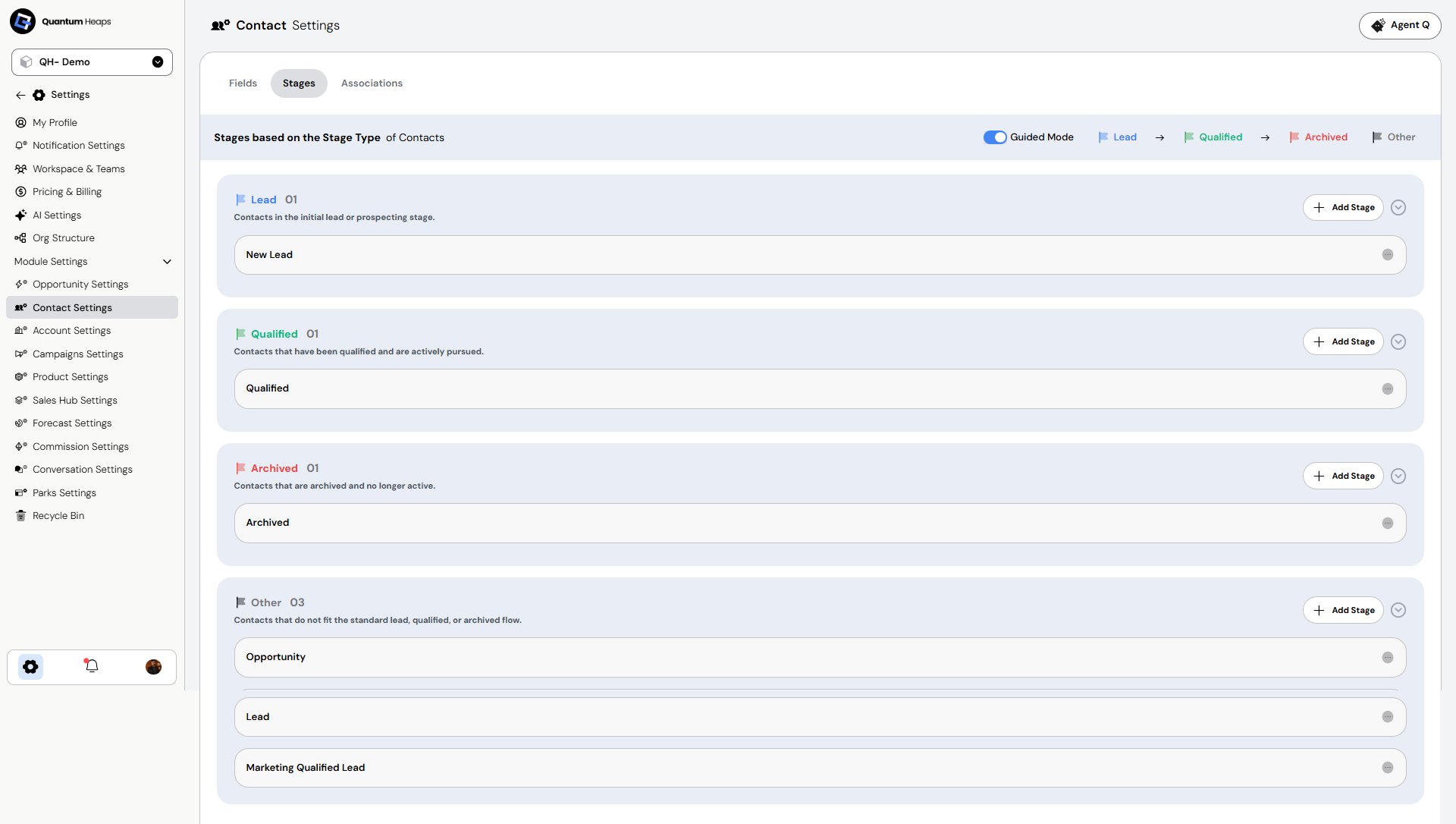
Every contact in Quantum Heaps moves through a stage — a status that tells you and your team where that person stands in your engagement process, at a glance. Quantum Heaps supports three contact stage types: Lead, Qualified, and Archived. Customizing stages within each type: Within each stage type, you can create your own custom stages to match how your team actually works. For example, under Lead you might add sub-stages like “New,” “Contacted,” and “Awaiting Response”; under Qualified, stages like “In Conversation” or “Champion Identified”; and under Archived, reasons like “Disqualified” or “No Longer at Company.” This lets you track finer-grained progress without losing the simplicity of the three overarching stage types.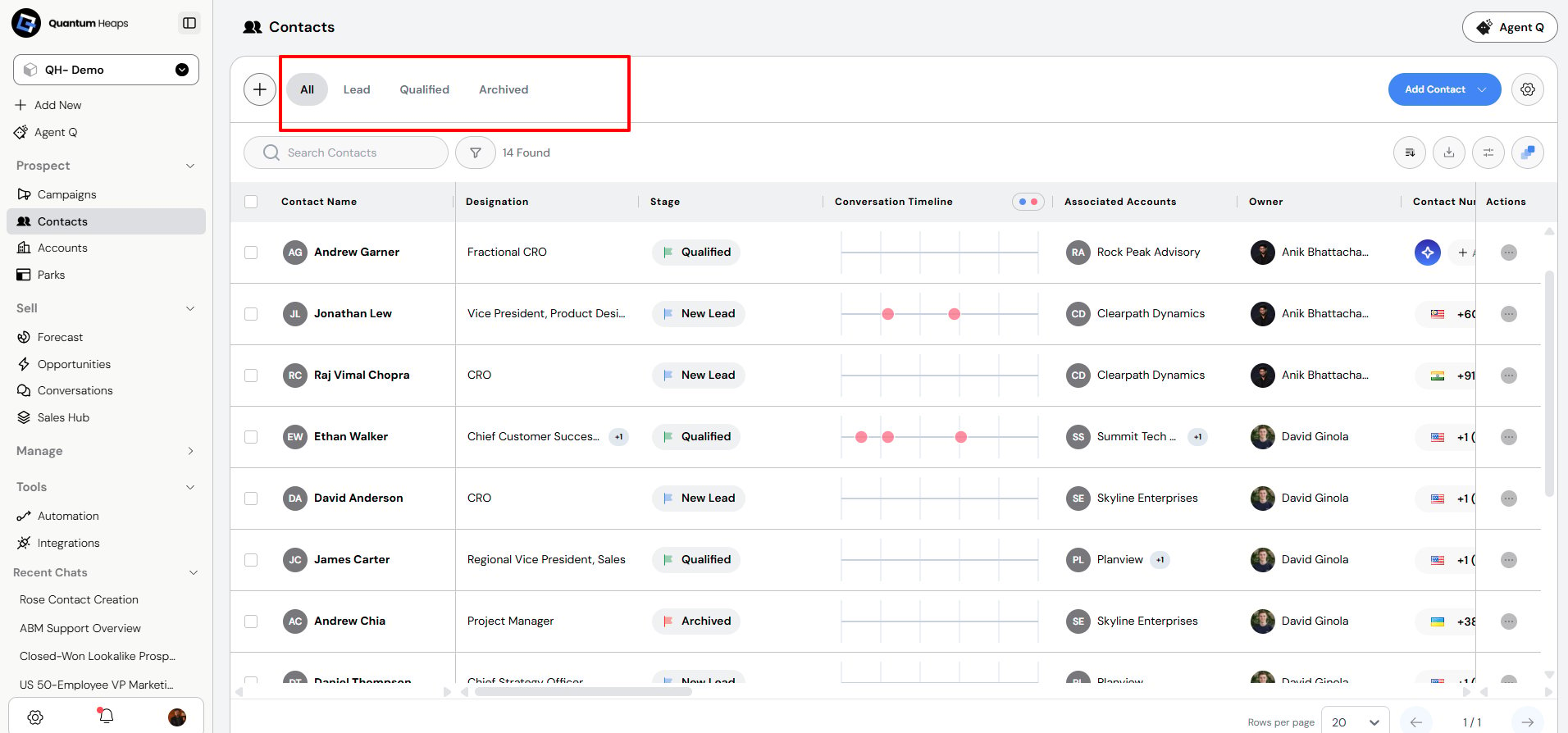
Breaking Down the Stage Types:-
Lead:- A contact who’s been identified as a potential point of interest but hasn’t been fully vetted yet. This could be a person who came in through a campaign, was manually added, or was identified via prospecting — but your team hasn’t confirmed their role, influence, or engaged with them deeply yet. Qualified:- A contact who’s been vetted and confirmed to be a relevant, engaged stakeholder — has a clear role in the buying process, matches your ICP at the individual level (right title, right function, right authority), and is actively being worked by the sales team. This is usually the stage where you’d expect to see active conversations, association with live opportunities, and regular engagement. Archived:- Contacts who are no longer being actively pursued — this could be because they’ve left the company, gone unresponsive, were disqualified, or are simply no longer relevant to the current sales motion. It’s a way to keep the record without cluttering the active contact list.Configuring Fields and Stages
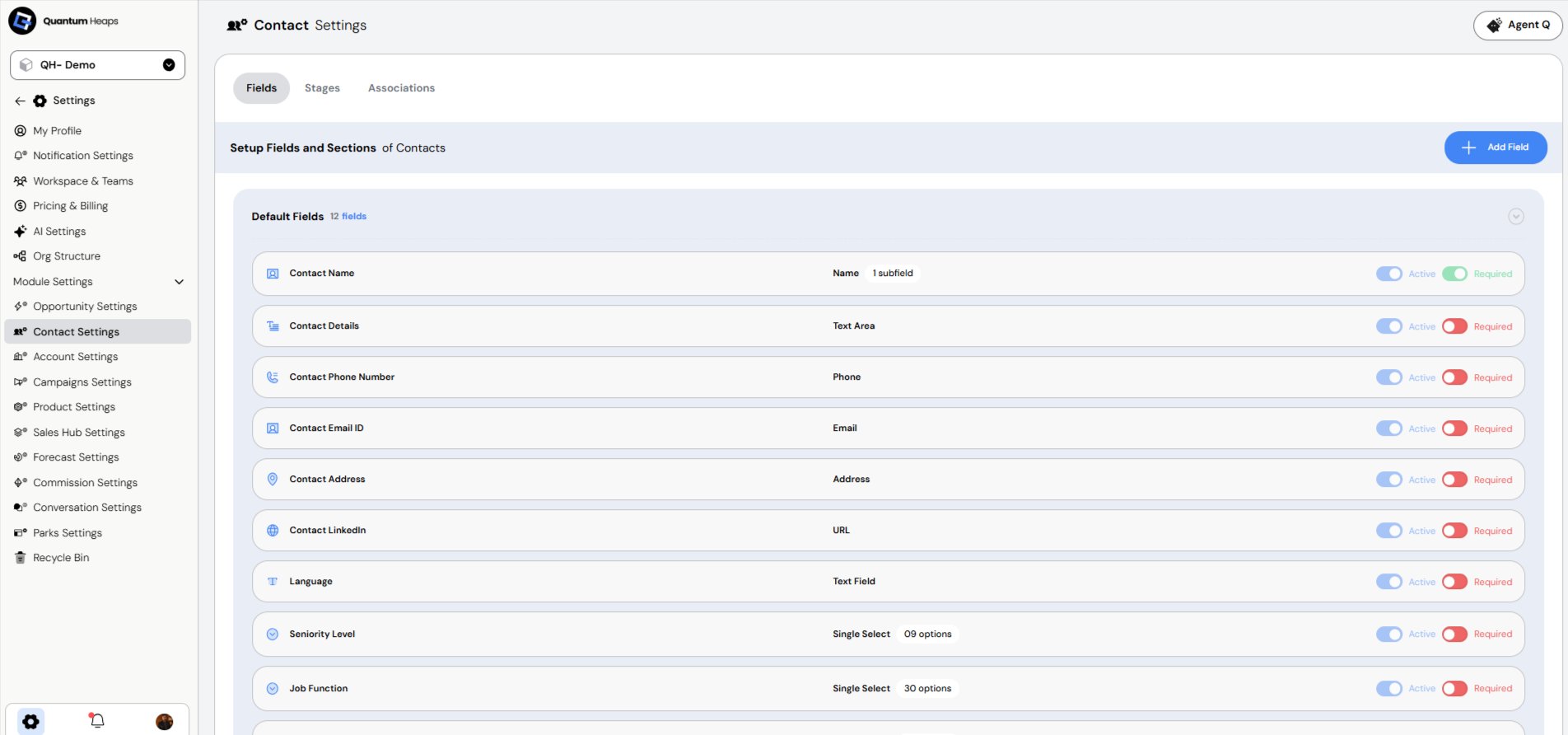
Admins can open Contacts Settings to:- Turn fields on/off and mark them required (Fields tab)
- Add, reorder, or edit pipeline stages (Stages tab), with a Guided Mode to help set them up by stage type
Finding and Merging Duplicates
Click Manage Duplicates, choose a detection method — same email, same phone, or same custom field — review the matched groups, choose which values to keep, and merge. Closing the dialog without merging applies no changes. You can also just ask Agent Q to find and merge duplicate contacts for you.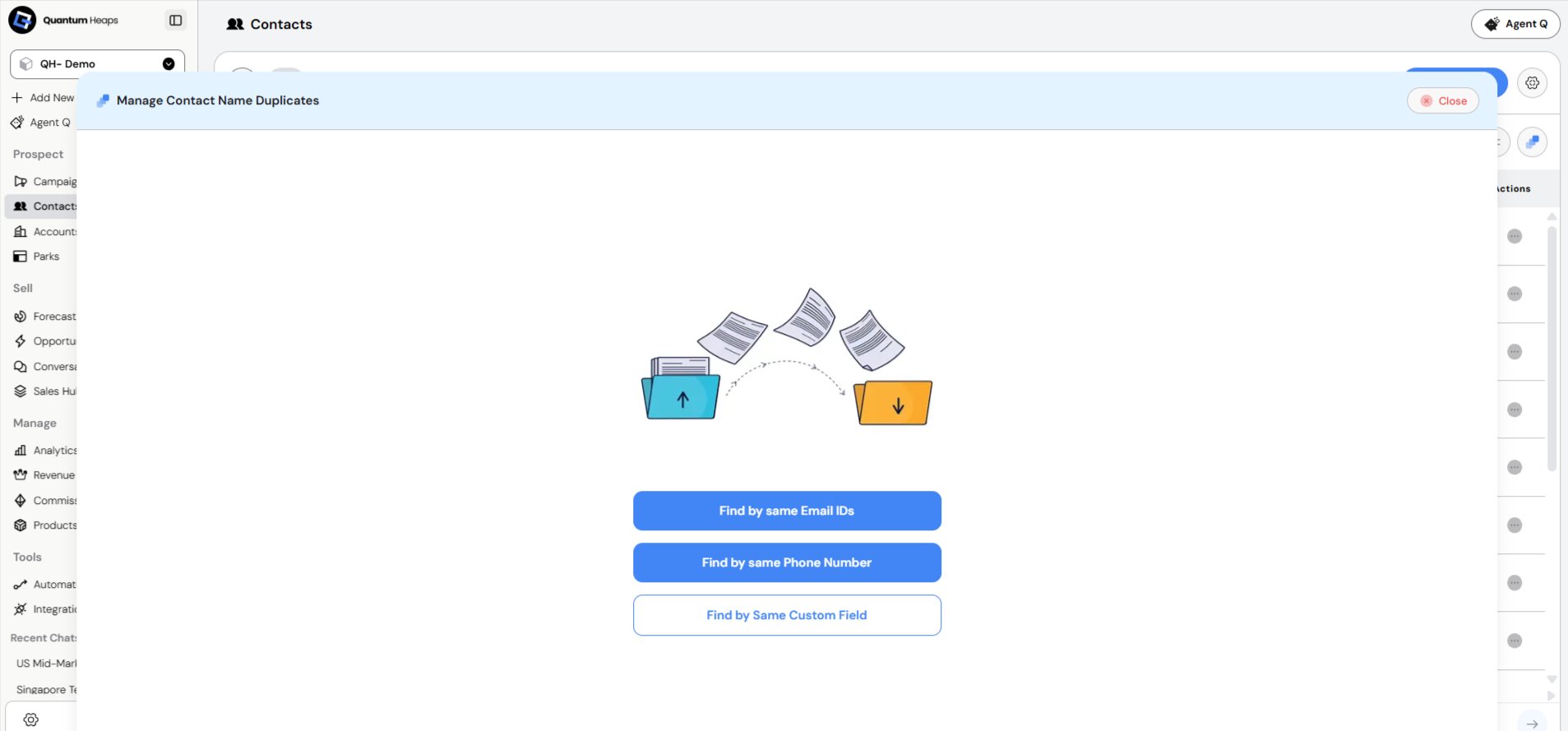
FAQ
General Q: What is a contact in Quantum Heaps?A: Any individual in your pipeline — prospect, buyer, or stakeholder. Each contact record holds their profile, stage, communication history, and every account or deal they’re linked to. Q: What can I do with the Contacts module?
A: Track pipeline status, log calls/meetings/emails, link contacts to accounts and opportunities, assign ownership, collaborate with teammates, and see a full audit trail of changes. Creating Contacts Q: What are the ways to add a contact?
A: Click Add Contact to choose from four options:
- Find People — search an external database (title, location, seniority, email health, account, tech stack) and pull a match in
- Add Smartly — enter just an email, LinkedIn URL, or name + company; Quantum Heaps fills in the rest
- Add Manually — enter required fields yourself
- Import from a File — bulk upload via CSV/XLSX, alone or combined with accounts
A: Contact Name, Contact Stage, Associated Account, and Associated Team Member (defaults to you). Phone, email, address, and territories are optional. Q: Can Agent Q create contacts for me?
A: Yes. Give it a name, associated account, and stage — Agent Q generates and links the record automatically, no manual form entry needed.