Where to Find It
- Click the Settings icon in the bottom-left corner
- Select Account Settings from the sidebar
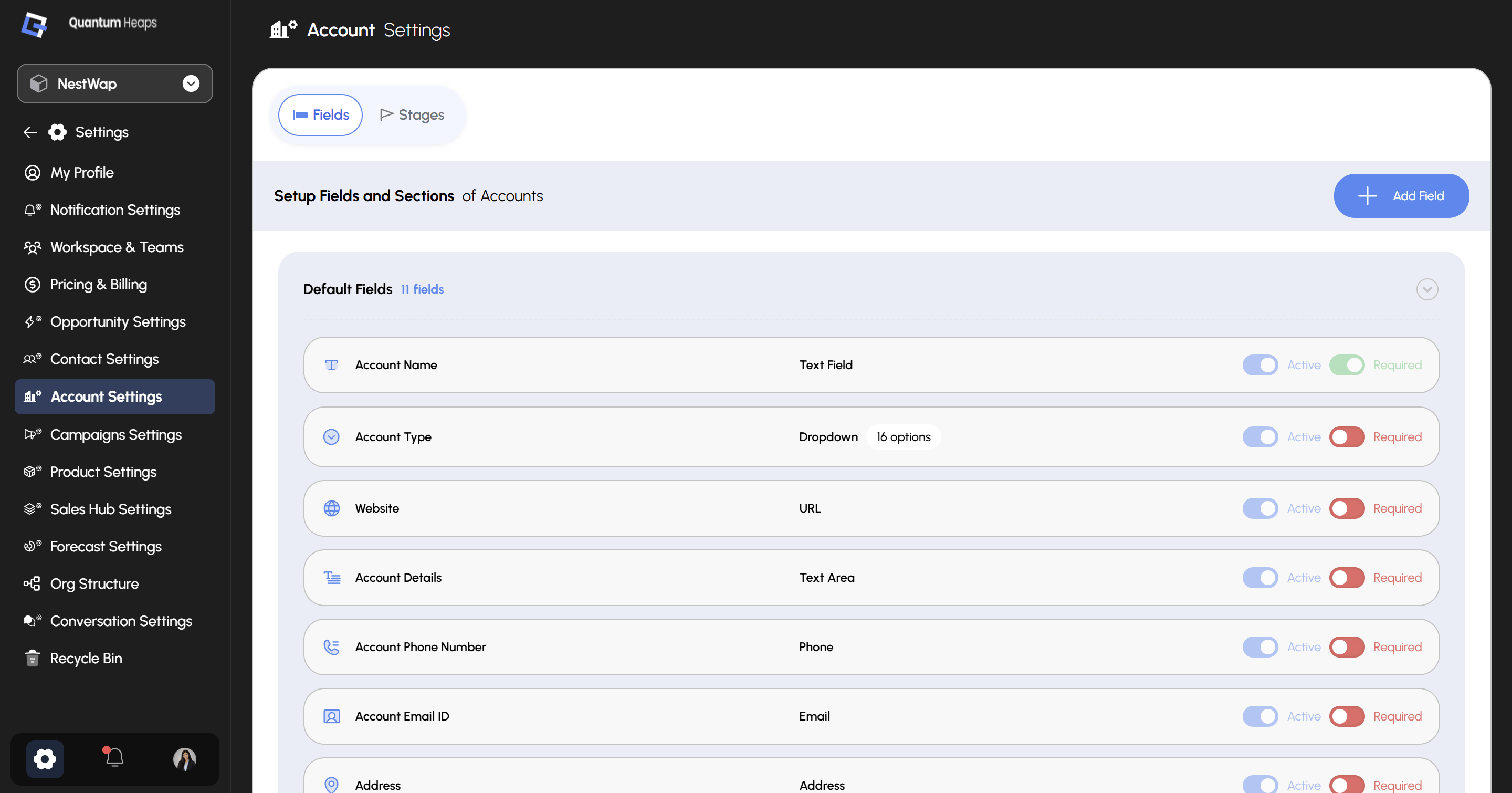
Fields
The Fields tab controls which fields appear on the Add Account form, the account detail page, and filter panels — since account filters are derived from active fields, managing fields here directly affects what’s available to filter by. Default Fields shows your 11 built-in fields, each with two independent toggles:
Click + Add Field to create a custom field beyond the defaults — you’ll select its section and field type, and can set field-level permissions per role at the same time.
Stages
Use the Stages tab to define and manage the pipeline stages accounts move through. Each stage is assigned a Stage Type — Lead, Qualified, or Archived — which identifies where the account sits in the pipeline:
- Click + Add Stage, select a Stage Type, and enter a Stage Name
- Reorder stages using the drag handle on the left of each row
- Use Guided Mode to enable a step-by-step stage progression experience for users
- Click the 3-dot menu on any stage to edit or delete it