- See every logged interaction — calls, meetings, and emails — in one date-grouped timeline
- Log a new call, meeting, or email directly against a contact, account, or opportunity
- Search and filter your history by date, contact, account, user, or email status
- Automatically record and transcribe virtual meetings
- Send email straight from Quantum Heaps, with the send logged automatically as a conversation
Viewing Your Conversation List
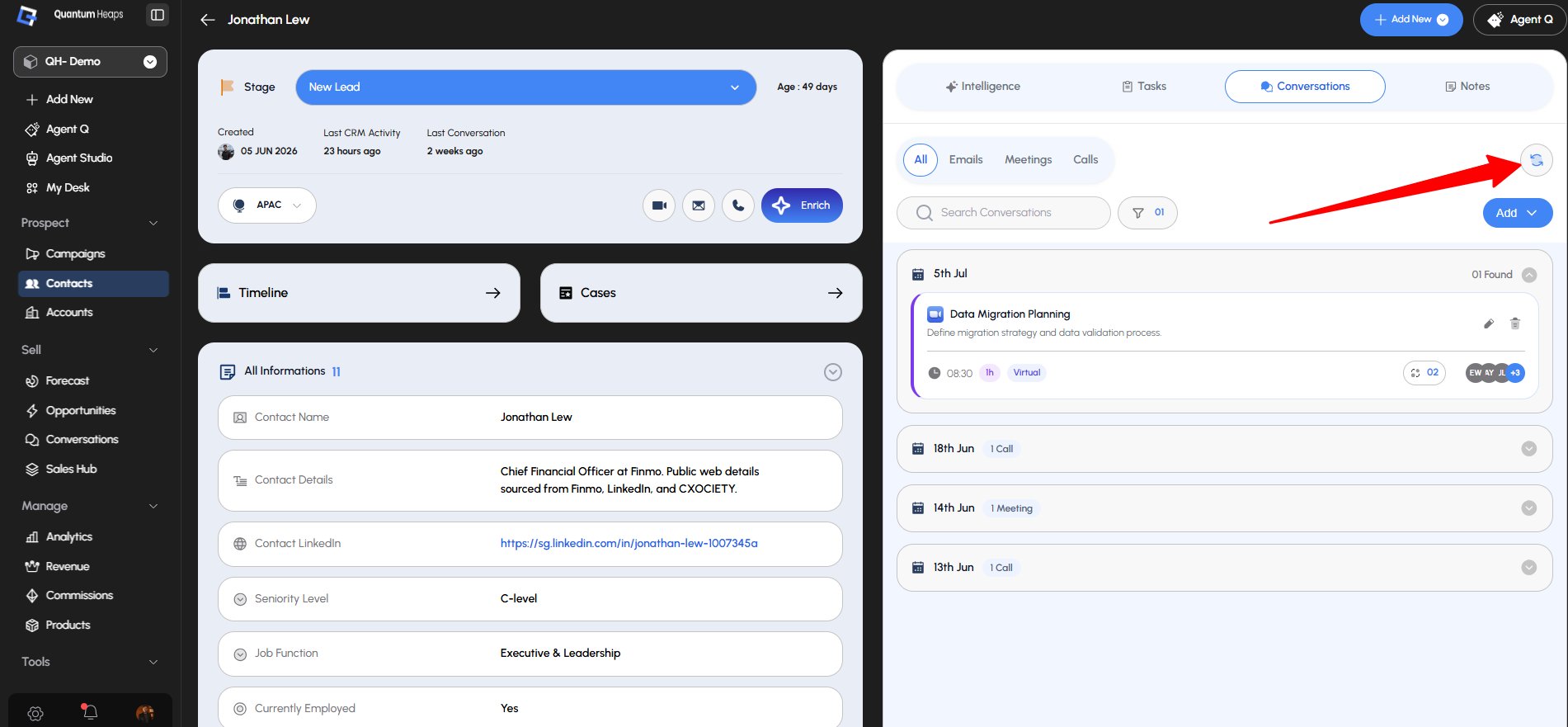
Conversations are grouped by date (e.g., 3rd Jun, 2nd Jun), each showing a count and type summary. Click the chevron on any date group to expand or collapse it. Each conversation card shows its type, time, an Associate with count of linked records, participant avatars, and quick edit/delete icons. Use the four tabs at the top — All, Emails, Meetings, Calls — to filter the list by type. Use the sync button (↻) to pull in the latest activity from your connected Google Workspace.Searching and Filtering
Use the search bar to find a conversation by name or content — results update as you type. Open the Filters panel (it shows an active-filter count badge) to narrow by:- Date Range
- Associated Contacts
- Associated Accounts
- User (who logged it)
- Email Status (Sent, Opened, Bounced, etc.)
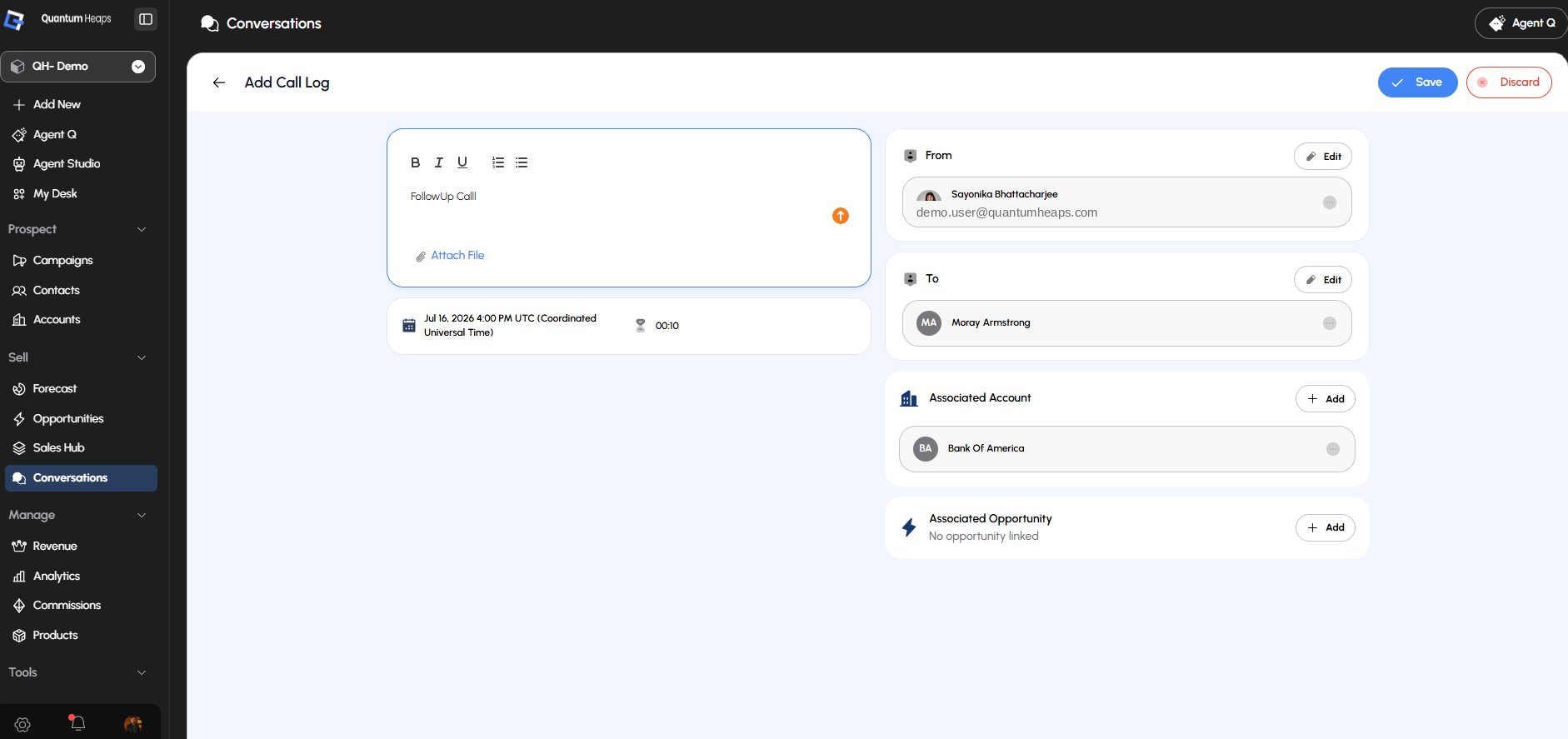
Logging a Call
Click Add ▾ → Add Call, then:- Write your call notes in the rich text editor — supports formatting and lists
- Add the date/time and duration
- Select From and To participants
- Link an Associated Account and/or Associated Opportunity
- Attach a file if needed, then Save
Logging an In-Person Meeting
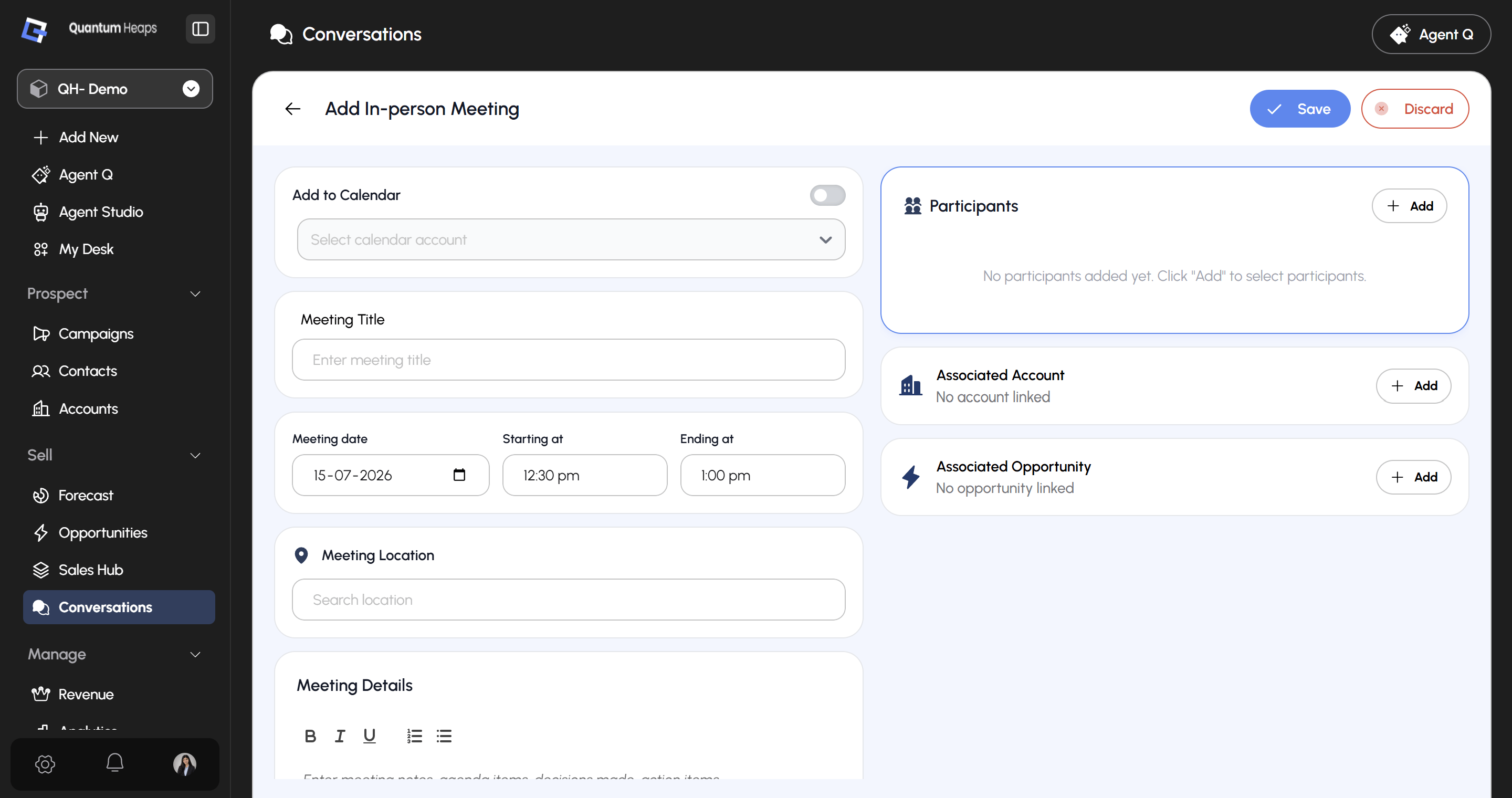
Click Add ▾ → Add In-person Meeting, then:- Toggle Add to Calendar if you want it synced to a connected calendar
- Enter the meeting title, date, start/end time, and location
- Add meeting notes (agenda, decisions, action items) in the rich text editor
- Add participants and link an account/opportunity
- Save
Logging a Virtual Meeting
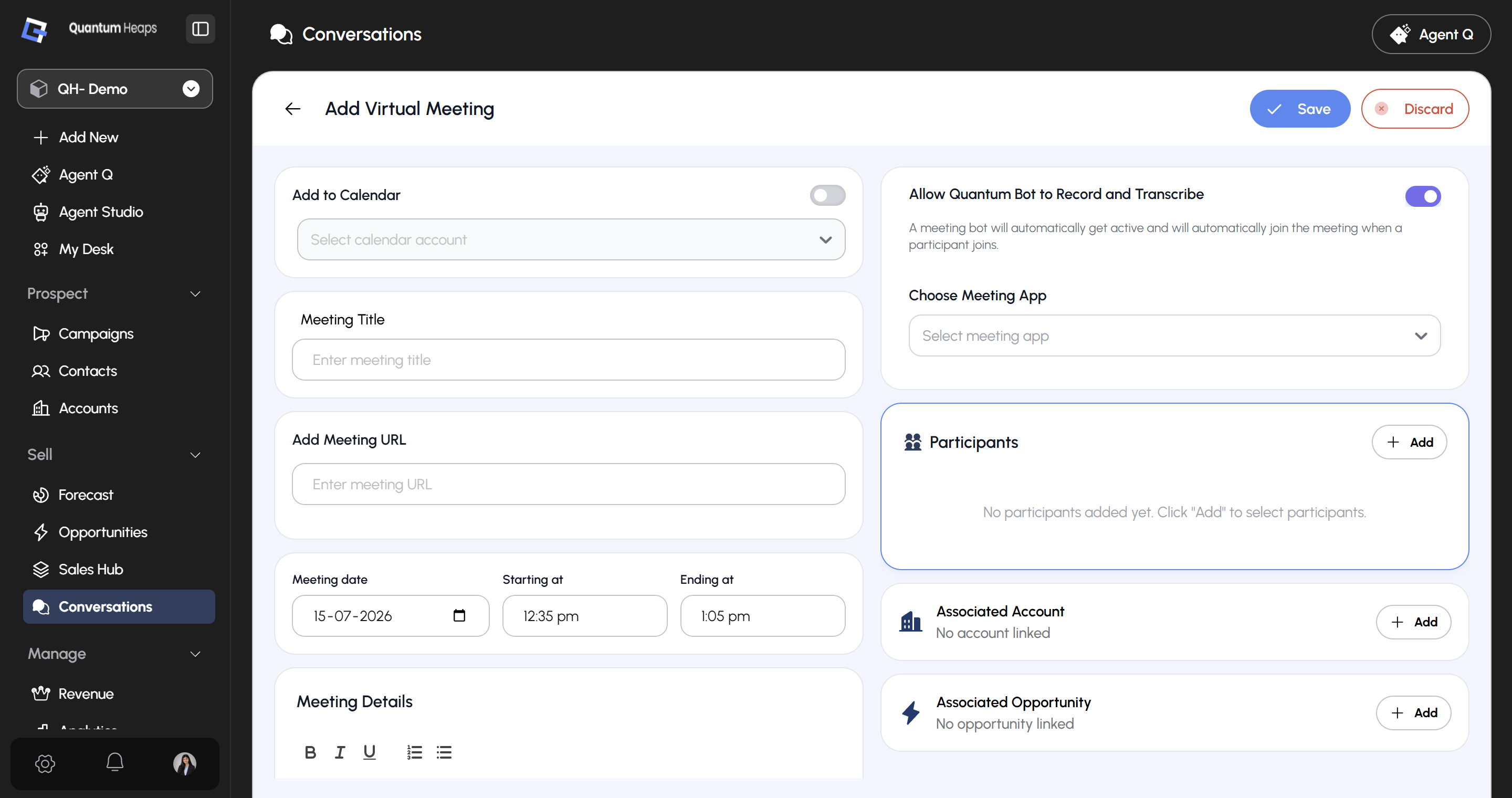
Click Add ▾ → Add Virtual Meeting — same flow as an in-person meeting, but with a Meeting URL field instead of a location, plus:- Choose Meeting App — select Zoom, Google Meet, Teams, etc.
- Allow Quantum Bot to Record and Transcribe — toggle this on and the bot automatically joins and transcribes once a participant enters the call. Leave it off and no recording happens.
Composing an Email
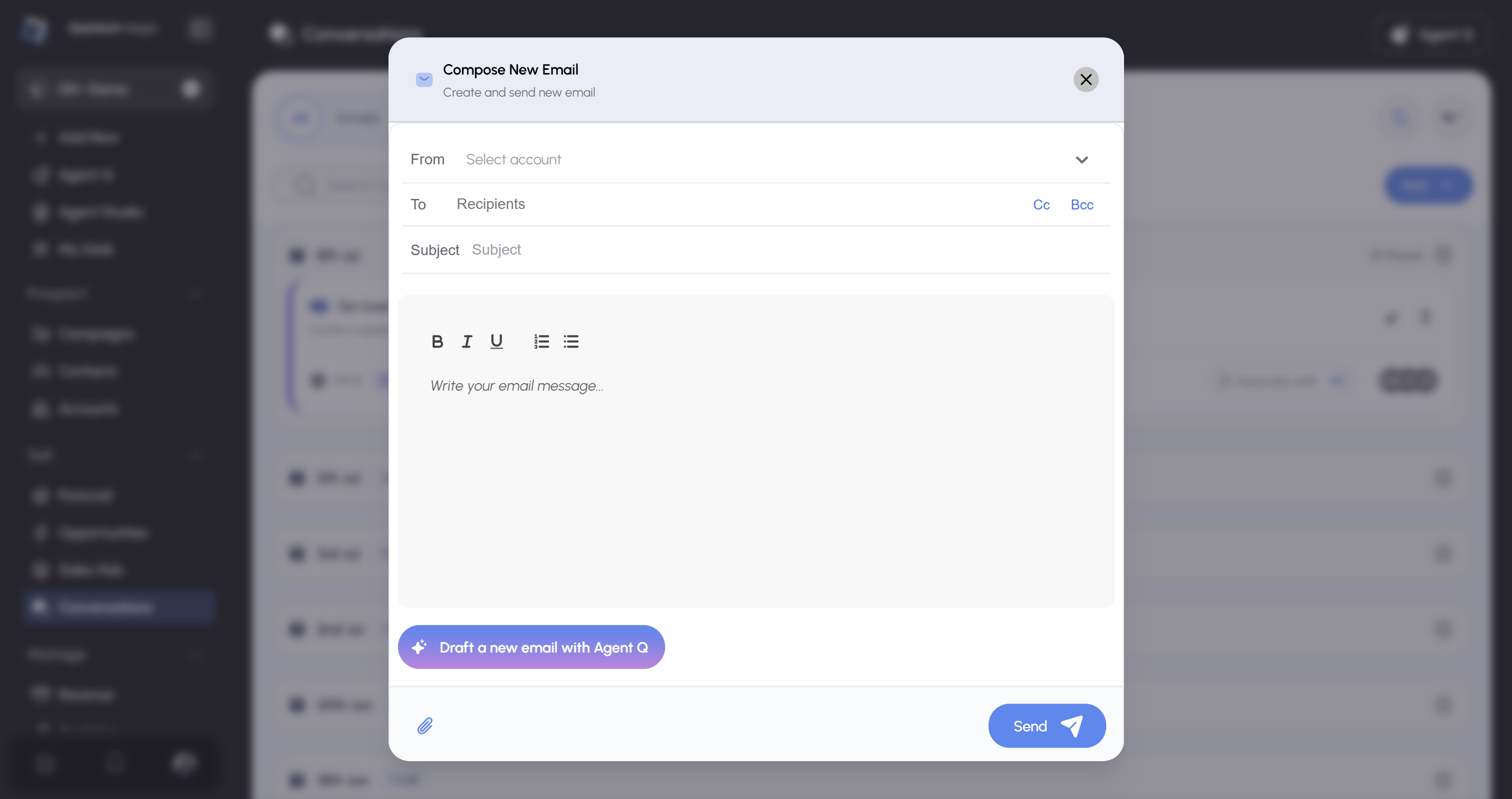
Click Add ▾ → Compose Email, then:- Choose your From account
- Add recipients in To, and optionally Cc/Bcc
- Write your Subject and body (rich text supported)
- Attach a file if needed
- Click Send — the email is automatically logged as a conversation
Sync Emails & Meetings
Conversations automatically syncs emails and meetings tied to a contact, account using two matching methods. Emails- Contacts- Sync is based on the contact’s email address stored in the system. Only conversations exchanged with that specific email ID are synced to the contact. Emails unrelated to that contact including other internal team emails are not pulled in.
- Accounts :- Sync is based on the domain in the account’s Website field. Any conversation exchanged with an email address matching that domain is synced to the account — regardless of which specific person at that company was involved. This means all conversations with anyone on that domain appear at the account level, not just those tied to a saved contact.
Step 1: Connect Your Google Account
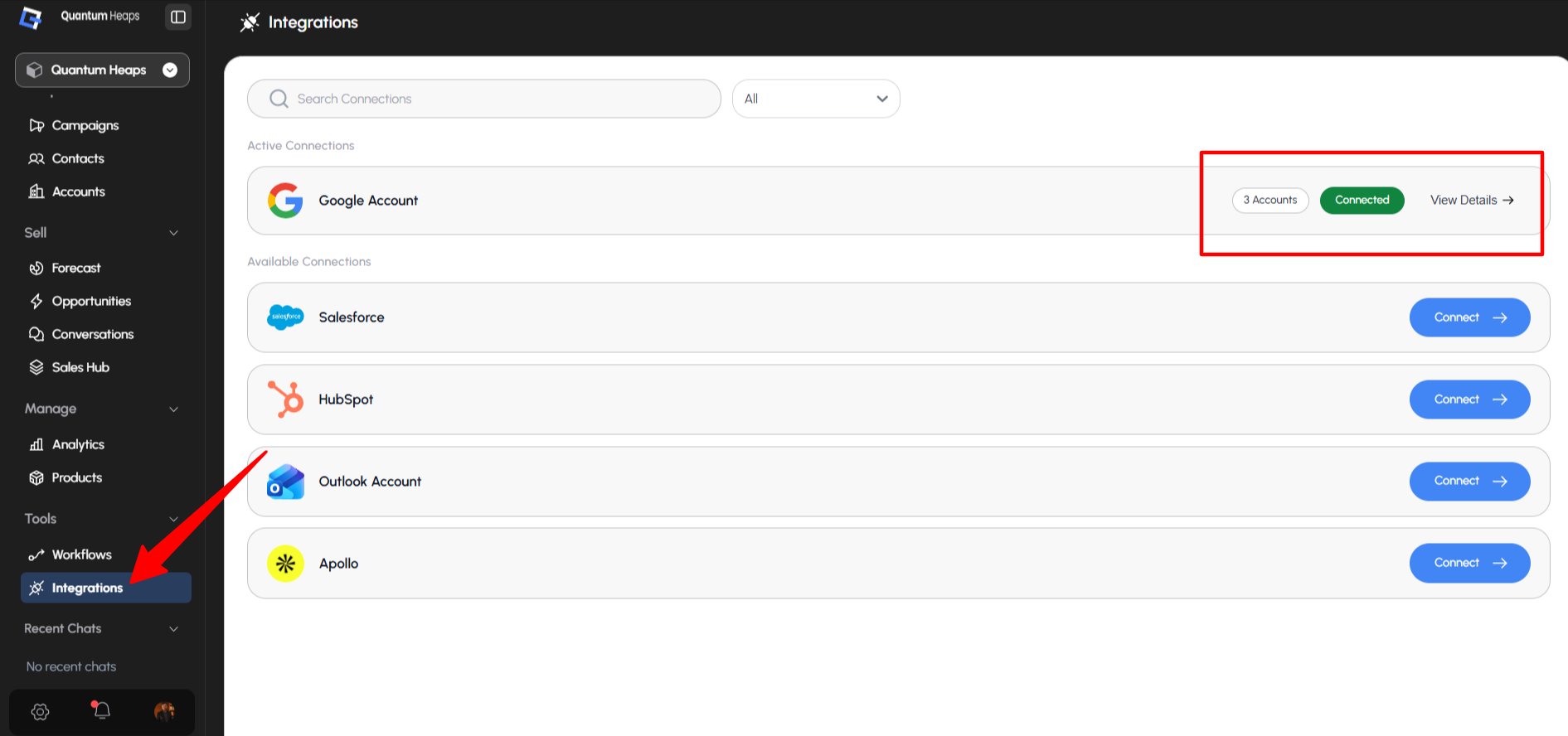
- Go to Integrations from the left navigation
- Open Google Accounts and click Connect (or Add New if you already have other accounts connected)
- Complete the Google sign-in flow to authorize access
- Once connected, your account appears under Your Channels with a Connected badge
Step 2: Trigger the Sync from Conversations
- Open the relevant record — a Contact, Account, or the Conversations module directly
- Go to the Conversations tab
- Click the circular sync icon (↻) on the top right, next to the search and filter bar
- This pulls in any matching emails and meetings — matched to the contact’s email address, or the account’s website domain, as configured
Syncing Emails & Meetings to an Opportunity
Quantum Heaps allows users to sync email and meeting activity into an Opportunity based on its associated records, so all communication history stays connected to the deal automatically. Via Associated Contact If a Contact is linked to an Opportunity, any emails or meetings that have taken place with that Contact (regardless of when they happened) become available to sync into the Opportunity. Via Associated Account (when no Contact is linked) If an Opportunity doesn’t have a Contact associated with it, but does have an Account linked, the system falls back to the Account level. Any emails synced under that Account become available to pull into the Opportunity.png?fit=max&auto=format&n=B4eO4Y1zeHIDYLdY&q=85&s=13d44aa0469d055f7701d2433273e8a1)
Meeting Sync
Meetings follow the same matching logic as email — synced to a contact by their email address, and synced to an account by its website domain. But meetings also work both ways, which sets them apart from email sync:- Quantum Heaps → Calendar: If you create a meeting directly inside Quantum Heaps, it’s automatically added to your connected calendar — so you don’t need to separately schedule it in Google Calendar or Outlook.
- Calendar → Quantum Heaps: If you create a meeting directly in your connected calendar instead, it syncs back into Quantum Heaps automatically, and appears against the relevant contact or account based on the same email address / domain matching rules.