- Sync data bidirectionally with HubSpot or Salesforce
- Connect your Google or Outlook account for email and calendar
- Enrich missing contact data automatically via Apollo
- Bulk-import records from a spreadsheet
- Manage every third-party connection — and see what’s active — from one screen
Viewing Your Connections
The landing page splits into two sections:- Active Connections — integrations already set up, each showing a green Connected badge, the number of accounts connected (for Google/Outlook), and a View Details → link
- Available Connections — integrations you haven’t connected yet, each with a Connect → button
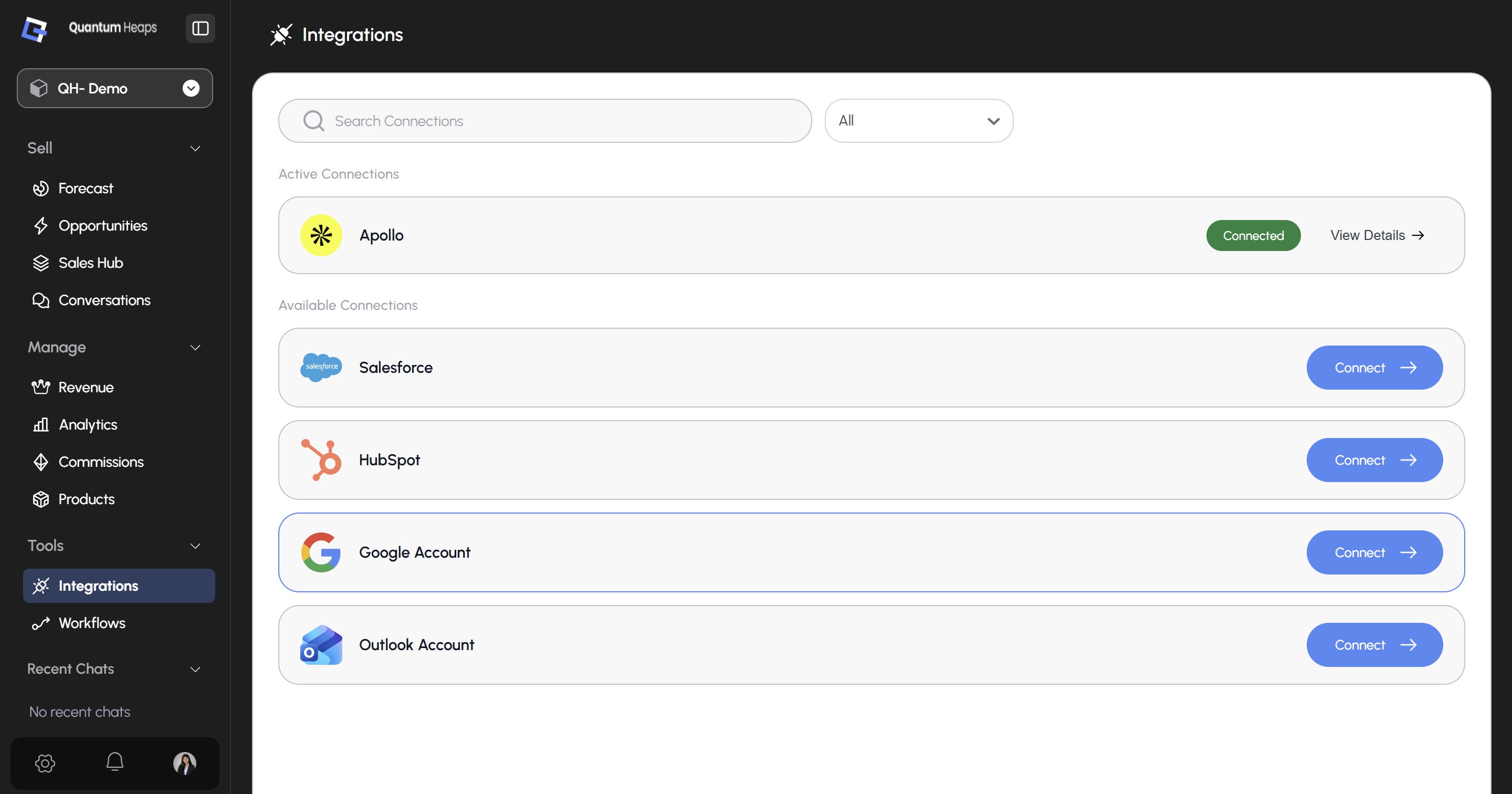
Connecting HubSpot or Salesforce
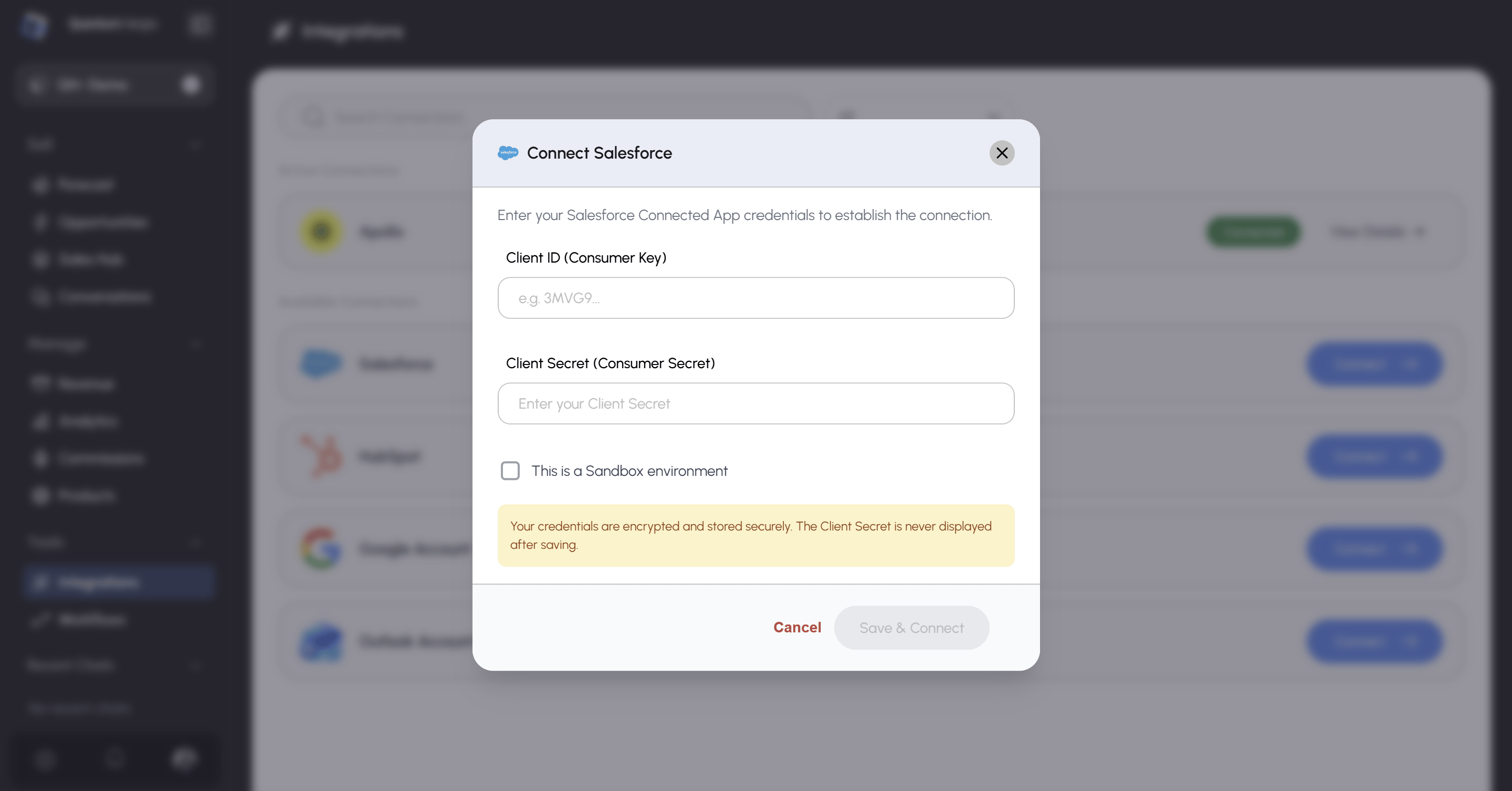
Click Connect → on either row:- HubSpot authorizes through OAuth
- Salesforce connects via an OAuth Connected App, with sandbox support for testing before you go live
- Data Syncing — toggle Sync Automatically on/off, and control direction independently: HubSpot/Salesforce → Quantum Heaps, Quantum Heaps → HubSpot/Salesforce, or both
- Sync History — a full log of every sync: type, trigger, status, start/completion time, and record summary
- Sync Manually — trigger an on-demand sync anytime, instead of waiting for the schedule
- Field Mappings — three tabs (Contact, Account, Opportunity), each showing a “Columns Mapped X/Y” badge. Use + Map more Fields to add mappings, or the red × on any row to remove one
Connecting Google or Outlook
Click Connect → and complete the OAuth flow for Gmail/Google Workspace or Microsoft Outlook. Once connected, this enables:- Sending and receiving email directly from the Conversations module
- Syncing calendar meetings automatically
- The connected address becoming selectable in the From dropdown when composing email
- Your Channels — per-account toggles for Sync Emails, Sync Meetings, and Allowed for Sequencing (Zoom-based channels only show Sync Meetings)
- Allowed Members — add teammates who should have access to this channel
- Add New — connect additional accounts for the same provider
- Admin tab — enter a JSON schema to customize data added to the conversation channel
Connecting Apollo for Enrichment
Click Connect → and authorize. Apollo’s detail page mirrors HubSpot’s layout, with one addition — a Data Enrichment section where you toggle enrichment Active/Inactive, see the last synced date, and review past runs in Enrichment History. Once active, missing email addresses and phone numbers on your contacts get filled in automatically.Bulk Importing with File Import
Click Connect → on the File Import row, then:- Choose Data Type — Opportunities, Accounts & Contacts, or Accounts & Opportunities
- Upload File — CSV, XLSX, or XLS, up to 5 MB
- Map Fields — this button stays greyed out until a file is uploaded; once active, match your file’s columns to Quantum Heaps fields and complete the import