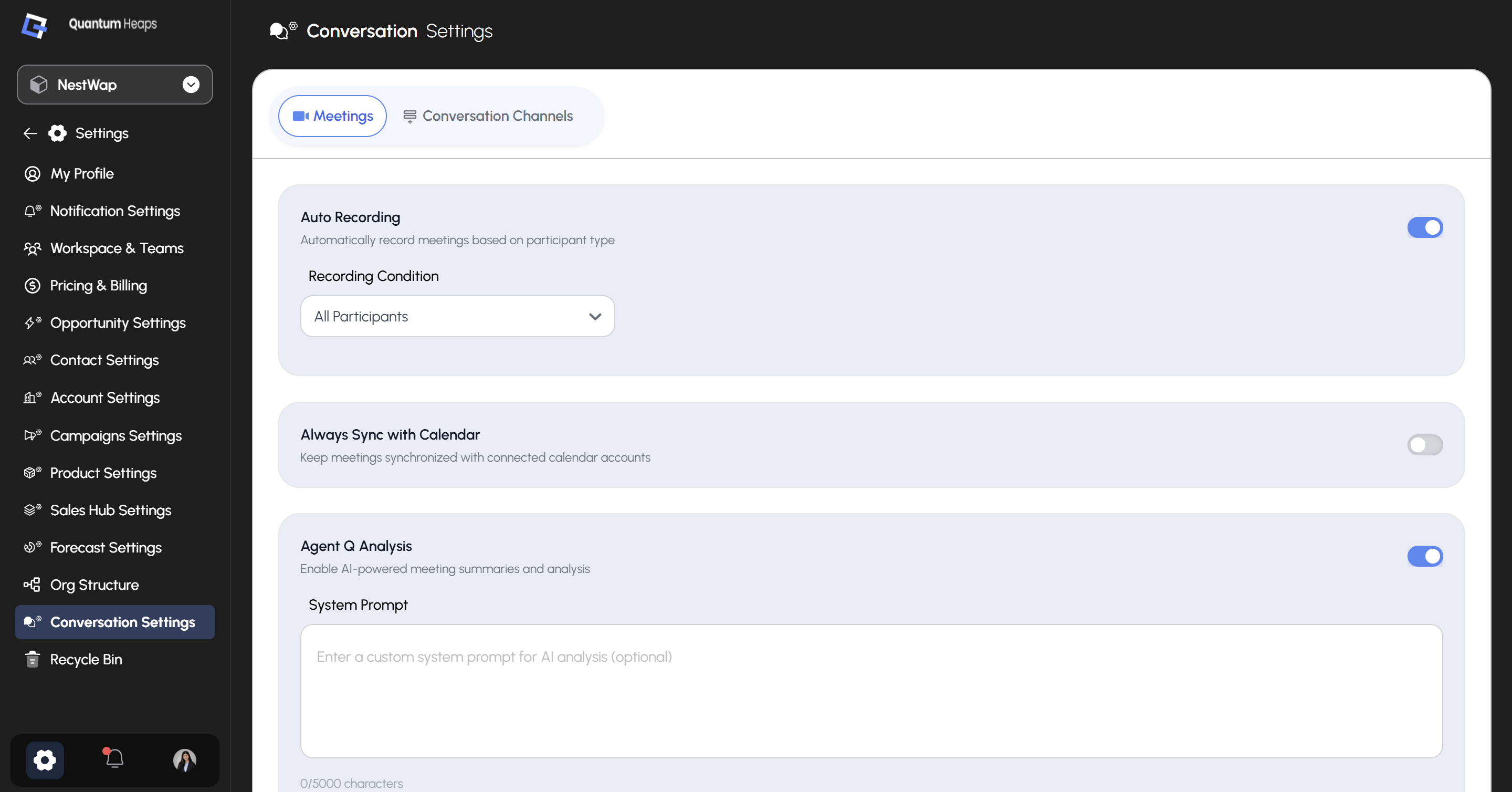
Overview: Conversation Settings is where admins configure how meetings get recorded, synced, and analyzed across the workspace — the same “Quantum Bot” recording and AI analysis feature referenced in the Conversations module, plus how conversation channels are managed.
Automatically records meetings based on who’s attending, instead of requiring someone to manually toggle recording on every virtual meeting.Once Auto Recording is turned on, set the Recording Condition:
Option
Records when…
All Participants
Every meeting, regardless of who’s attending
External Participants
At least one participant is outside your organization
Keeps meetings synchronized with your connected calendar accounts — turn this on if you want scheduling changes on your calendar to automatically reflect in Conversations.
Turns on AI-powered meeting summaries and analysis for logged meetings. Once enabled, you can optionally add a System Prompt — custom instructions that shape how Agent Q analyzes and summarizes your meetings, rather than relying on its default behavior.
This tab manages the email and calendar accounts connected for logging conversations — the same Google/Outlook connections configured in Integrations, surfaced here for conversation-specific management.