What Forecast Is Used For Use Forecast to:
- See target attainment and the remaining gap for yourself and every direct report
- Submit your own Commit and Best Case numbers for the period
- Track who on your team has or hasn’t submitted their forecast yet
- Roll pipeline value up automatically from live opportunity data
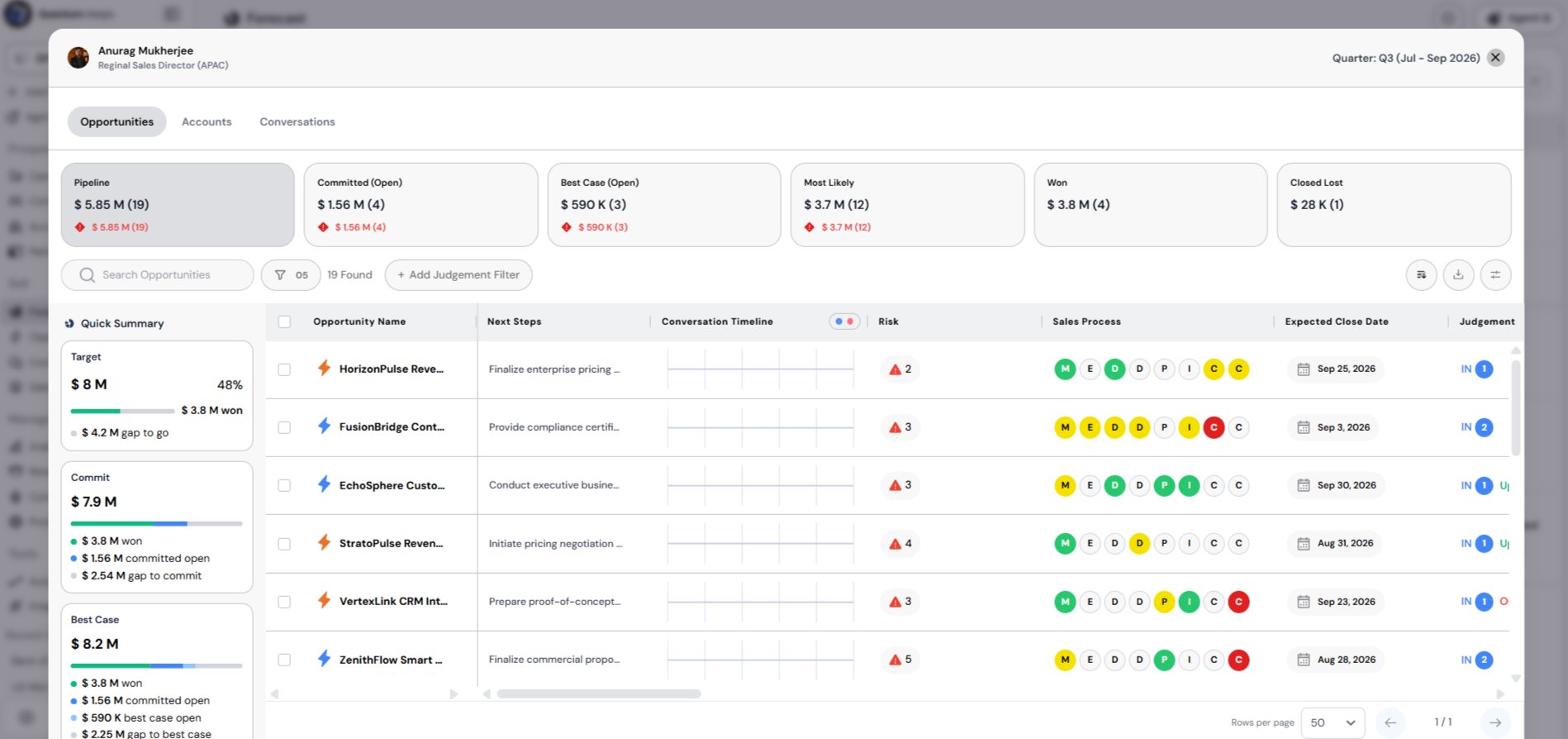
- Drill into any team member’s opportunities, accounts, and conversations from one place
Reading Your Forecast Table
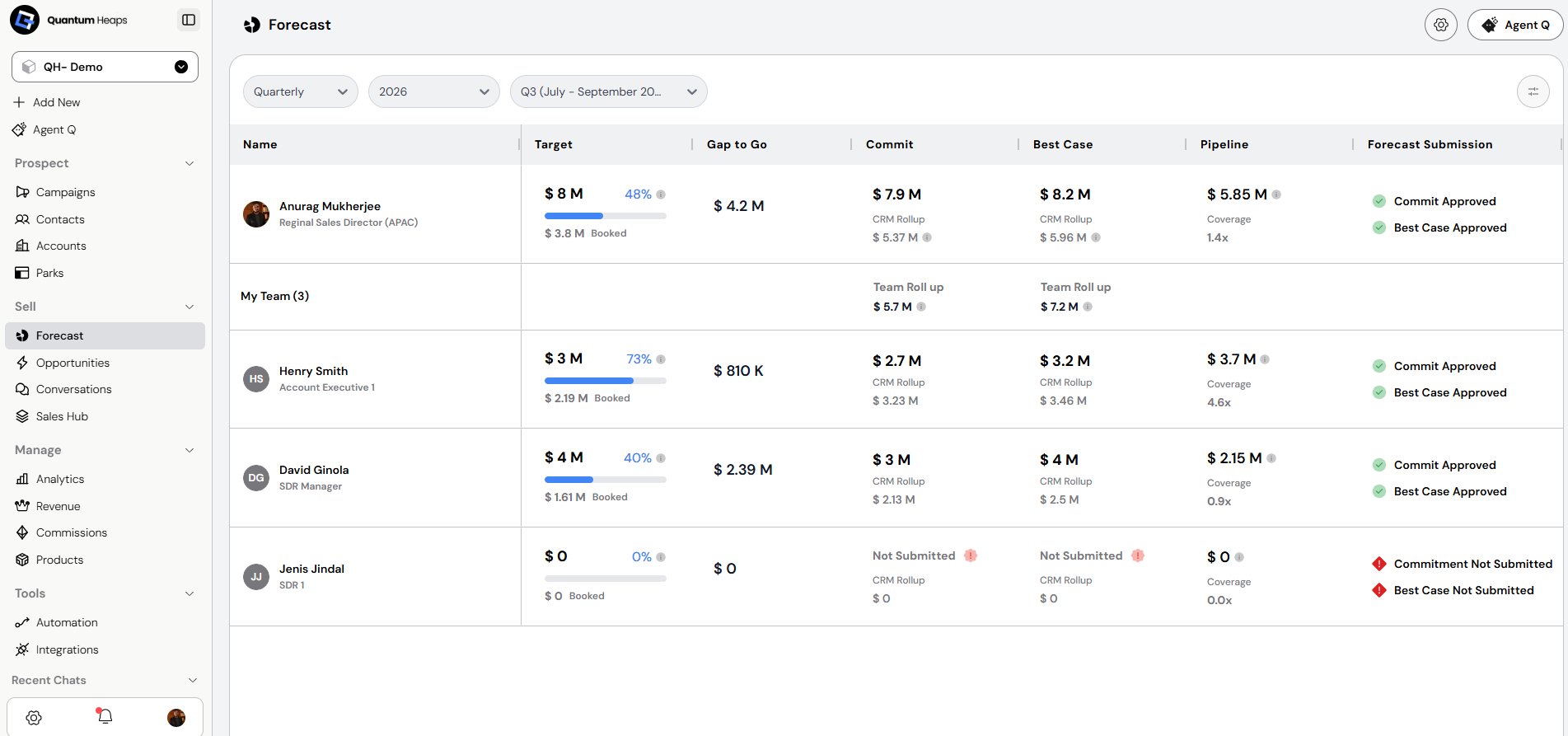
Use the three period selectors at the top — Frequency (Quarterly/Monthly/Yearly), Year, and Period (e.g., Q2 Apr–Jun 2026) — to control what the table shows. Changing any of them updates every row instantly. Each row is a person: your own row at the top, a My Team (N) row aggregating your team’s rollups, then one row per direct report. Columns include:- Target — the rep’s quota for the period, with % achieved and a progress bar
- Gap to Go — how much is left to close to hit target
- Commit — the rep’s committed forecast, with a rollup once submitted
- Best Case — the rep’s best-case forecast, same behavior as Commit
- Pipeline — live open-opportunity value, with a coverage ratio (Pipeline ÷ Gap to Go) below it
- Forecast Submission — flags whether Commit and/or Best Case are still outstanding
Submitting a Forecast
On your own row, click + Submit in the Commit or Best Case column. Enter your value in the popover (you’ll also see the live rollup calculated from your opportunities for reference), then click Submit to save — or Discard to cancel. Once submitted, your number replaces the button and rolls up into your manager’s view above you.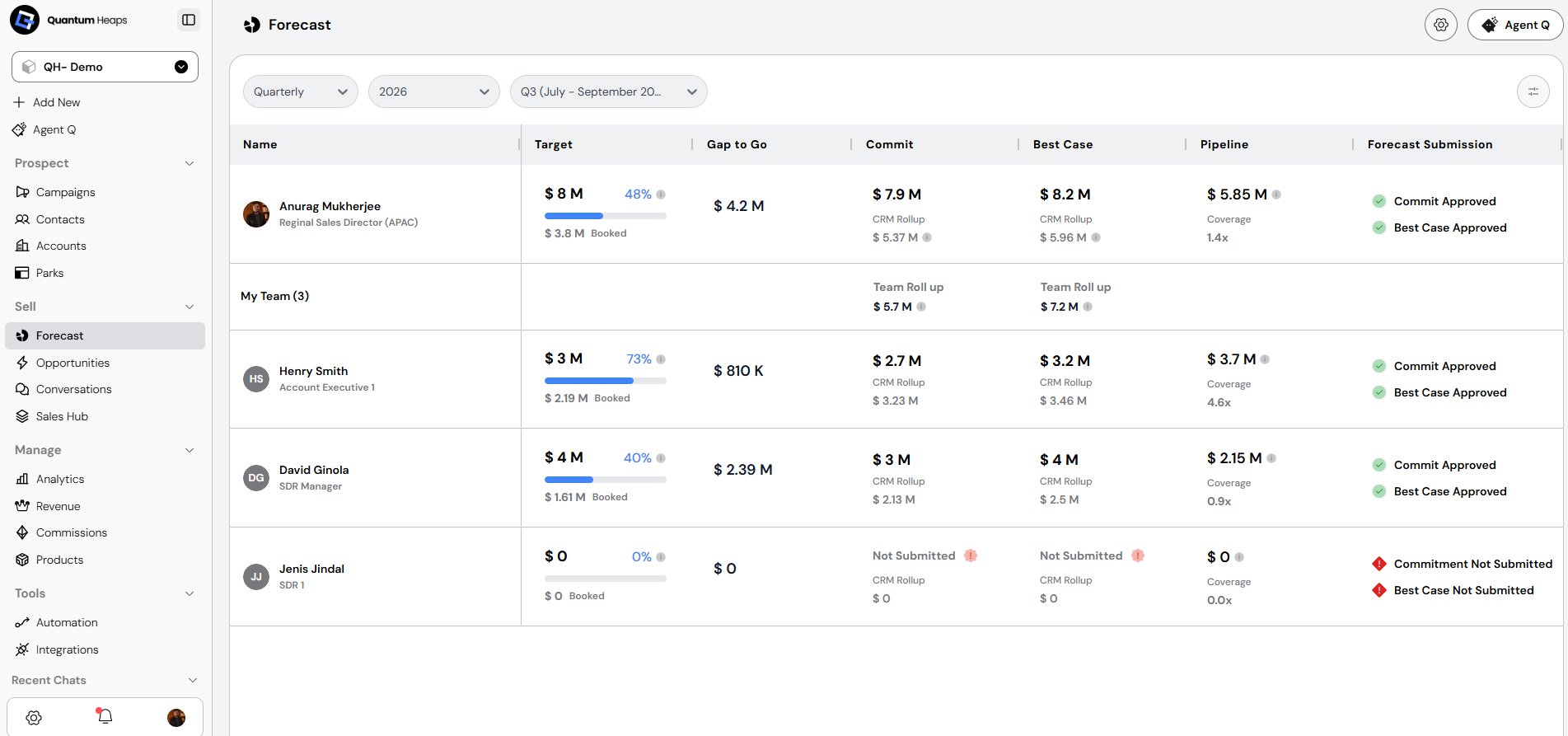
Configuring Forecast Settings
Admins configure Forecast from the settings icon on the Forecast page: Global Configuration- Forecast Rule — Cumulative or Standard, controls how values roll up the hierarchy
- Fiscal Year Period — sets your fiscal year start/end, which drives the quarter/month selectors
- Week Start Day — the day your working week begins, used for weekly period calculations
FAQ
What does Forecast actually show me?A live rollup of what your team is going to close — target attainment, gaps to target, submitted Commit/Best Case numbers, and pipeline value — pulled directly from opportunity data instead of a manually updated spreadsheet. Who can see whose numbers?
You see your own row plus a row for every direct report, with a My Team rollup aggregating your team. Your manager sees the same for you rolled into their team view.