Where to Find It
- Click the Settings icon in the bottom-left corner
- Select Opportunity Settings from the sidebar
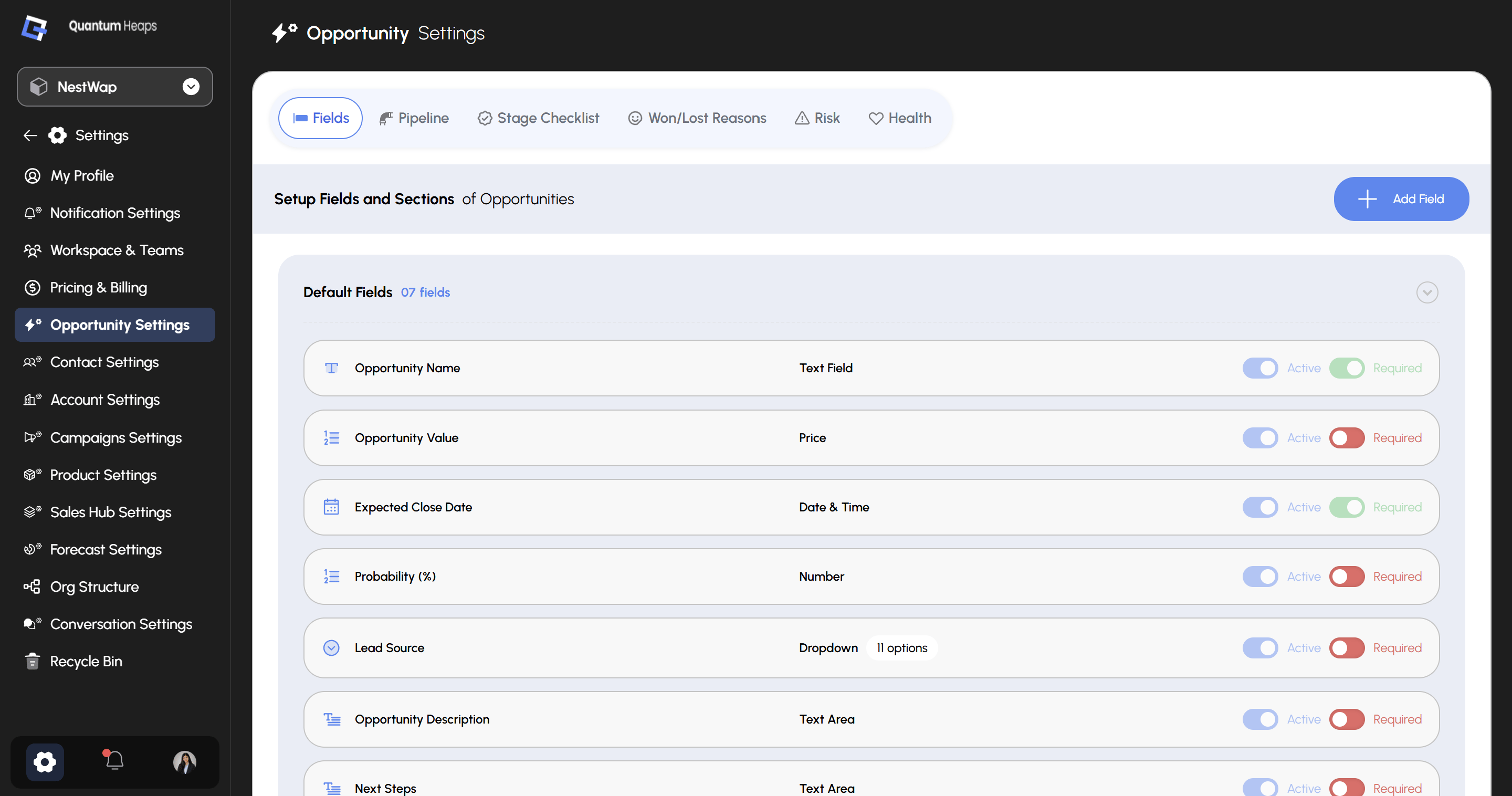
Fields
The Fields tab controls which fields appear on every opportunity form and detail page. Default Fields shows your 7 built-in fields, each with two independent toggles:
Click + Add Field to create a custom field beyond the defaults — you’ll set its section, field type, and required status, and can configure field-level permissions per role at the same time.
Pipeline
The Pipeline tab is where you build your sales process itself:
- Click Add Pipeline to create a new pipeline
- Click into a pipeline to view and manage the stages inside it
- Click Add Stage to add a stage, and mark whether it should count toward forecast consideration
Stage Checklist
Use Stage Checklist to require certain conditions before a rep can move an opportunity to the next stage:- Select a pipeline
- Click Add Checklist
- Enter the checklist question, the opportunity field it checks, a condition operator, and a condition value
- Toggle Active and Required for the checklist item
Won/Lost Reasons
Define the reasons reps choose from when they close a deal:- Select a pipeline
- Click Add New under either Won Reason or Lost Reason
- Edit a reason using the pen icon, or delete it with the trash icon
Risk
Turn on the risk signals you want tracked across your pipeline:- Stage-based risk
- Risk based on a past close date
- Risk based on an upcoming close date
- Risk based on no conversation
- Risk based on no activity
- Risk based on contact roles