> ## Documentation Index
> Fetch the complete documentation index at: https://docs.quantumheaps.com/llms.txt
> Use this file to discover all available pages before exploring further.
# Sales Hub
**Understanding Sales Hub in the Quantum Heaps:**
**Overview:-** In Quantum Heaps Sales Hub is your team's shared library for sales content — decks, one-pagers, case studies, videos, and any other material reps need to move a deal forward. Instead of digging through shared drives or asking around in Slack, everything lives in one searchable place.
\*\*What Sales Hub Are Used For :- \*\*
Sales Hub helps your team:
* Store and organize every sales asset in one central library
* Control who can see, download, or train on a piece of content
* Tag and categorize assets so they're easy to find later
* Discover the right asset instantly using the Agent Q Search
* Bookmark frequently used content for quick access
* Link sales hub content directly to any opportunity by their stage.
 ### **How to add an Asset**
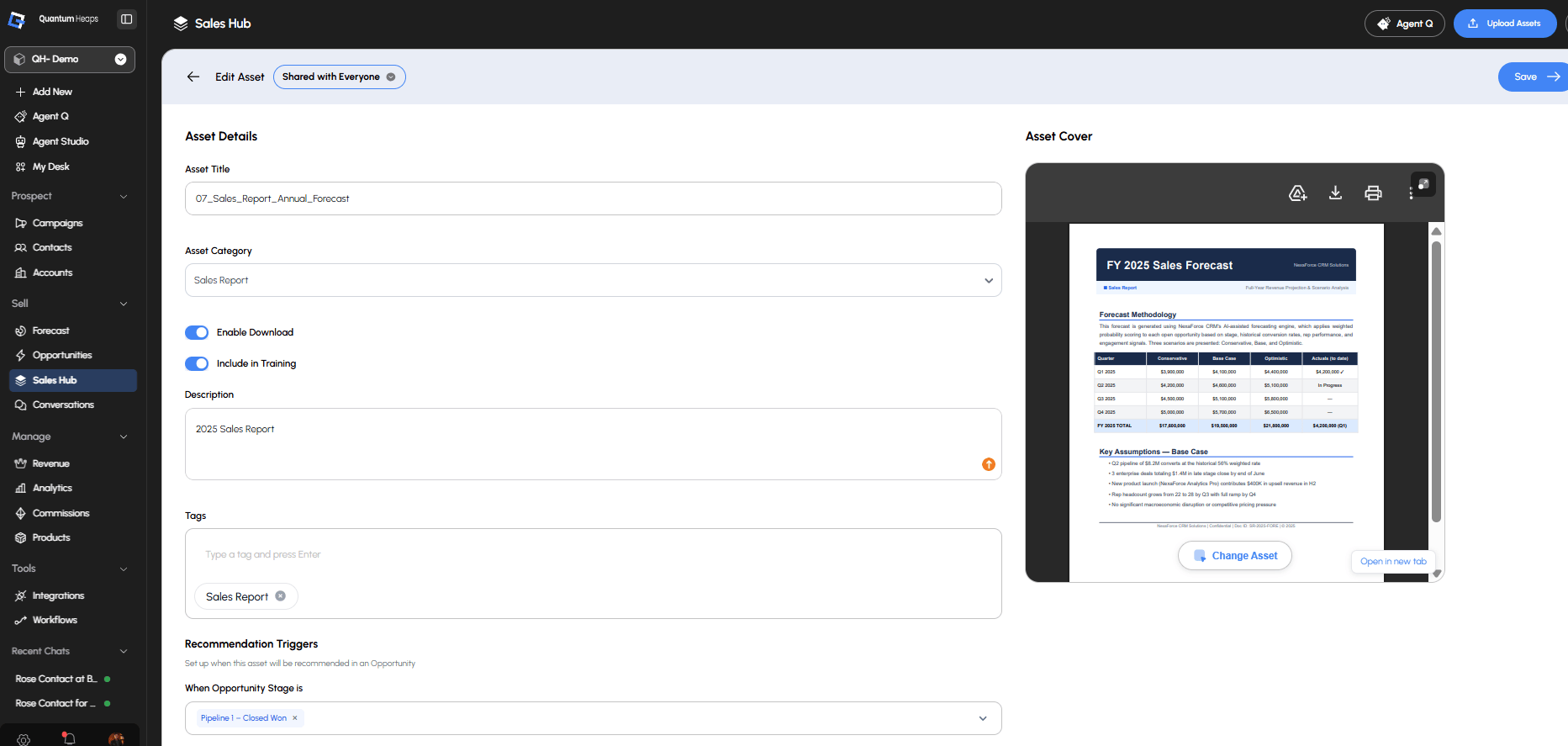
Click **Add Asset** on the Sales Hub landing page, then:
1. Upload your file
2. Enter an **Asset Title** (required)
3. Select a **Category** from the dropdown
4. Add a **Description** and any relevant **Tags**
5. Set toggles for **Enable Download** and **Include in Training**
6. Configure **sharing/privacy** settings — who can see and access this asset
7. Set **Recommendation Triggers**, if you want this asset surfaced automatically in relevant contexts
Click **Save**
### **Organizing Your Library with Categories**
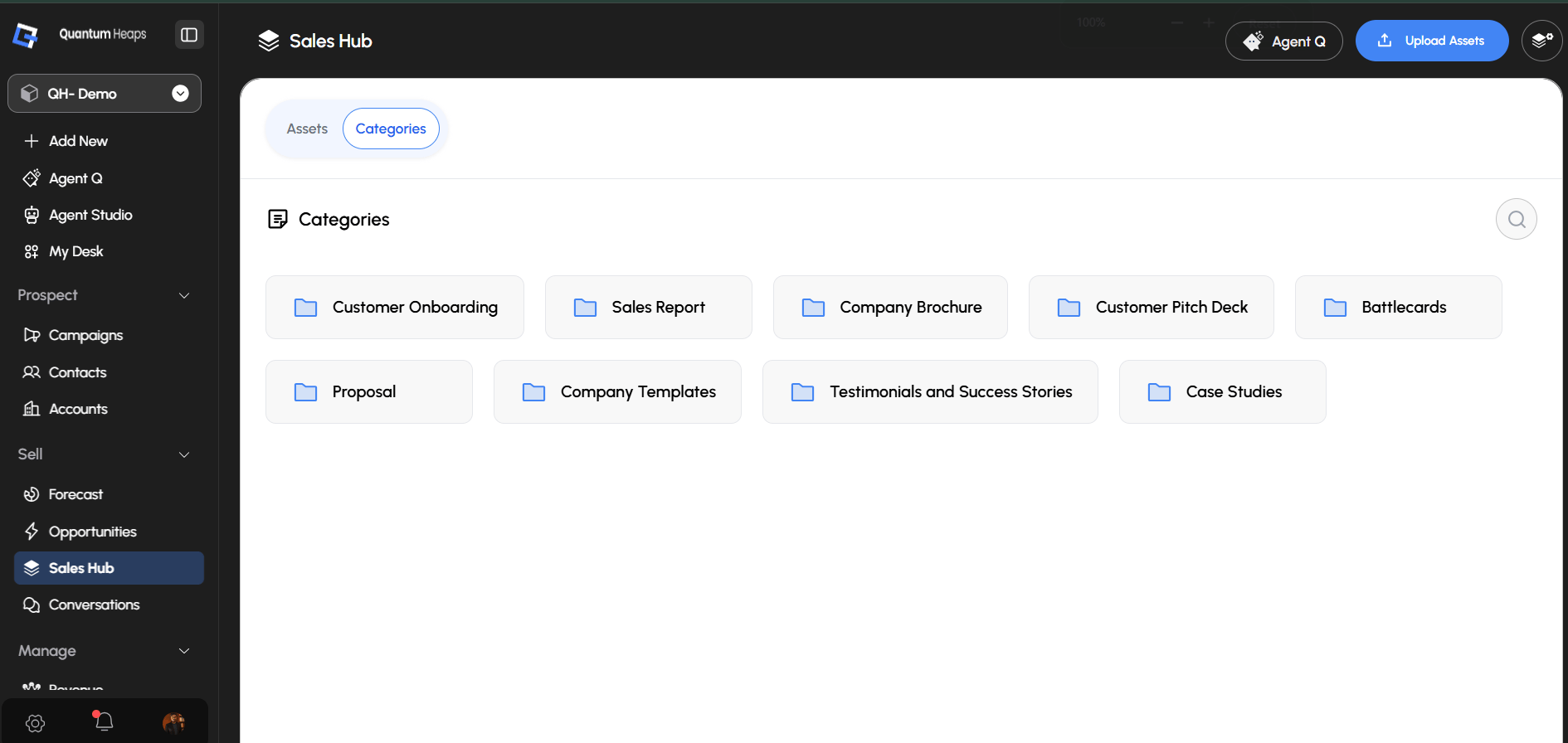
We can create categories to keep the library structured:
1. Open **Sales Hub Settings** from the landing page
2. Click **Add New Category**, name it, and save
Categories become selectable when uploading a new asset, and appear as a filter on the landing page.
### **How to add an Asset**
Click **Add Asset** on the Sales Hub landing page, then:
1. Upload your file
2. Enter an **Asset Title** (required)
3. Select a **Category** from the dropdown
4. Add a **Description** and any relevant **Tags**
5. Set toggles for **Enable Download** and **Include in Training**
6. Configure **sharing/privacy** settings — who can see and access this asset
7. Set **Recommendation Triggers**, if you want this asset surfaced automatically in relevant contexts
Click **Save**
### **Organizing Your Library with Categories**
We can create categories to keep the library structured:
1. Open **Sales Hub Settings** from the landing page
2. Click **Add New Category**, name it, and save
Categories become selectable when uploading a new asset, and appear as a filter on the landing page.
 ### **Finding and Viewing Assets**
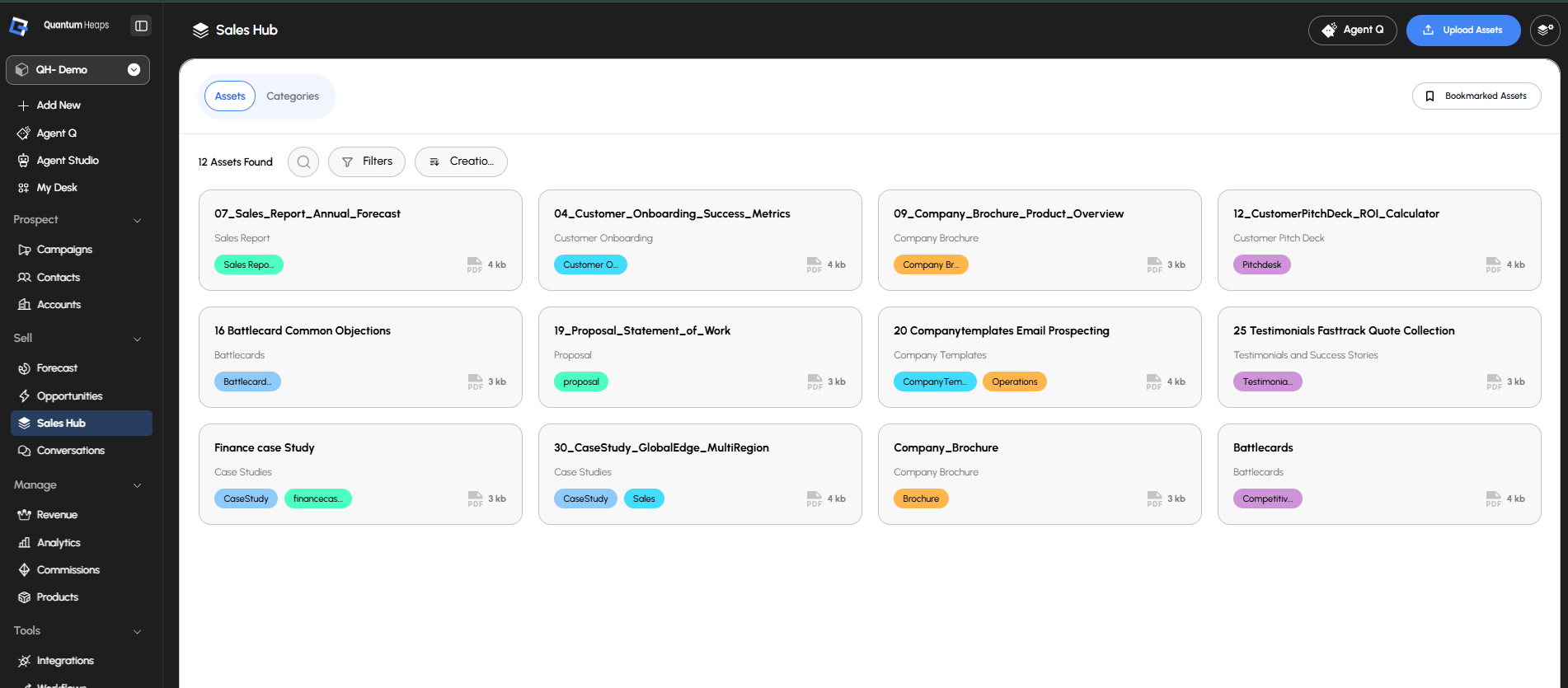
On the **landing page**, every asset shows as a card with its name, owner, file size, type, and tags. You can:
* **Search** by name — results filter in real time
* **Filter** by category, type, or other available criteria
* **Sort** by creation date
* Click any card to **open or download** the file — PDFs open in a built-in viewer, other file types download directly
Open an asset's **detail view** to see its full content— title, description, category, tags, owner.
### **Finding and Viewing Assets**
On the **landing page**, every asset shows as a card with its name, owner, file size, type, and tags. You can:
* **Search** by name — results filter in real time
* **Filter** by category, type, or other available criteria
* **Sort** by creation date
* Click any card to **open or download** the file — PDFs open in a built-in viewer, other file types download directly
Open an asset's **detail view** to see its full content— title, description, category, tags, owner.
 **Search Content Using Agent Q**
In Quantum Heaps Instead of browsing or guessing a file name, open AI Search and describe what you need in plain language — for example, *"Show me case studies for financial services."* The AI interprets your intent and returns matching assets.
* Ask follow-up questions — the AI keeps context from your previous query, so you can refine your search conversationally
* If nothing matches, you'll see a "No results found" message
**Search Content Using Agent Q**
In Quantum Heaps Instead of browsing or guessing a file name, open AI Search and describe what you need in plain language — for example, *"Show me case studies for financial services."* The AI interprets your intent and returns matching assets.
* Ask follow-up questions — the AI keeps context from your previous query, so you can refine your search conversationally
* If nothing matches, you'll see a "No results found" message