> ## Documentation Index
> Fetch the complete documentation index at: https://docs.quantumheaps.com/llms.txt
> Use this file to discover all available pages before exploring further.
# Opportunities
**Understanding Opportunities in the Quantum Heaps:**
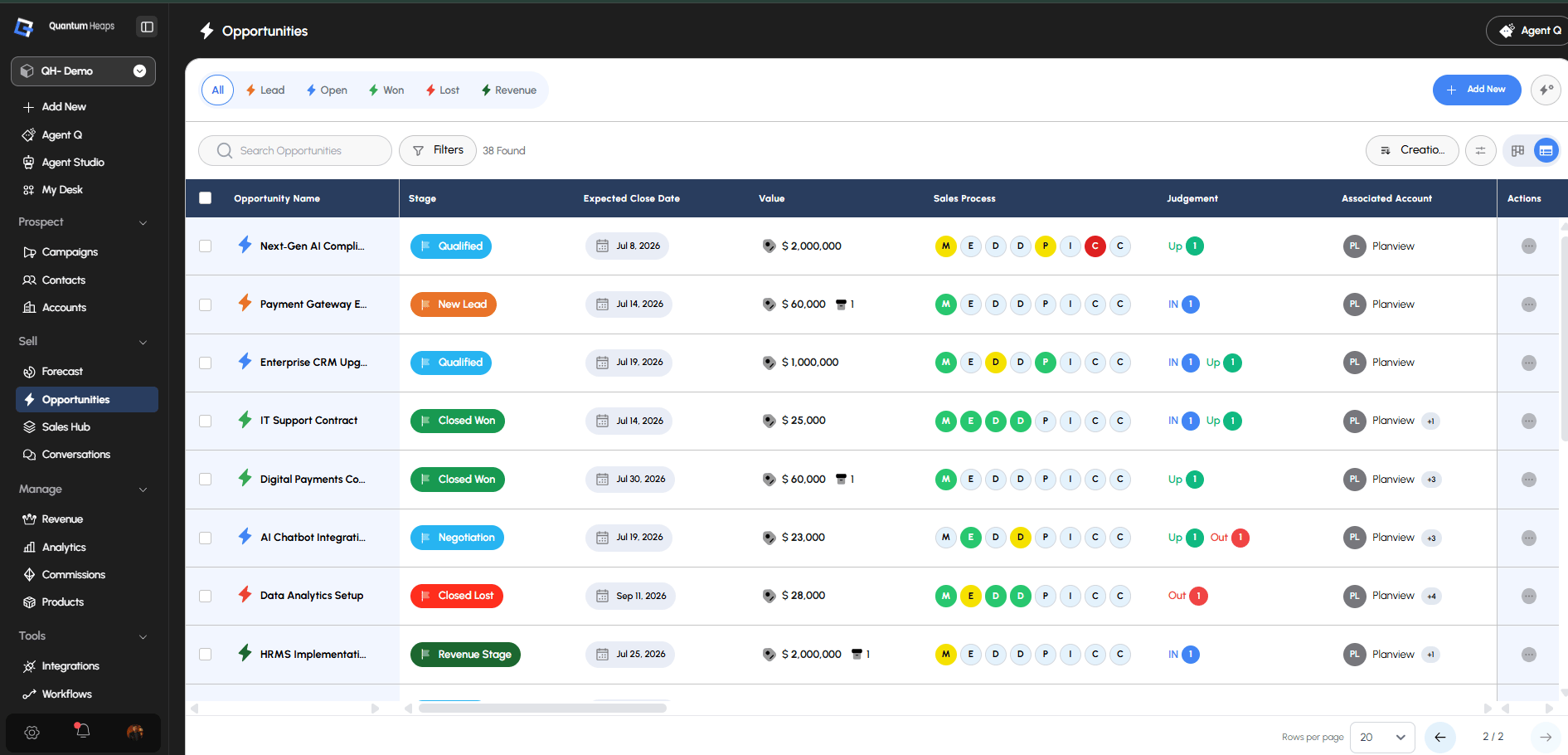
**Overview:-** Opportunities are your deals — every potential or active sale your team is working. Each opportunity tracks the full lifecycle: value, stage, timeline, involved stakeholders, and how healthy the deal actually is, so your team always knows what to do next.
**What Opportunities Are Used For**
Use the Opportunities module to:
* Track and manage every deal from creation through close, won or lost
* Score deal health and flag risk before it costs you the deal
* Coordinate who's involved — accounts, contacts, and your own team members
* Record judgement calls (IN / UP / OUT) on where a deal really stands
* Keep a full audit timeline of everything that happened on the deal
 ### **Creating an Opportunity**
Click **Create Opportunity** on the landing page (or create one inline from an account or contact record), then fill in:
* **Required:** Opportunity Name, Pipeline, Stage, Associated Account
* **Optional:** Opportunity Value, Expected Close Date, Probability (0–100), Lead Source, Description, Next Steps, Associated Contact, Associated Team Member
### **Creating an Opportunity**
Click **Create Opportunity** on the landing page (or create one inline from an account or contact record), then fill in:
* **Required:** Opportunity Name, Pipeline, Stage, Associated Account
* **Optional:** Opportunity Value, Expected Close Date, Probability (0–100), Lead Source, Description, Next Steps, Associated Contact, Associated Team Member
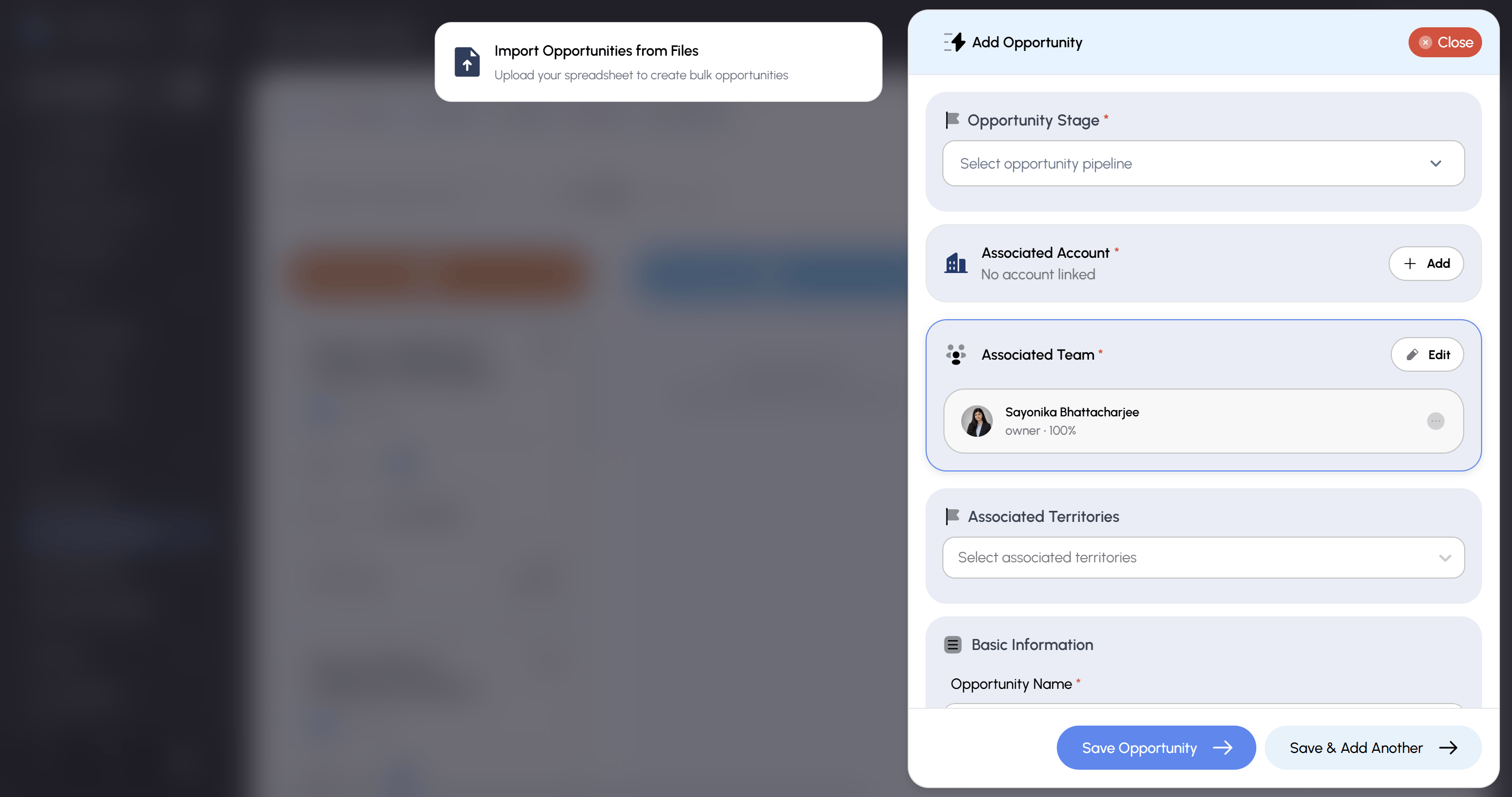 You're auto-assigned as owner. Opportunities can also be bulk-imported from a file.
### **How to Configure Your Pipeline**
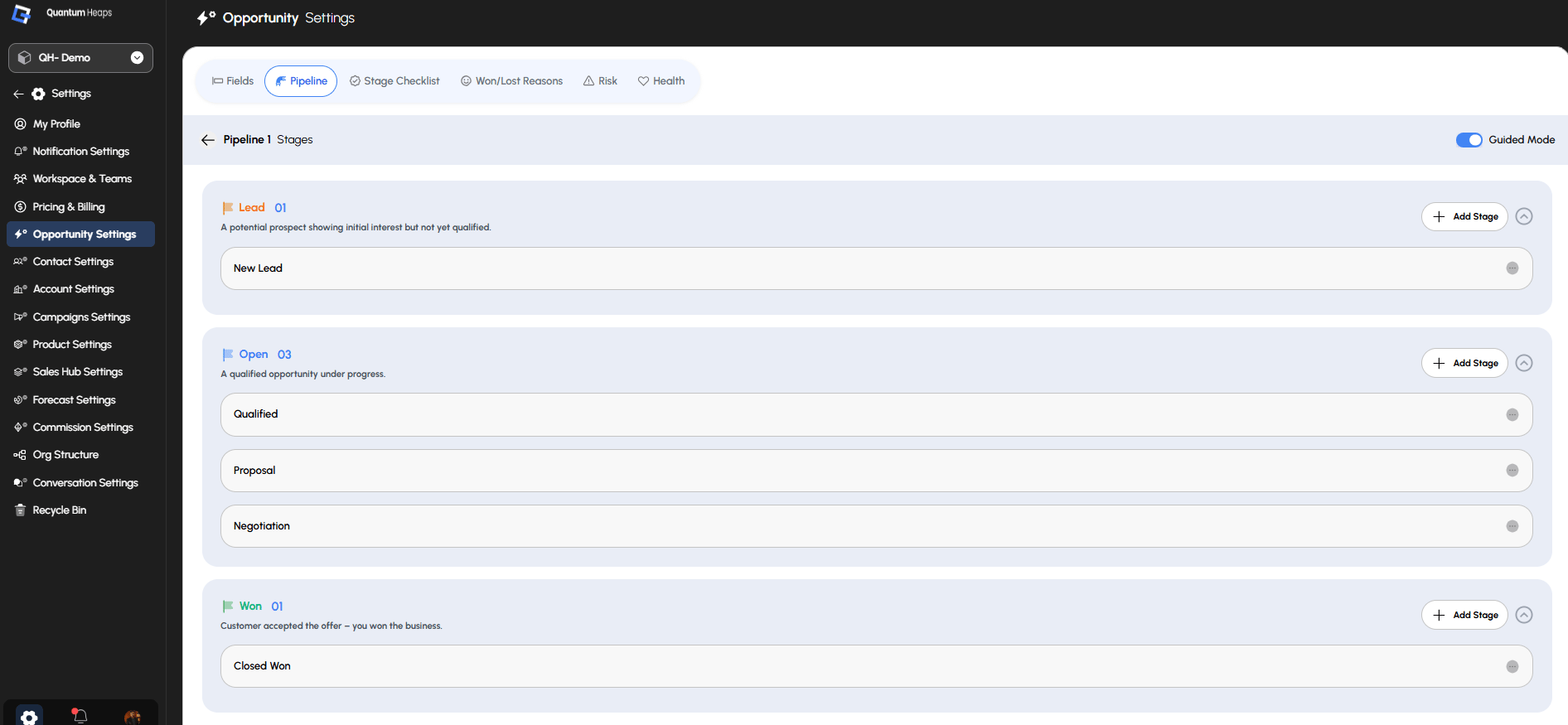
Admins manage pipeline structure from **Opportunities Settings** (gear icon next to Create Opportunity):
You're auto-assigned as owner. Opportunities can also be bulk-imported from a file.
### **How to Configure Your Pipeline**
Admins manage pipeline structure from **Opportunities Settings** (gear icon next to Create Opportunity):
 **1. Set up your pipeline and stages**
Open the **Pipeline** tab, add a pipeline, then add stages inside it — each stage can be marked for forecast consideration.
**2. Add stage-advancement checklists (optional)**
Open **Stage Checklist**, select a pipeline, and add checklist questions tied to opportunity fields — this blocks reps from advancing a deal's stage until the criteria are met.
**3. Define Won/Lost reasons**
Open **Won/Lost Reason** and add the reasons reps choose from when they close a deal won or lost.
**4. Turn on risk tracking**
Open **Risk** and activate the risk types you want tracked — stage-based risk, risk from a past close date, an upcoming close date, no conversation, no activity, or specific contact roles not engaging.
**5. Choose your health scoring method**
Open **Health** and select how your team measures qualification: **MEDDPICC**, **MEDPIC**, or **BANT**.
**Viewing and Managing an Opportunity**
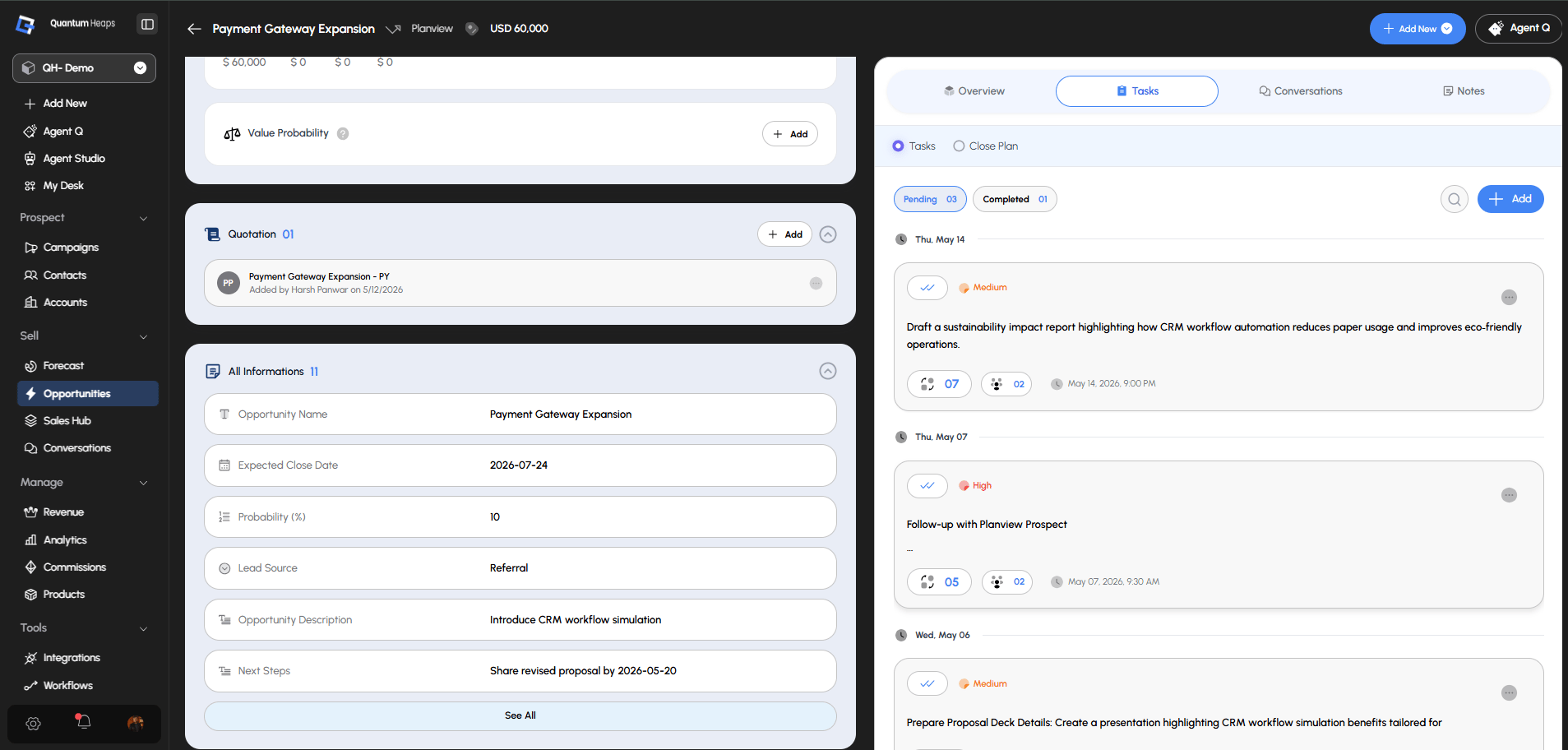
Open any opportunity to see:
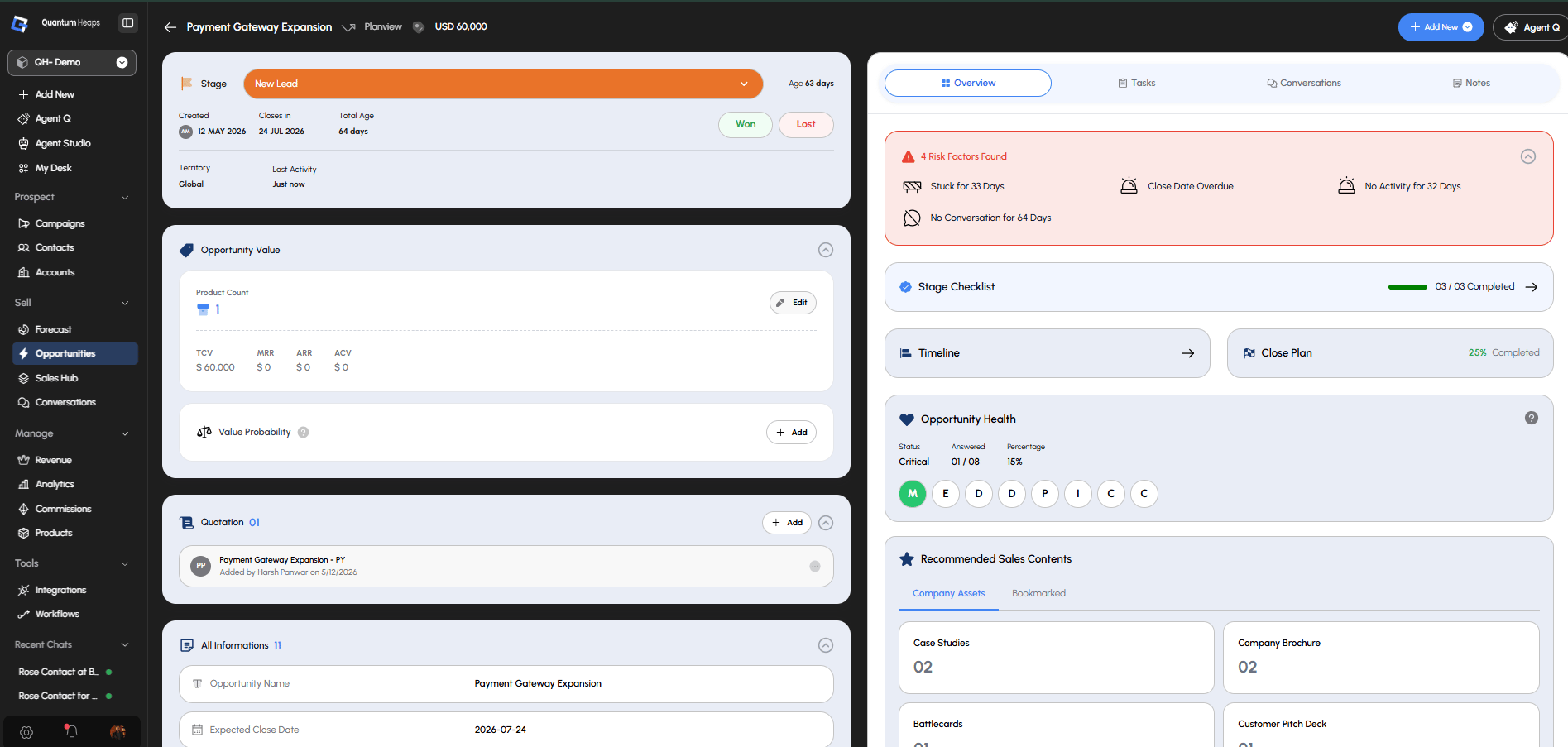 * **Core Fields** — Name, Pipeline, Stage, Value, Close Date, Probability, Lead Source, Description, and Next Steps, all editable inline. Changing the stage reflects across every linked account and contact.
* **Associated Accounts / Contacts** — every linked record, with a primary flagged on each; if you remove the primary, the system auto-reassigns a new one from what's left
* **Associated Team Members** — who's working the deal
* **Files & Quotations** — upload supporting documents, and add or download quotations directly on the record
* **Judgement** — set your own call on the deal (IN / UP / OUT) and see your team's judgements too
* **Opportunity Health** — score the deal against your chosen framework (e.g., answer Yes/Partially/No for each MEDDPICC letter) to see its live health
* **Stage Checklist** — answer the configured checklist questions before advancing the stage
* **Close Plan** — add milestones to map out what needs to happen before the deal closes
* **Recommended Sales Content** — surfaced assets from Sales Hub relevant to this deal
* **Timeline** — a full history of every change and activity on the deal
You can also edit key fields directly from the list view (inline editing) or in bulk across multiple opportunities.
### **Tasks, Conversations, and Notes**
Just like on a contact or account:
* **Tasks** — create follow-ups with an assignee, due date, and optional file
* **Conversations** — log calls, meetings, and emails directly on the opportunity, searchable by date, associated contact/account/team member, or email status
* **Notes** — log freeform text with optional attachments, visible to anyone with access to the deal
* **Core Fields** — Name, Pipeline, Stage, Value, Close Date, Probability, Lead Source, Description, and Next Steps, all editable inline. Changing the stage reflects across every linked account and contact.
* **Associated Accounts / Contacts** — every linked record, with a primary flagged on each; if you remove the primary, the system auto-reassigns a new one from what's left
* **Associated Team Members** — who's working the deal
* **Files & Quotations** — upload supporting documents, and add or download quotations directly on the record
* **Judgement** — set your own call on the deal (IN / UP / OUT) and see your team's judgements too
* **Opportunity Health** — score the deal against your chosen framework (e.g., answer Yes/Partially/No for each MEDDPICC letter) to see its live health
* **Stage Checklist** — answer the configured checklist questions before advancing the stage
* **Close Plan** — add milestones to map out what needs to happen before the deal closes
* **Recommended Sales Content** — surfaced assets from Sales Hub relevant to this deal
* **Timeline** — a full history of every change and activity on the deal
You can also edit key fields directly from the list view (inline editing) or in bulk across multiple opportunities.
### **Tasks, Conversations, and Notes**
Just like on a contact or account:
* **Tasks** — create follow-ups with an assignee, due date, and optional file
* **Conversations** — log calls, meetings, and emails directly on the opportunity, searchable by date, associated contact/account/team member, or email status
* **Notes** — log freeform text with optional attachments, visible to anyone with access to the deal