> ## Documentation Index
> Fetch the complete documentation index at: https://docs.quantumheaps.com/llms.txt
> Use this file to discover all available pages before exploring further.
# My Desk
**Understanding My Desk in the Quantum Heaps:**
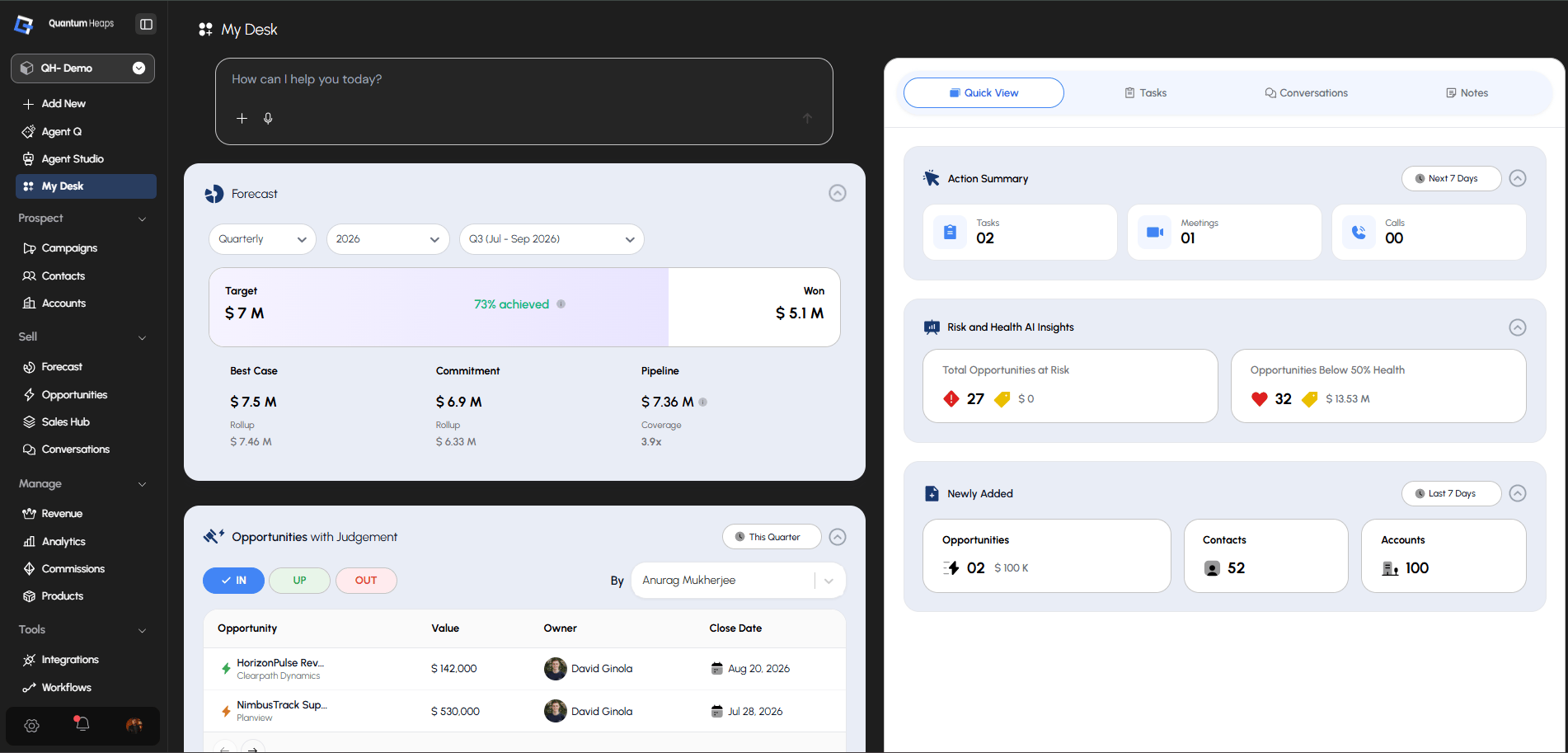
**Overview:** My Desk is your personal home dashboard — the first screen you see each day, showing your pipeline, activity, and key records at a glance, with an AI assistant sitting right at the top ready to help.
**What My Desk Is Used For**
Use My Desk to:
* Check your forecast, top deals, and most active accounts and contacts in one view
* Ask Agent Q a question or give it a task without leaving your home screen
* Track your upcoming tasks, meetings, and calls for the week
* Spot at-risk or low-health opportunities before they become a problem
* Manage your tasks, conversations, and notes without switching modules
### **Using Agent Q from My Desk**
At the top of the page, type a question into the **"How can I help you today?"**.. Press Enter or click send, and Agent Q processes your query and responds — directly on My Desk.
 ### **Left Panel Widgets**
#### **Forecast**
Shows your quarterly pipeline at a glance — **Target**, **Won**, and **% achieved** at the top, then a breakdown into **Best Case**, **Commitment**, and **Pipeline**, each with a rollup value and coverage ratio. Use the Frequency, Year, and Quarter selectors to change the period, and hover the (ⓘ) icon next to the achieved percentage for more context.
#### **Opportunities with Judgement**
Filter your opportunities by **IN** (committed), **UP** (upside), or **OUT** (at risk) — click a tab to switch categories. Each row shows Opportunity, Value, Owner, and Close Date. Filter further **By owner** or by quarter, and paginate with the arrows.
#### **Top Open Opportunities by Value**
Ranks your top 5 open deals by value, showing Rank, Opportunity name (with company), Value, Owner, and Close Date. Filter by quarter, and click any row to jump straight to that opportunity's detail page.
#### **Accounts with Most Activities**
Ranks your top 5 accounts by total activity — Email (sent/received), Call (outgoing/incoming), and Meetings, each broken out separately. Filter by quarter.
#### **Top Ongoing Accounts by Value**
Ranks your top 5 accounts by their open opportunity value, showing Rank, Account Name, Opportunity Value, Owner, and Last Activity date. Unassigned accounts show as "Unassigned." Filter by quarter and paginate through results.
#### **Contacts with Most Activities**
Same structure as Accounts with Most Activities, but ranking your top 5 contacts instead — Email, Call, and Meeting counts, filterable by quarter.
#### **Shortcuts**
Quick-action buttons at the bottom of the panel so you don't need to navigate elsewhere:
| **Shortcut** | **Opens** |
| :-------------- | :------------------------ |
| Add Contact | Contact creation page |
| Add Account | Account creation page |
| Add Opportunity | Opportunity creation page |
| Add Task | Task creation screen |
| Log a Call | Call logging form |
| Add Note | Note creation interface |
| Add Meeting | Meeting scheduling form |
### **Right Panel**
Four tabs sit at the top: **Quick View**, **Tasks**, **Conversations**, and **Notes**.
#### **Quick View (default tab)**
Three collapsible summary cards, each with a chevron to expand or collapse:
* **Action Summary** — counts of Tasks, Meetings, and Calls for the **Next 7 Days**; click any count to jump to its filtered list
* **Risk and Health AI Insights** — **Total Opportunities at Risk** and **Opportunities Below 50% Health**, each with a count and total value; click through to a filtered opportunity list
* **Newly Added** — counts of Opportunities, Contacts, and Accounts added in the **Last 7 Days**, each clickable
### **Left Panel Widgets**
#### **Forecast**
Shows your quarterly pipeline at a glance — **Target**, **Won**, and **% achieved** at the top, then a breakdown into **Best Case**, **Commitment**, and **Pipeline**, each with a rollup value and coverage ratio. Use the Frequency, Year, and Quarter selectors to change the period, and hover the (ⓘ) icon next to the achieved percentage for more context.
#### **Opportunities with Judgement**
Filter your opportunities by **IN** (committed), **UP** (upside), or **OUT** (at risk) — click a tab to switch categories. Each row shows Opportunity, Value, Owner, and Close Date. Filter further **By owner** or by quarter, and paginate with the arrows.
#### **Top Open Opportunities by Value**
Ranks your top 5 open deals by value, showing Rank, Opportunity name (with company), Value, Owner, and Close Date. Filter by quarter, and click any row to jump straight to that opportunity's detail page.
#### **Accounts with Most Activities**
Ranks your top 5 accounts by total activity — Email (sent/received), Call (outgoing/incoming), and Meetings, each broken out separately. Filter by quarter.
#### **Top Ongoing Accounts by Value**
Ranks your top 5 accounts by their open opportunity value, showing Rank, Account Name, Opportunity Value, Owner, and Last Activity date. Unassigned accounts show as "Unassigned." Filter by quarter and paginate through results.
#### **Contacts with Most Activities**
Same structure as Accounts with Most Activities, but ranking your top 5 contacts instead — Email, Call, and Meeting counts, filterable by quarter.
#### **Shortcuts**
Quick-action buttons at the bottom of the panel so you don't need to navigate elsewhere:
| **Shortcut** | **Opens** |
| :-------------- | :------------------------ |
| Add Contact | Contact creation page |
| Add Account | Account creation page |
| Add Opportunity | Opportunity creation page |
| Add Task | Task creation screen |
| Log a Call | Call logging form |
| Add Note | Note creation interface |
| Add Meeting | Meeting scheduling form |
### **Right Panel**
Four tabs sit at the top: **Quick View**, **Tasks**, **Conversations**, and **Notes**.
#### **Quick View (default tab)**
Three collapsible summary cards, each with a chevron to expand or collapse:
* **Action Summary** — counts of Tasks, Meetings, and Calls for the **Next 7 Days**; click any count to jump to its filtered list
* **Risk and Health AI Insights** — **Total Opportunities at Risk** and **Opportunities Below 50% Health**, each with a count and total value; click through to a filtered opportunity list
* **Newly Added** — counts of Opportunities, Contacts, and Accounts added in the **Last 7 Days**, each clickable
#### **Tasks Tab**
Two sub-tabs: **Tasks** (your personal tasks) and **Close Plan** (tasks tied to opportunity close plans). Tasks are grouped under due-date headers, each card showing a priority badge, task name, type icon, assignee, and due date.
* Click **+ Add** to create a task: write it in the rich text editor, set a priority (Low/Medium/High/Urgent), attach a file, and link it to a Team Member, Contact, Account, or Opportunity
* Use the 3-dot menu on any card to edit or delete it, or click the checkmark to mark it complete
#### **Conversations Tab**
Shows your logged calls, meetings, and emails grouped by date, with **All / Emails / Meetings / Calls** filter tabs, a search bar, and a filter icon with an active-filter count badge. Click **Add ▾** to log a new **Call**, **In-person Meeting**, **Virtual Meeting**, or **Compose Email**.
#### **Notes Tab**
Lists your notes as cards with a timestamp and content preview. Click **+ Add** to write a note in the rich text editor, attach a file, and link it to a Contact, Account, or Opportunity. Use the 3-dot menu to edit or delete any note.