> ## Documentation Index
> Fetch the complete documentation index at: https://docs.quantumheaps.com/llms.txt
> Use this file to discover all available pages before exploring further.
# Integrations
**Understanding Integrations in the Quantum Heaps:**
**Overview:-** Integrations is where you connect Quantum Heaps to the other tools your team already uses — your CRM migration source, your email and calendar, enrichment tools, and bulk file imports — all managed from one central hub.
**What Integrations Is Used For**
Use the Integrations module to:
* Sync data bidirectionally with HubSpot or Salesforce
* Connect your Google or Outlook account for email and calendar
* Enrich missing contact data automatically via Apollo
* Bulk-import records from a spreadsheet
* Manage every third-party connection — and see what's active — from one screen
### **Viewing Your Connections**
The landing page splits into two sections:
* **Active Connections** — integrations already set up, each showing a green **Connected** badge, the number of accounts connected (for Google/Outlook), and a **View Details →** link
* **Available Connections** — integrations you haven't connected yet, each with a **Connect →** button
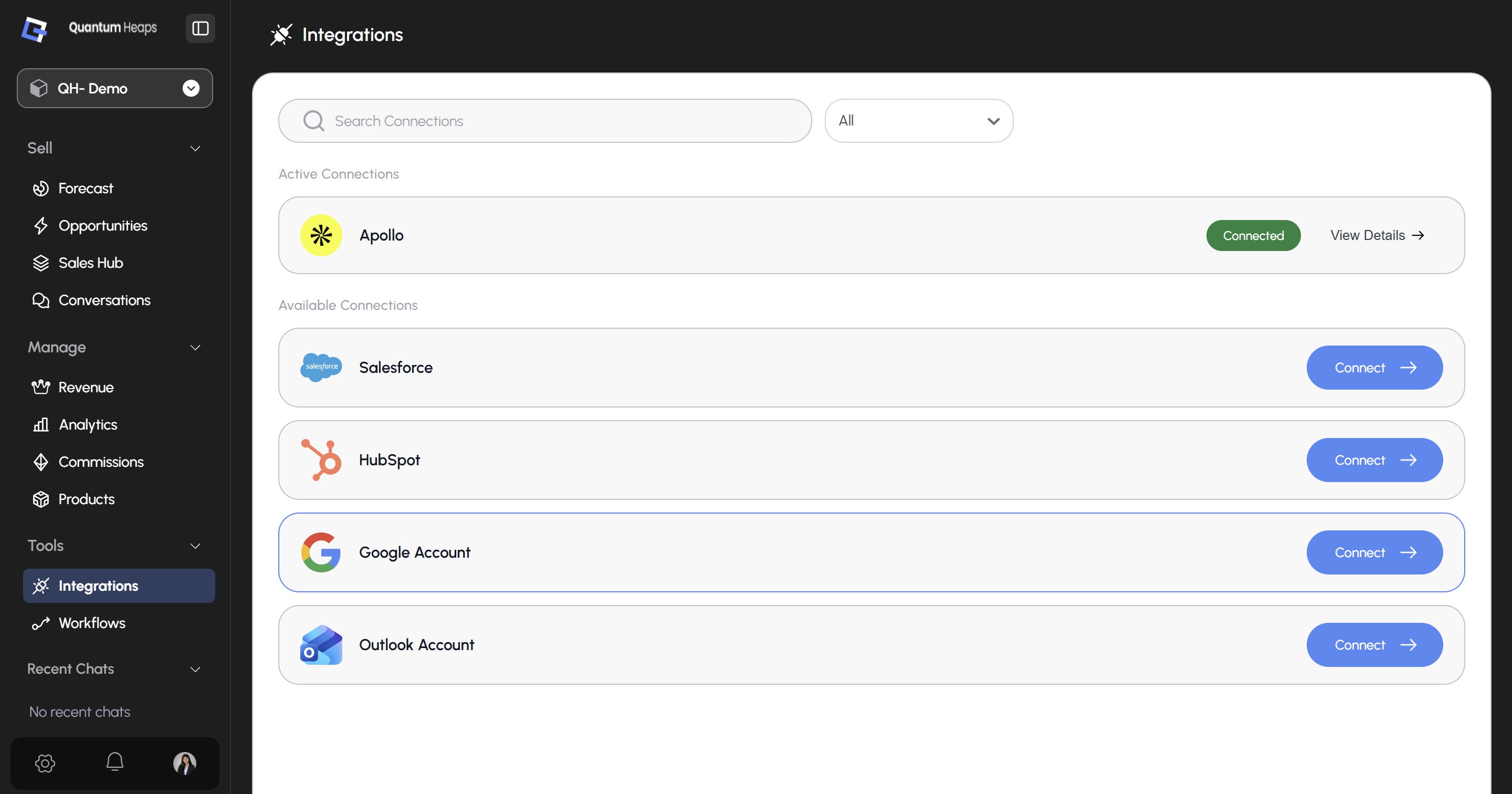 Use the **search bar** to find an integration by name, or the **category dropdown** to filter by type.
### **Connecting HubSpot or Salesforce**
Click **Connect →** on either row:
* **HubSpot** authorizes through OAuth
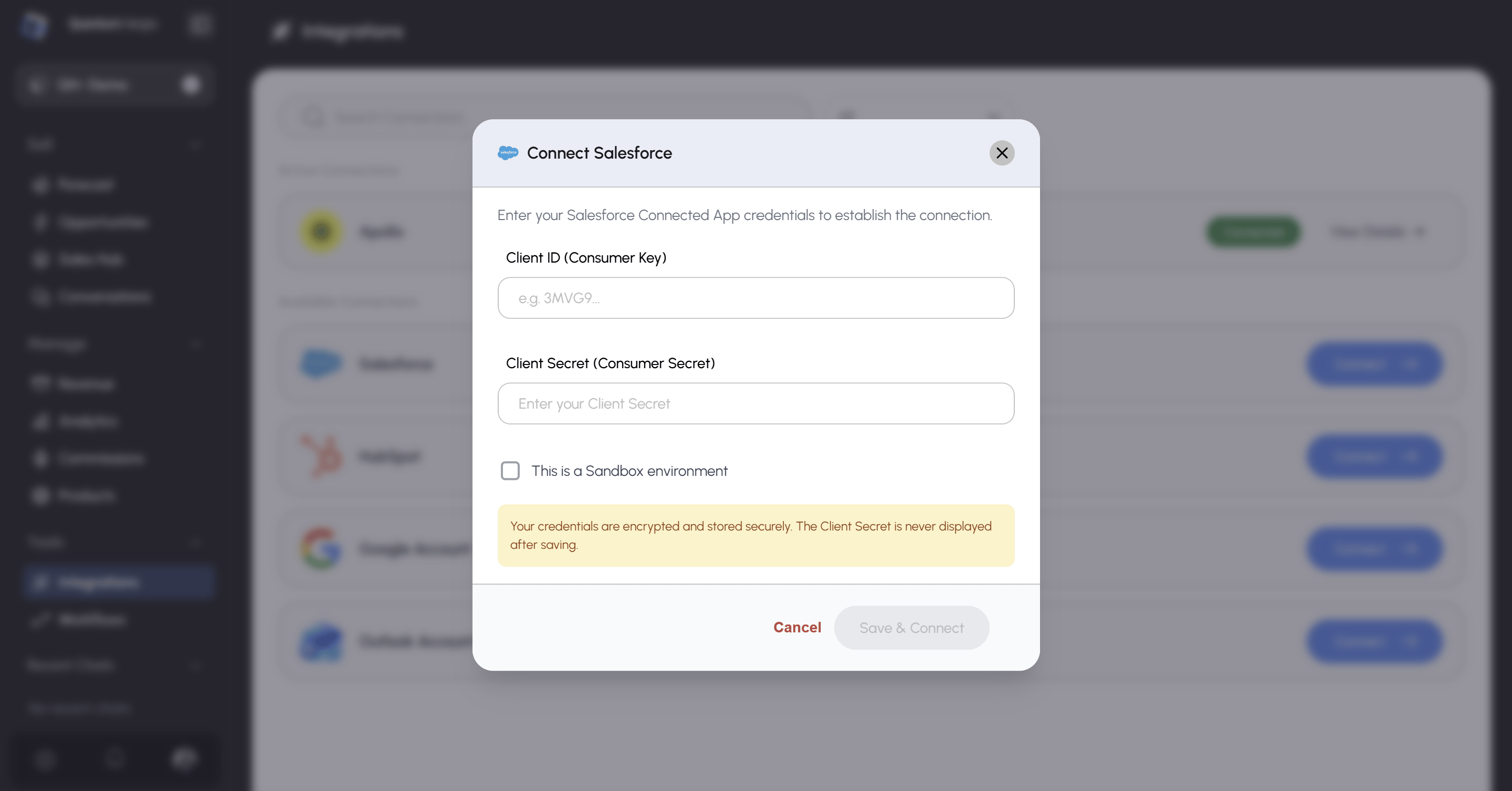
* **Salesforce** connects via an OAuth Connected App, with sandbox support for testing before you go live
Use the **search bar** to find an integration by name, or the **category dropdown** to filter by type.
### **Connecting HubSpot or Salesforce**
Click **Connect →** on either row:
* **HubSpot** authorizes through OAuth
* **Salesforce** connects via an OAuth Connected App, with sandbox support for testing before you go live
 Once connected, open **View Details** to configure:
* **Data Syncing** — toggle **Sync Automatically** on/off, and control direction independently: HubSpot/Salesforce → Quantum Heaps, Quantum Heaps → HubSpot/Salesforce, or both
* **Sync History** — a full log of every sync: type, trigger, status, start/completion time, and record summary
* **Sync Manually** — trigger an on-demand sync anytime, instead of waiting for the schedule
* **Field Mappings** — three tabs (Contact, Account, Opportunity), each showing a "Columns Mapped X/Y" badge. Use **+ Map more Fields** to add mappings, or the red × on any row to remove one
The page header also shows your **Portal ID** and the OAuth token's expiry countdown, with a **Disconnect** button if you need to remove the connection.
### **Connecting Google or Outlook**
Click **Connect →** and complete the OAuth flow for Gmail/Google Workspace or Microsoft Outlook. Once connected, this enables:
* Sending and receiving email directly from the **Conversations** module
* Syncing calendar meetings automatically
* The connected address becoming selectable in the **From** dropdown when composing email
Open **View Details** to manage:
* **Your Channels** — per-account toggles for **Sync Emails**, **Sync Meetings**, and **Allowed for Sequencing** (Zoom-based channels only show Sync Meetings)
* **Allowed Members** — add teammates who should have access to this channel
* **Add New** — connect additional accounts for the same provider
* **Admin tab** — enter a JSON schema to customize data added to the conversation channel
### **Connecting Apollo for Enrichment**
Click **Connect →** and authorize. Apollo's detail page mirrors HubSpot's layout, with one addition — a **Data Enrichment** section where you toggle enrichment Active/Inactive, see the last synced date, and review past runs in **Enrichment History**. Once active, missing email addresses and phone numbers on your contacts get filled in automatically.
### **Bulk Importing with File Import**
Click **Connect →** on the File Import row, then:
1. **Choose Data Type** — Opportunities, Accounts & Contacts, or Accounts & Opportunities
2. **Upload File** — CSV, XLSX, or XLS, up to 5 MB
3. **Map Fields** — this button stays greyed out until a file is uploaded; once active, match your file's columns to Quantum Heaps fields and complete the import
Once connected, open **View Details** to configure:
* **Data Syncing** — toggle **Sync Automatically** on/off, and control direction independently: HubSpot/Salesforce → Quantum Heaps, Quantum Heaps → HubSpot/Salesforce, or both
* **Sync History** — a full log of every sync: type, trigger, status, start/completion time, and record summary
* **Sync Manually** — trigger an on-demand sync anytime, instead of waiting for the schedule
* **Field Mappings** — three tabs (Contact, Account, Opportunity), each showing a "Columns Mapped X/Y" badge. Use **+ Map more Fields** to add mappings, or the red × on any row to remove one
The page header also shows your **Portal ID** and the OAuth token's expiry countdown, with a **Disconnect** button if you need to remove the connection.
### **Connecting Google or Outlook**
Click **Connect →** and complete the OAuth flow for Gmail/Google Workspace or Microsoft Outlook. Once connected, this enables:
* Sending and receiving email directly from the **Conversations** module
* Syncing calendar meetings automatically
* The connected address becoming selectable in the **From** dropdown when composing email
Open **View Details** to manage:
* **Your Channels** — per-account toggles for **Sync Emails**, **Sync Meetings**, and **Allowed for Sequencing** (Zoom-based channels only show Sync Meetings)
* **Allowed Members** — add teammates who should have access to this channel
* **Add New** — connect additional accounts for the same provider
* **Admin tab** — enter a JSON schema to customize data added to the conversation channel
### **Connecting Apollo for Enrichment**
Click **Connect →** and authorize. Apollo's detail page mirrors HubSpot's layout, with one addition — a **Data Enrichment** section where you toggle enrichment Active/Inactive, see the last synced date, and review past runs in **Enrichment History**. Once active, missing email addresses and phone numbers on your contacts get filled in automatically.
### **Bulk Importing with File Import**
Click **Connect →** on the File Import row, then:
1. **Choose Data Type** — Opportunities, Accounts & Contacts, or Accounts & Opportunities
2. **Upload File** — CSV, XLSX, or XLS, up to 5 MB
3. **Map Fields** — this button stays greyed out until a file is uploaded; once active, match your file's columns to Quantum Heaps fields and complete the import