> ## Documentation Index
> Fetch the complete documentation index at: https://docs.quantumheaps.com/llms.txt
> Use this file to discover all available pages before exploring further.
# Conversations
**Understanding Conversations in the Quantum Heaps:**
**Overview:-** Conversations is where every call, meeting, and email gets logged — so nothing lives only in someone's inbox or memory. It's your team's shared communication history, tied directly to the accounts and opportunities each interaction relates to.
**What Conversations Is Used For**
Use Conversations to:
* See every logged interaction — calls, meetings, and emails — in one date-grouped timeline
* Log a new call, meeting, or email directly against a contact, account, or opportunity
* Search and filter your history by date, contact, account, user, or email status
* Automatically record and transcribe virtual meetings
* Send email straight from Quantum Heaps, with the send logged automatically as a conversation
### **Viewing Your Conversation List**
Conversations are grouped by date (e.g., *3rd Jun*, *2nd Jun*), each showing a count and type summary. Click the chevron on any date group to expand or collapse it. Each conversation card shows its type, time, an **Associate with** count of linked records, participant avatars, and quick edit/delete icons.
Use the four tabs at the top — **All**, **Emails**, **Meetings**, **Calls** — to filter the list by type. Use the sync button (↻) to pull in the latest activity from your connected Google Workspace.
### **Searching and Filtering**
Use the search bar to find a conversation by name or content — results update as you type. Open the **Filters** panel (it shows an active-filter count badge) to narrow by:
* Date Range
* Associated Contacts
* Associated Accounts
* User (who logged it)
* Email Status (Sent, Opened, Bounced, etc.)
When the **Emails** tab is active, an additional **Inbox** dropdown lets you switch between connected email accounts.
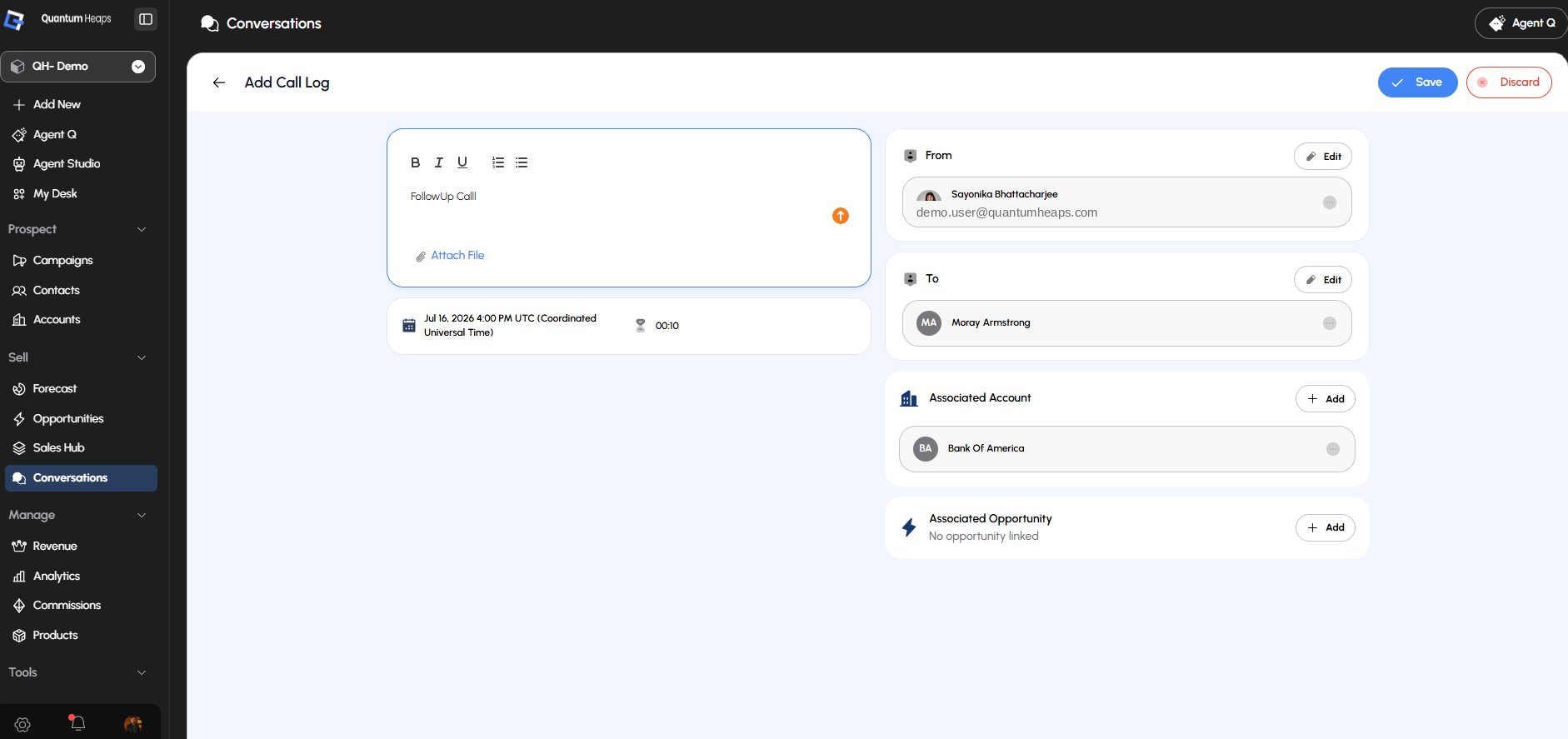
### **Logging a Call**
Click **Add ▾ → Add Call**, then:
1. Write your call notes in the rich text editor — supports formatting and lists
2. Add the date/time and duration
3. Select **From** and **To** participants
4. Link an **Associated Account** and/or **Associated Opportunity**
5. Attach a file if needed, then **Save**
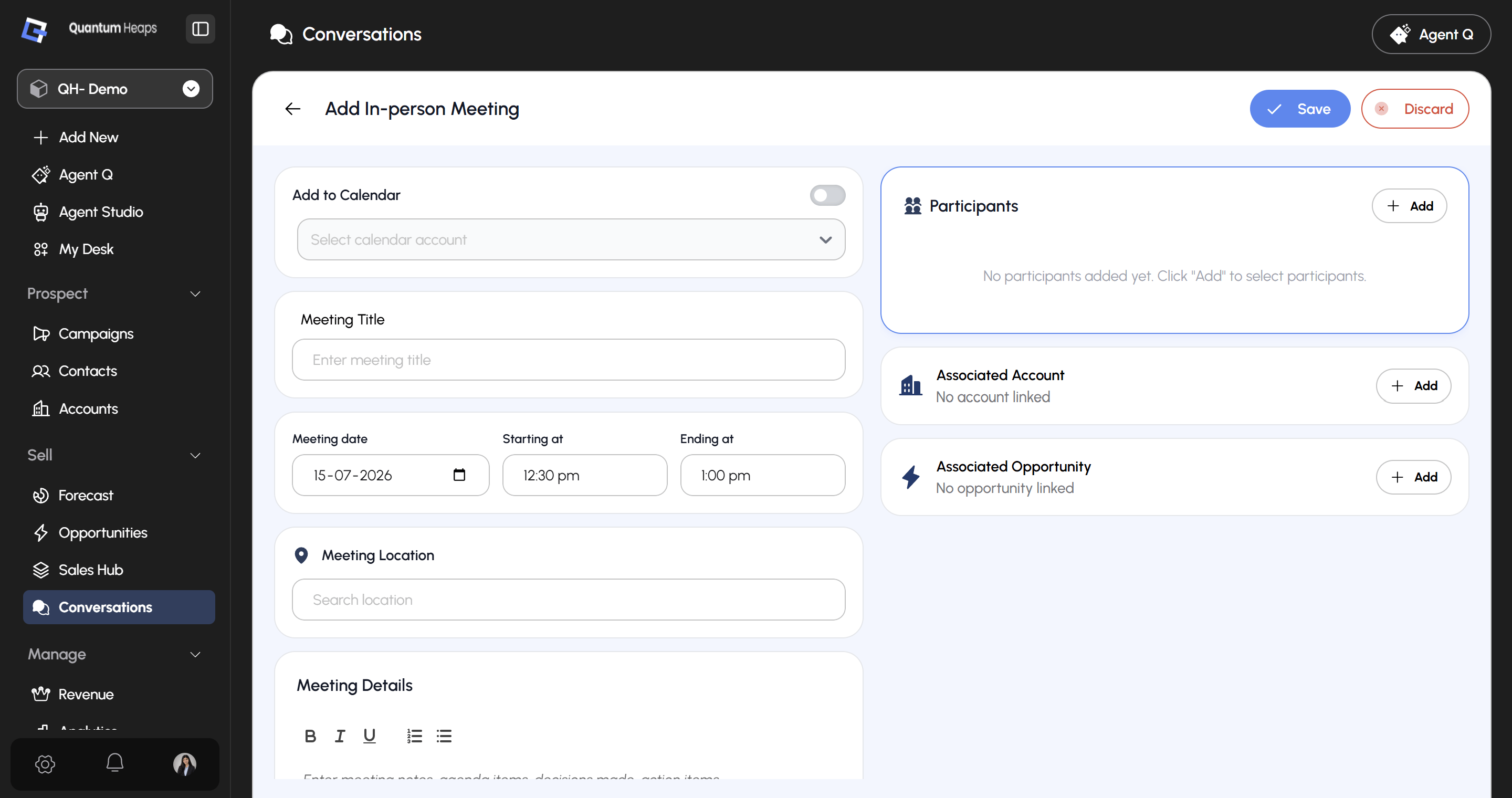
 ### **Logging an In-Person Meeting**
Click **Add ▾ → Add In-person Meeting**, then:
1. Toggle **Add to Calendar** if you want it synced to a connected calendar
2. Enter the meeting title, date, start/end time, and location
3. Add meeting notes (agenda, decisions, action items) in the rich text editor
4. Add participants and link an account/opportunity
5. **Save**
### **Logging an In-Person Meeting**
Click **Add ▾ → Add In-person Meeting**, then:
1. Toggle **Add to Calendar** if you want it synced to a connected calendar
2. Enter the meeting title, date, start/end time, and location
3. Add meeting notes (agenda, decisions, action items) in the rich text editor
4. Add participants and link an account/opportunity
5. **Save**
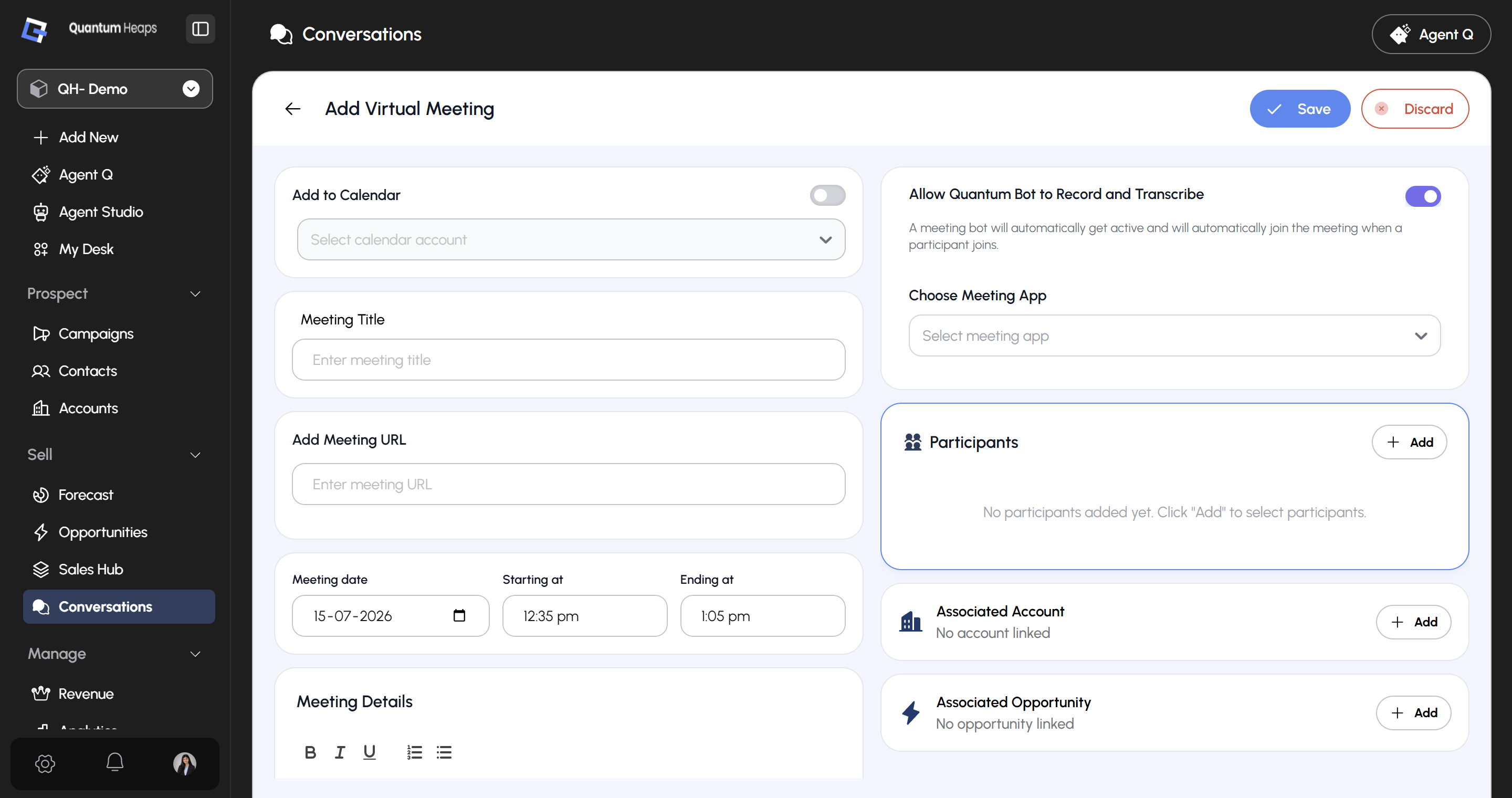
 ### **Logging a Virtual Meeting**
Click **Add ▾ → Add Virtual Meeting** — same flow as an in-person meeting, but with a **Meeting URL** field instead of a location, plus:
* **Choose Meeting App** — select Zoom, Google Meet, Teams, etc.
* **Allow Quantum Bot to Record and Transcribe** — toggle this on and the bot automatically joins and transcribes once a participant enters the call. Leave it off and no recording happens.
### **Logging a Virtual Meeting**
Click **Add ▾ → Add Virtual Meeting** — same flow as an in-person meeting, but with a **Meeting URL** field instead of a location, plus:
* **Choose Meeting App** — select Zoom, Google Meet, Teams, etc.
* **Allow Quantum Bot to Record and Transcribe** — toggle this on and the bot automatically joins and transcribes once a participant enters the call. Leave it off and no recording happens.
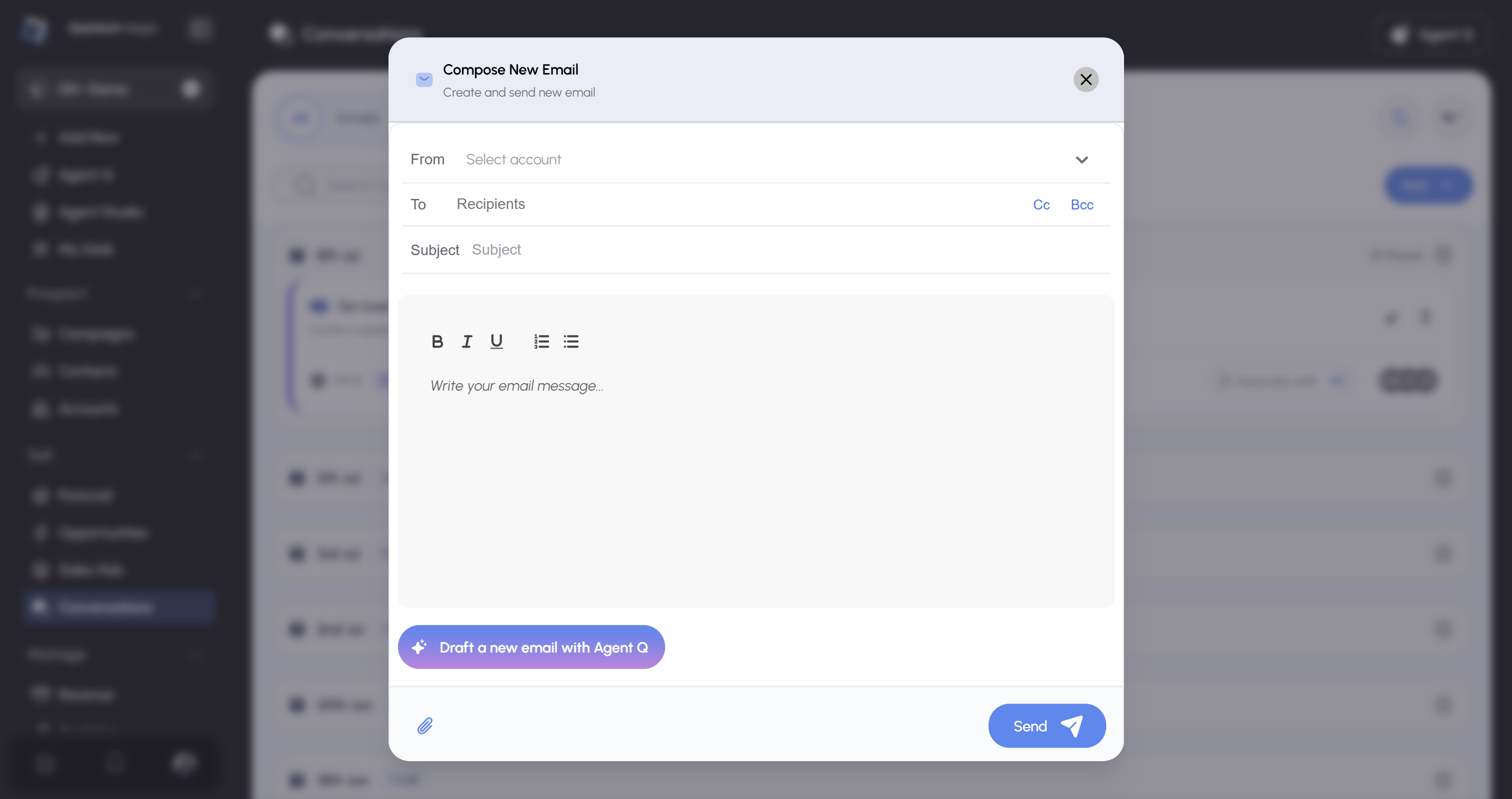
 ### **Composing an Email**
Click **Add ▾ → Compose Email**, then:
1. Choose your **From** account
2. Add recipients in **To**, and optionally **Cc**/**Bcc**
3. Write your **Subject** and body (rich text supported)
4. Attach a file if needed
5. Click **Send** — the email is automatically logged as a conversation
### **Composing an Email**
Click **Add ▾ → Compose Email**, then:
1. Choose your **From** account
2. Add recipients in **To**, and optionally **Cc**/**Bcc**
3. Write your **Subject** and body (rich text supported)
4. Attach a file if needed
5. Click **Send** — the email is automatically logged as a conversation