> ## Documentation Index
> Fetch the complete documentation index at: https://docs.quantumheaps.com/llms.txt
> Use this file to discover all available pages before exploring further.
# Accounts
**Understanding Accounts in the Quantum Heaps:**
**Overview:-** Accounts represent the companies your team sells to and supports. Every contact, opportunity, and interaction eventually rolls up to an account — it's the anchor record that shows your team who a company is, who's involved, and where things stand.
**What Accounts Are Used For**
Use the Account module to:
* Track company-level details — name, industry, headcount, address, website, and more
* See every contact, opportunity, file, and conversation tied to that company in one place
* Move accounts through pipeline stages as they progress from lead to customer
* Assign ownership and collaborate with teammates on the same account
* Keep a full audit trail of every change and activity on the record
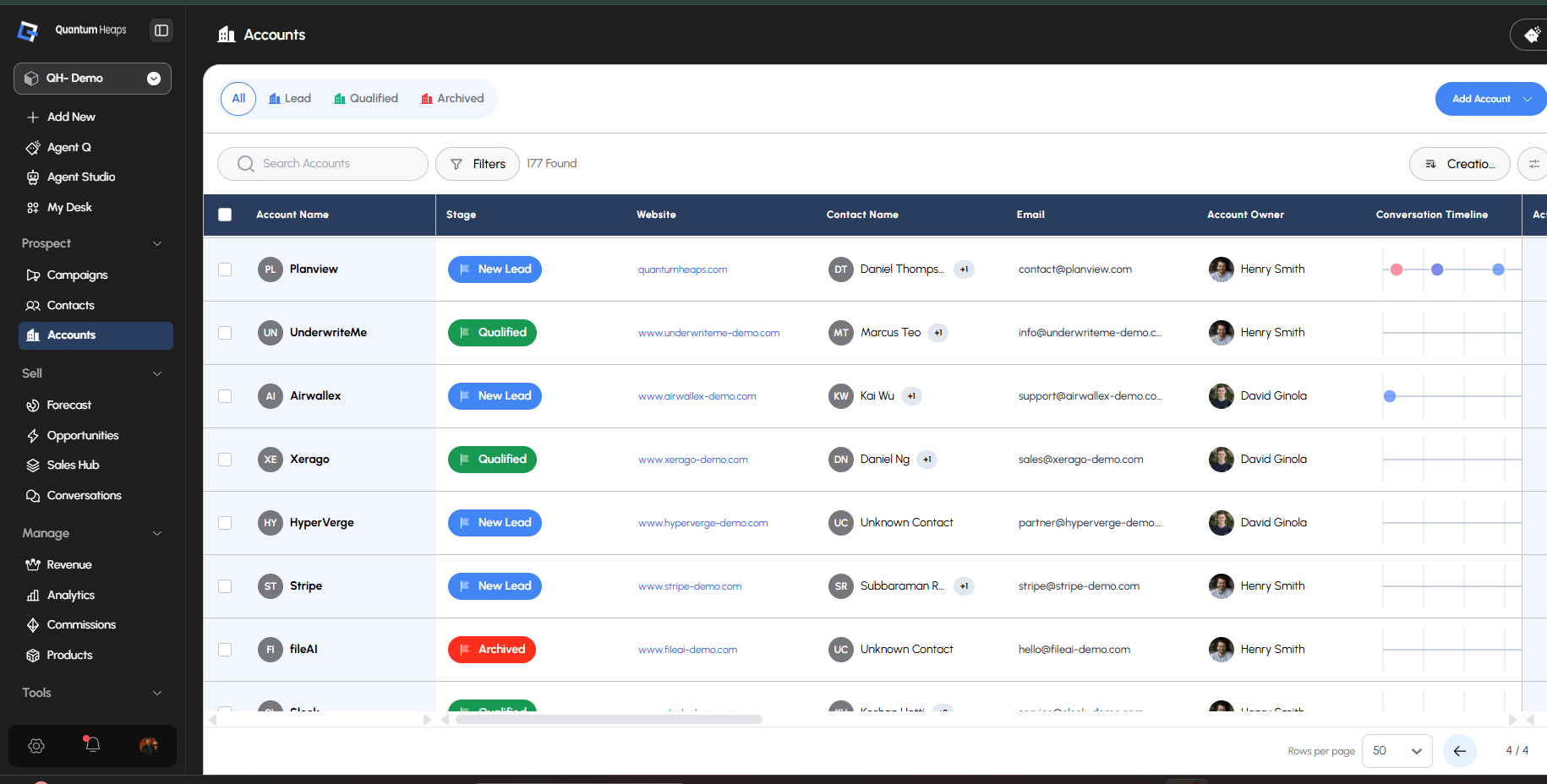 ### **Creating an Account**
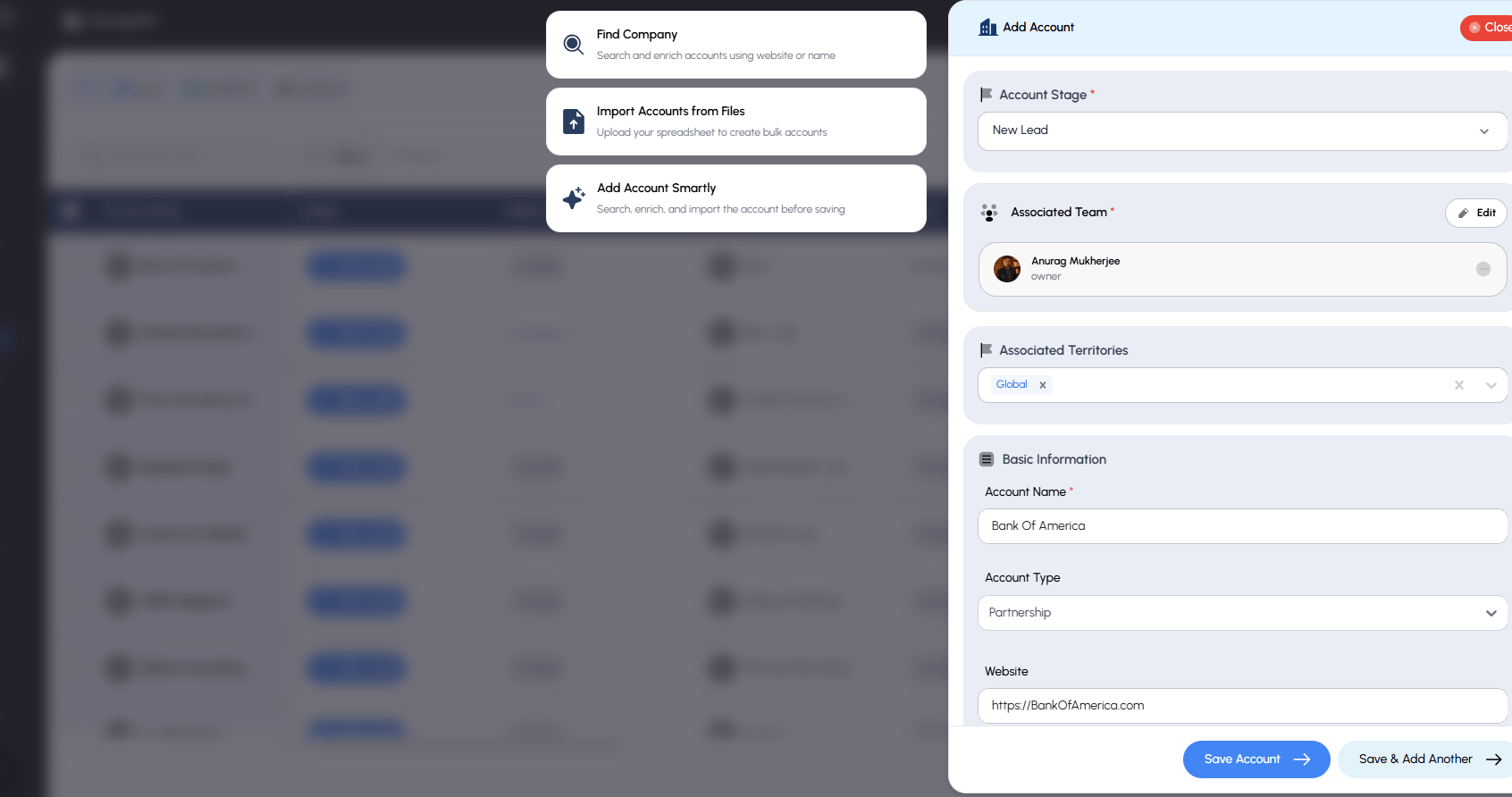
There are three ways to add an account:
1. **Find Company**
### **Creating an Account**
There are three ways to add an account:
1. **Find Company**
Search an external company database by name, website, employee count, revenue, location, or technologies used. Select a match and Quantum Heaps pulls the company's data straight into a new account — no manual typing required.
2. **Add Manually**
Click Add Account, then fill in the required fields — Account Stage and Account Name. Optionally add Website, Account Type, Phone, Email, Address, LinkedIn, Year Founded, Headcount, Industry, and any custom fields your workspace has set up. You're auto-assigned as the owner. Use Save & Add Another to keep creating accounts one after another.
3. **Import from a File**
Upload a CSV, XLSX, or XLS file (up to 5 MB) as either Accounts & Contacts or Accounts & Opportunities, then map your file's columns to account fields to complete the import.
Once created, the account is available across the CRM and can be linked to contacts and opportunities.
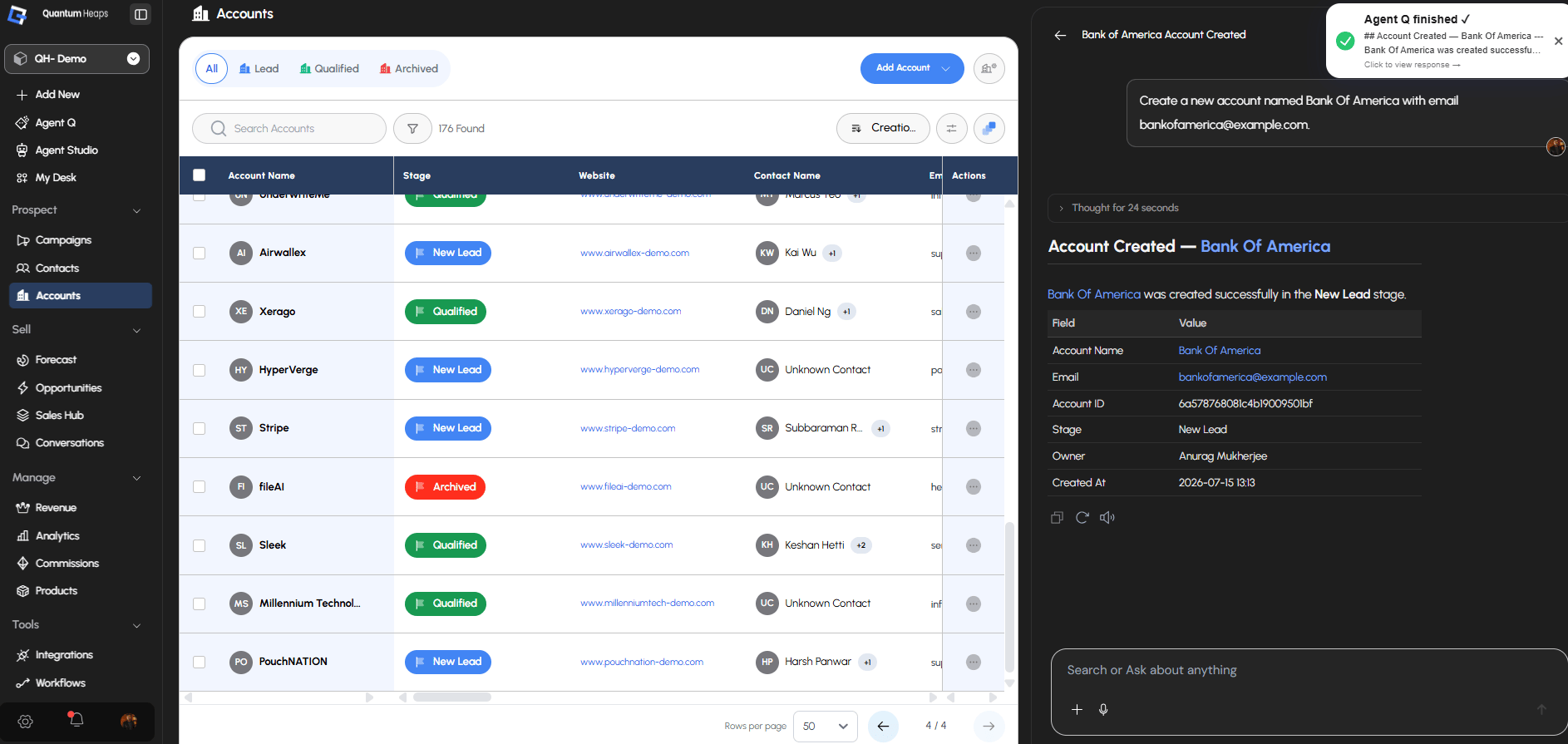
 **Create Accounts via Agent Q**
With Agent Q, creating a new account becomes a seamless, automated process. Instead of manually entering details, you simply provide a few key inputs like the account’s name, the contact name, and the relevant account stage. Agent Q then intelligently generates the account’s record, automatically linking it to the specified contact and stage. This eliminates the need for manual intervention, streamlines data entry, and ensures accuracy and consistency across your CRM workflows.
**Create Accounts via Agent Q**
With Agent Q, creating a new account becomes a seamless, automated process. Instead of manually entering details, you simply provide a few key inputs like the account’s name, the contact name, and the relevant account stage. Agent Q then intelligently generates the account’s record, automatically linking it to the specified contact and stage. This eliminates the need for manual intervention, streamlines data entry, and ensures accuracy and consistency across your CRM workflows.
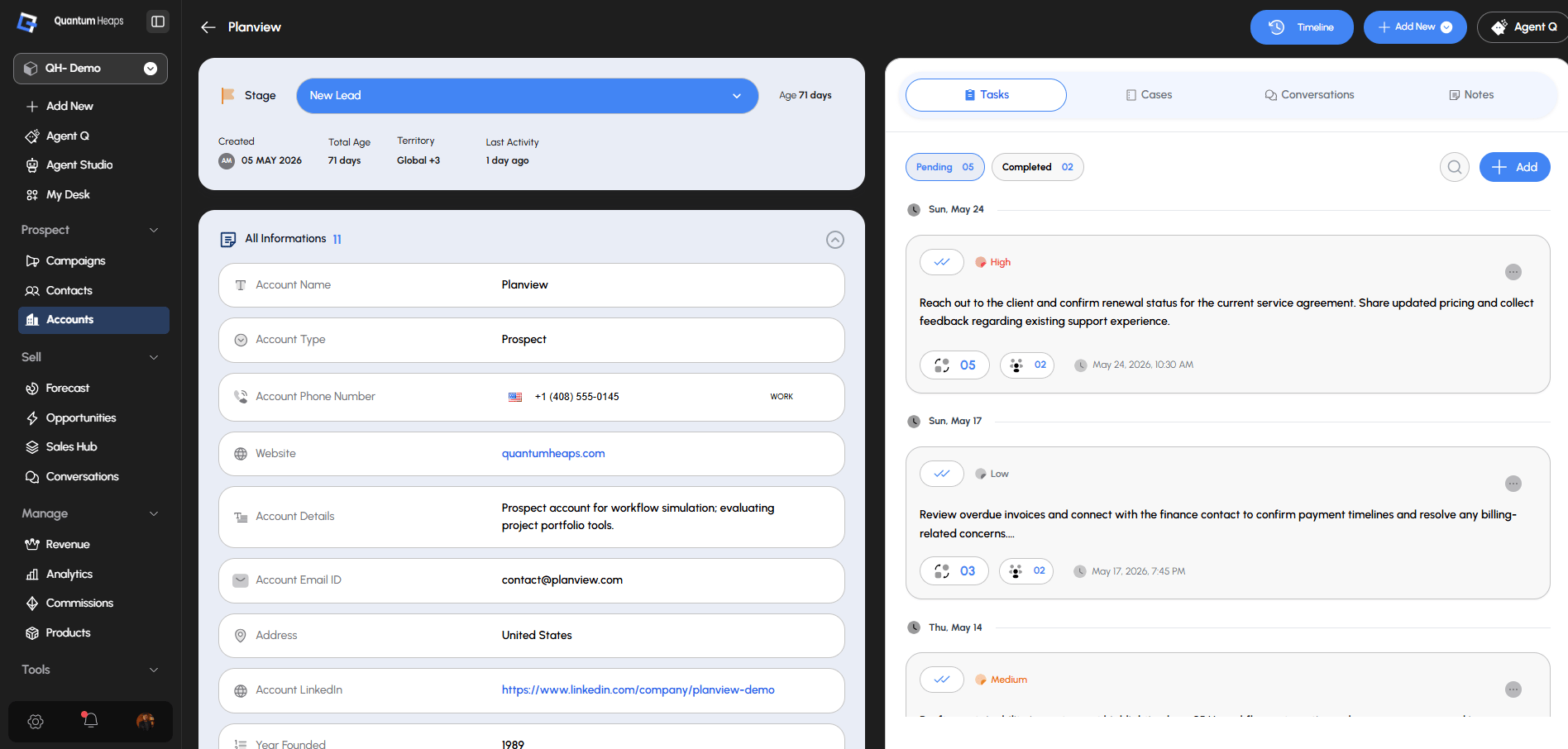
 ### **Viewing and Managing Accounts**
Open any account to see:
* **Header** — current stage (click to update it directly), age, territory, and last activity, at a glance
* **All Information** — every active account field (Name, Website, Industry, Address, Headcount, Year Founded, Account Type, and any custom fields), each editable inline
* **Associated Contacts** — everyone linked to this account, with role tags like *Primary Contact*
* **Associated Opportunities** — every deal tied to this account, with its current stage
* **Associated Team Members** — who owns and works this account
* **Associated Files** — anything uploaded to the account, with download and delete options
* **Tasks, Cases, Conversations, Notes** — activity tabs on the right panel
* **Timeline** — a complete history of every field change, association, and activity logged against the record
You can also edit fields directly from the account list (inline editing) without opening the full record.
Updating a field or stage also doesn't require opening the record — just ask Agent Q to make the change, and it'll update the account directly.
### **Viewing and Managing Accounts**
Open any account to see:
* **Header** — current stage (click to update it directly), age, territory, and last activity, at a glance
* **All Information** — every active account field (Name, Website, Industry, Address, Headcount, Year Founded, Account Type, and any custom fields), each editable inline
* **Associated Contacts** — everyone linked to this account, with role tags like *Primary Contact*
* **Associated Opportunities** — every deal tied to this account, with its current stage
* **Associated Team Members** — who owns and works this account
* **Associated Files** — anything uploaded to the account, with download and delete options
* **Tasks, Cases, Conversations, Notes** — activity tabs on the right panel
* **Timeline** — a complete history of every field change, association, and activity logged against the record
You can also edit fields directly from the account list (inline editing) without opening the full record.
Updating a field or stage also doesn't require opening the record — just ask Agent Q to make the change, and it'll update the account directly.
 ### **How Accounts Relate to Contacts and Opportunities**
* **Contacts** represent the people at that company
* **Opportunities** represent the deals tied to that company
Together, they give your team full visibility into a customer's lifecycle — from the first contact added to the deal that closes
A couple of things worth knowing:
* The contact marked **Primary Contact** on an account can't be removed while it holds that label.
* An account **can't be deleted** while it still has an opportunity linked to it — you'll need to unlink or resolve the opportunity first.
### **Standard and Custom Fields**
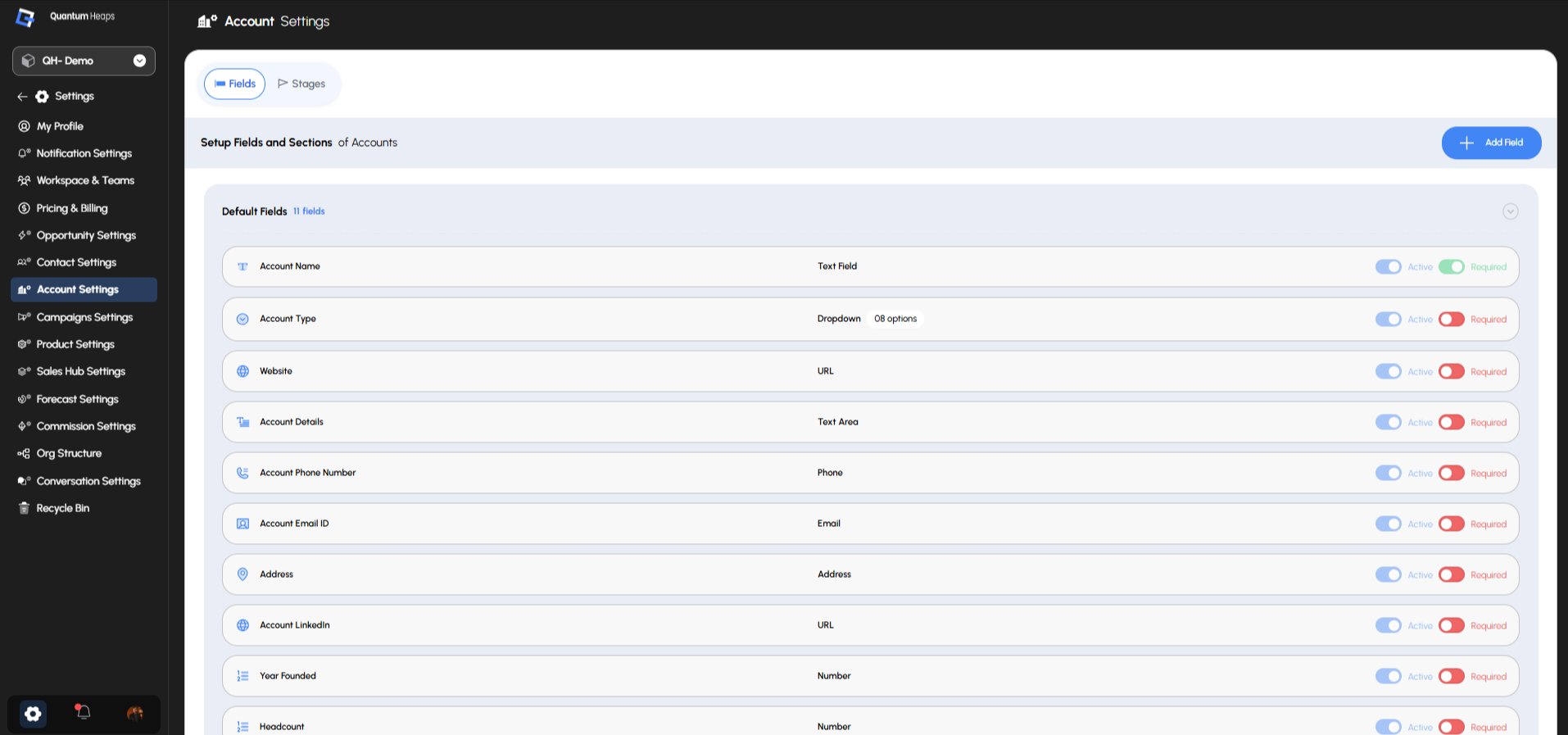
Every account comes with 18 default fields (Name, Website, Industry, Address, Headcount, and more). Admins can control which of these are active and required from **Account Settings → Fields**. You can also add custom fields to match your own sales process — for example, Tier, Segment, or Priority — and set field-level permissions per role at the same time.
### **How Accounts Relate to Contacts and Opportunities**
* **Contacts** represent the people at that company
* **Opportunities** represent the deals tied to that company
Together, they give your team full visibility into a customer's lifecycle — from the first contact added to the deal that closes
A couple of things worth knowing:
* The contact marked **Primary Contact** on an account can't be removed while it holds that label.
* An account **can't be deleted** while it still has an opportunity linked to it — you'll need to unlink or resolve the opportunity first.
### **Standard and Custom Fields**
Every account comes with 18 default fields (Name, Website, Industry, Address, Headcount, and more). Admins can control which of these are active and required from **Account Settings → Fields**. You can also add custom fields to match your own sales process — for example, Tier, Segment, or Priority — and set field-level permissions per role at the same time.
**Stages**
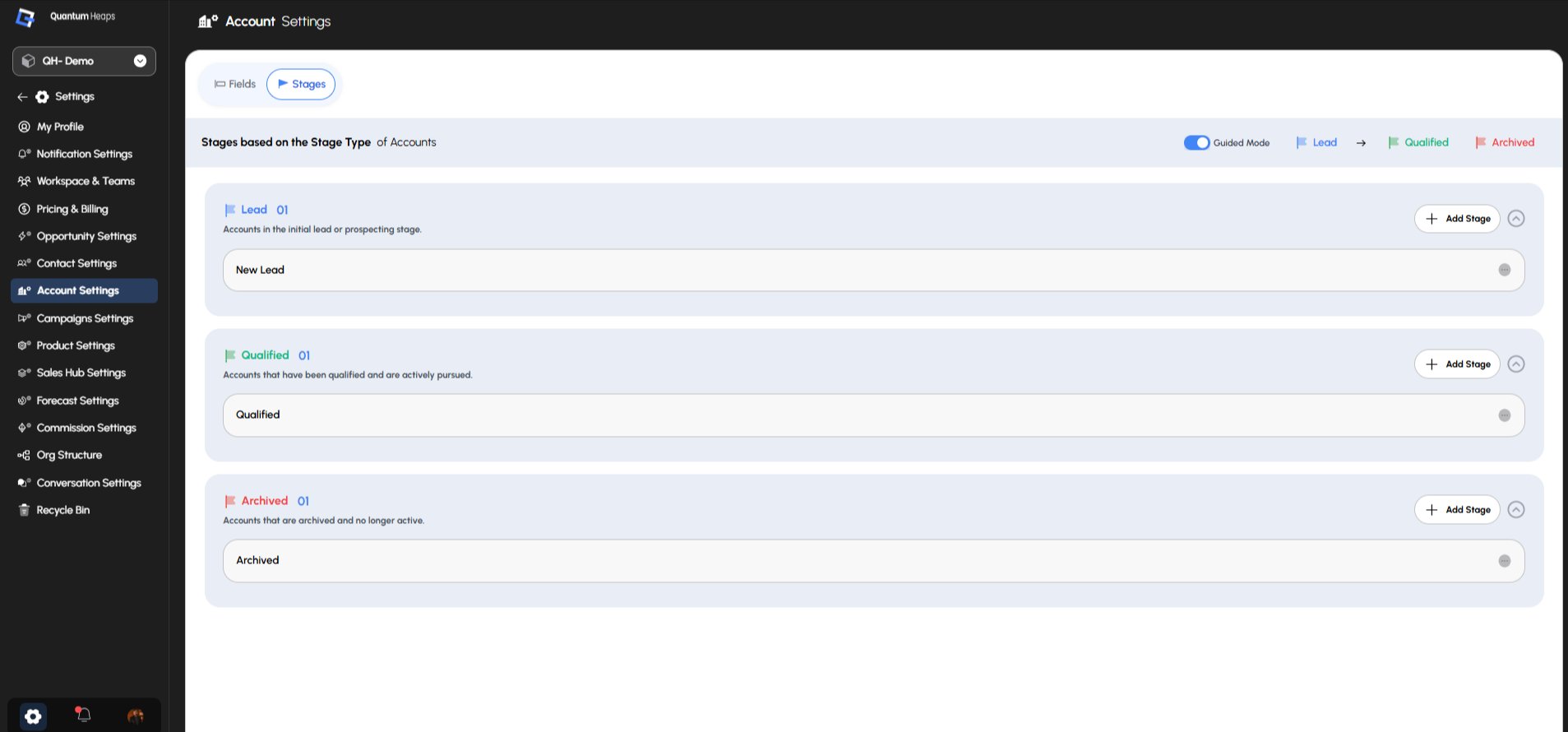
Admins manage pipeline stages the same way, under **Account Settings → Stages** — each stage is tagged as Lead, Qualified, or Archived, and can be reordered or edited at any time. Users can also create custom stages as per the business requirements.
 ### **Bulk Actions**
Select multiple accounts from the list to **bulk edit** a field, **delete**, **assign a team member**, **change stage**, or **add a task/note** — applied to every selected record in one step.
### **Finding and Merging Duplicates**
Click **Manage Duplicates**, choose a detection method — same email, same phone, or same custom field — review the matched groups, choose which values to keep, and merge. Closing the dialog without merging applies no changes.
Or skip the manual review — ask Agent Q to find and merge duplicate accounts, and it'll handle the detection and merge for you.
### **Bulk Actions**
Select multiple accounts from the list to **bulk edit** a field, **delete**, **assign a team member**, **change stage**, or **add a task/note** — applied to every selected record in one step.
### **Finding and Merging Duplicates**
Click **Manage Duplicates**, choose a detection method — same email, same phone, or same custom field — review the matched groups, choose which values to keep, and merge. Closing the dialog without merging applies no changes.
Or skip the manual review — ask Agent Q to find and merge duplicate accounts, and it'll handle the detection and merge for you.